
SERVEUR D'IMPRESSION TOUT-EN-UN SANS FIL G #F1UP0002FR - Wireless Print Server BELKIN - Free user manual and instructions
Find the device manual for free SERVEUR D'IMPRESSION TOUT-EN-UN SANS FIL G #F1UP0002FR BELKIN in PDF.


| Product Type | All-in-One Wireless Print Server |
| Brand | BELKIN |
| Model | F1UP0002FR |
| Main Functions | Print sharing, scanning, faxing, memory card reader via network |
| Network Connectivity | Wireless IEEE 802.11g/b (up to 54 Mbps), Ethernet 10/100 Mbps |
| Ports | 1 USB 2.0/1.1 port for printer, 1 RJ45 Ethernet port |
| Supported Print Protocols | LPR, RAW, IPP |
| Compatible Operating Systems | Windows 98SE/Me/NT/2000/XP/2003, UNIX, Linux, Mac OS X v10.2.x and later |
| Operating Mode | AIO-PS mode (all-in-one print server) and PS mode (standard print server) |
| Configuration | CD-ROM installation wizard, all-in-one print manager, web configuration |
| Wireless Security | WEP 64/128 bit, WPA-PSK (TKIP/AES) |
| LED Indicators | Wireless connection, server/printer status, network activity |
| Reset Button | Simple reset (5s) or factory reset (>5s) |
| Power | External power adapter included |
| Package Contents | Server, removable antenna, power adapter, quick installation guide, Ethernet cable, mounting kit, CD-ROM |
| Installation | Flat surface or mounting on printer with adhesive kit |
| Remote Management | Web interface (browser) with default IP address 192.168.2.253 |
| Default Credentials | Username: admin, password: 1234 |
| Multifunction Compatibility | Sharing of print, scan, fax, card reader functions |
| Print Management | Automatic release after inactivity (5-255 min), favorites list, automatic connection |
| Firmware Upgrade | Via utility or web interface |
| Safety and Standards | Class B, FCC, CE, Canada NMB-003 |
| Warranty | Belkin Lifetime Warranty (free replacement) |
| Spare Parts and Repairability | No user-serviceable parts; contact Belkin support |
| Maintenance | Clean with a dry, soft cloth; avoid moisture |
Frequently Asked Questions - SERVEUR D'IMPRESSION TOUT-EN-UN SANS FIL G #F1UP0002FR BELKIN
User questions about SERVEUR D'IMPRESSION TOUT-EN-UN SANS FIL G #F1UP0002FR BELKIN
0 question about this device. Answer the ones you know or ask your own.
Ask a new question about this device
Download the instructions for your Wireless Print Server in PDF format for free! Find your manual SERVEUR D'IMPRESSION TOUT-EN-UN SANS FIL G #F1UP0002FR - BELKIN and take your electronic device back in hand. On this page are published all the documents necessary for the use of your device. SERVEUR D'IMPRESSION TOUT-EN-UN SANS FIL G #F1UP0002FR by BELKIN.
USER MANUAL SERVEUR D'IMPRESSION TOUT-EN-UN SANS FIL G #F1UP0002FR BELKIN
2 Getting to Know your Print Server 7
LEDs 7
Reset Button. 8
3 Placement of the Print Server 9
Placement on a Flat Surface 9
Mounting on a Printer 9
4 Installation Procedure 10
Step 1. Connecting Devices to your Print Server 10
Step 2. Installing Software 11
Step 3. Configuring Wireless Settings 19
Step 4. Installing MFP Drivers/Utilities. 23
Adding New Client Computers to Print-Server Setup 29
5 Operating Print Server & Using the MFPs. 30
Share Print 30
Share Scan 31
Share Card Reader 32
Fax a File. 33
6 All-In-One Print Manager 35
Print Server List 35
My Favorite 38
Auto Connect List. 39
Quick Setup 42
General Settings. 43
7 Print Server Manager 45
Introduction. 45
Search for Print Servers 46
Status of Print Servers 47
Set Up the All-In-One Print Server 48
General Configuration. 49
TCP/IP Configuration 50
System Configuration 55
Wireless Configuration 56
Print-Server Management. 65
Report. 66
8 Web Management 67
Introduction. 67
Login 67
Device Settings. 68
Setup Server 69
Wireless 70
Setup TCP/IP 75
Utilities 78
Home|Help|Logout 80
9 LPR Printing 82
10 RAW Printing. 88
11 IPP Printing. 94
Introduction. 94
System Setup 94
12 Print-Server Installation in Windows 98SE/Me/NT. 99
Software-Installation Procedure. 99
Network-Port Setup 110
Add Printer 111
13 UNIX/Linux-System Network 116
Introduction. 116
Setup and Configuration. 121
14 Print-Server Installation in Mac OS. 125
15 Troubleshooting 129
16 Certifications 133
17 Warranty. 136
Thank you for purchasing and using our Wireless G (the Print Server). This innovative product easily shares your standard printer or all-in-one, multifunction printer (MFP) on your network. Unlike many print servers, it can communicate with MFPs and standard printers as if connected directly to your computer. Advanced features let you print, scan, read media cards, and fax through the network. The Print Server offers bidirectional communication with MFPs and standard printers, to help monitor important details such as ink and paper levels.
The Print Server supports print, scan, card-reader, and fax-sharing functions for most popular operating systems such as Windows® 2000 SP4 and higher, and XP SP1 and higher. It also supports Windows XP scanning utility and MFP vendors' scanning utilities.
This product can also be used as a traditional print server. It supports Transmission Control Protocol/Internet Protocol (TCP/IP), Line Printer Remote (LPR) technology, Read-After-Write (RAW), and Internet Printing Protocols (IPPs). It can share print functions in the various common network operating systems including Windows 98SE, Me, NT®, 2000, XP, and 2003; UNIX®; Linux®; and Mac OS® X v10.2.x and above.
This Print Server provides IEEE 802.11g/b wireless LAN (up to 54Mbps data-transfer rate), an Ethernet network port (10/100Mbps Ethernet), and one USB 2.0/1.1 port for MFPs or standard printers. The Print Server can be easily connected to your 802.11g/b wireless or wired network.
Product Features
The Print Server simultaneously supports dual functionalities: All-In-One-Print-Server mode (AIO-PS mode) and Print-Server mode (PS mode). Users can choose one of the modes in which to share MFP or standard-printer functions through the Print Server.
Wireless Computers
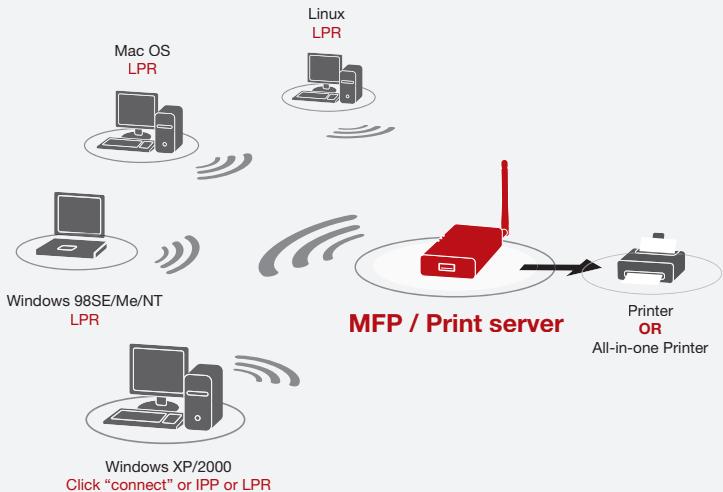
AIO-PS (All-In-One Print-Server) Mode
The Print Server can communicate with MFPs and standard printers as if it is connected directly to your computer. This enables users to connect to MFPs for sharing print, scan, card-reader, and fax functions. If the Print Server is connected to a standard printer but not to an MFP, users still can share the printing function through the operation mode. In this mode, the supported operating system is Windows 2000 SP4 and above, and Windows XP SP1 and above. AIO-PS mode doesn't support Windows 98SE, Me, or NT; Linux/UNIX; or Mac OS. For the detailed applications, refer to the following chapters:
Installation Procedure" on page 10
- Operating All-In-One Print Server & Using the MFPs" on page 30
All-In-One Print Manager" on page 35
PS (Print-Server) Mode
The Print Server also supports LPR, IPP, and RAW printing protocols, which enable users to share the print function from an MFP or a standard printer. The supported operating systems are Windows 98SE, Me, NT, 2000, XP, and 2003; UNIX; Linux; and Mac OS X v10.2.x and above. For the detailed applications, refer to the following chapters:
LPR Printing
- RAW Printing
- IPP Printing
All-In-One Print Server Installation in Windows 98SE/Me/NT
UNIX-System Network
- All-In-One Print Server Installation in Mac OS
Package Contents
This package contains the following components:
Belkin Wireless G All-In-One Print Server
- Detachable Antenna
Power Adapter
Quick Installation Guide
RJ45 CAT5e Ethernet Cable
Self-Attaching Mounting Kit
- CD-ROM (Including all the software utilities, drivers, and User Manual)
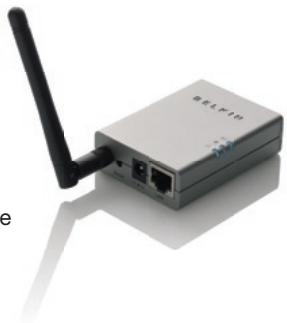
LEDs
The Print Server features three LEDs that provide information about a) your wireless connection, b) your Print Server and printer status, and c) your LAN activity.
{a} Wireless-Connection LED
Solid Blue The Print Server is connected to a wireless access point (AP) or station.
Blinking Blue The Print Server is trying to connect to the AP or station.
Off The wireless mode of the Print Server is disabled.
(b) Print-Server and Printer-Status LED

Solid Blue Firmware is being upgraded to the Print Server. (If the Print Server upgrade fails, the LED will light steadily.)
Blinking Blue The printer is connected (blinks regardless of whether or not print jobs are being processed by the Print Server).
Off No link is established with the printer, or the printer is turned off.
(c) LAN-Link/Activity LED

Solid Blue The LAN cable is connected to Print Server.
Blinking Blue Data is being transmitted and received through this port.
Off No link is established.
Reset Button
Reset (Press the "Reset" button with a pencil tip for less than 5 seconds)
- While the Reset button is pressed, the Wireless-Connection, and Print-Server and Printer-Status LEDs will be OFF, awaiting the user to the release the button to reboot.
- When the Print Server is rebooting, the Wireless-Connection, and Print-Server and Printer Status LEDs will briefly turn ON and then OFF.
Reset to factory default (Press the "Reset" button with a pencil tip for longer than 5 seconds)
- When the Print Server is reset to default, the Wireless-Connection, and Print-Server and Printer-Status LEDs will be OFF in the beginning and then briefly turn ON and then back OFF. After rebooting, the Print Server will reset to factory-default settings
The Print Server can be placed on a flat surface or mounted on an MFP or standard printer.
Placement on a Flat Surface
- Make sure the Print Server is placed in an area that allows for proper ventilation.
- Place on a flat surface.
Mounting on a Printer
- Attach the self-adhesive, double-sided mounting kit to the back of the Print Server. Make sure not to stick the adhesive side over the ID label of the Print Server. You might need to refer back to the ID label for the MAC-address and serial-number information.
- Place the Print Server on the side or the back of the printer as shown here
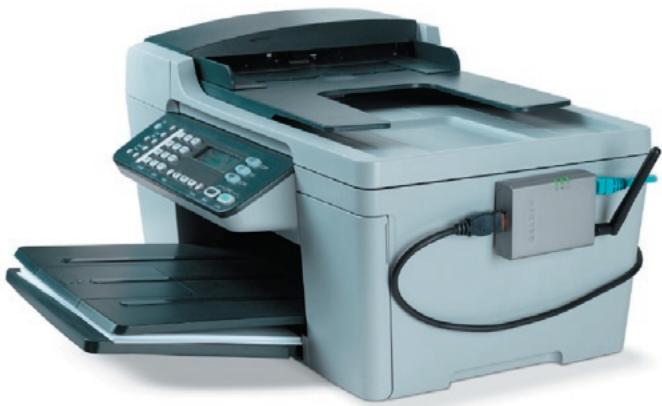
Step 1. Connecting Devices to your Print Server
Before you start, you should have:
One computer with Windows 2000 SP4 or above, or Windows XP SP1 or above
One MFP or standard printer with a USB port and an installation CD
One Category 5 Ethernet cable
One USB cable (not included—usually comes with printer)
- Unpack the Print-Server package and verify that all the items listed are provided.
- Connect the Print Server to your network by attaching one end of the network cable to the Print Server's network port and the other to an available port on your router.
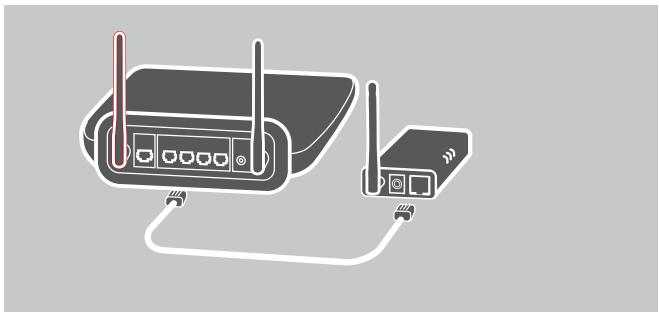
- Plug one end of the power adapter to the Print Server and the other into an electrical outlet. The Print Server will perform a Power-On Self-Test (POST) after it is powered on. When the Status LED light goes off, the Print Server is ready.
Note:
- You must use the power adapter shipped along with the Print Server; do NOT use any other power adapter.
- To prevent compatibility problems, power on the Print Server before powering on the printer.
- Before connecting the standard printer via USB cable, read the printer's manual. Some printers require users to install drivers and utilities before connecting to the computer. Some printers also require users to connect the printer to the computer during installation.
Step 2. Installing Software
Before you start, verify your computer's operating system. This program can be run in Windows 2000 SP4 or above, and Windows XP SP1 or above.
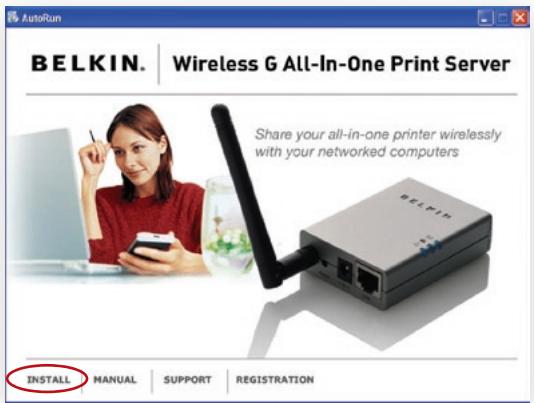
- Insert the included CD into your CD-ROM drive. The autorun.exe program should start automatically. If it does not, run autorun.exe manually from your CD-ROM drive. To do this, manually navigate to your CD-ROM drive and double-click on "autorun.exe" to start the install.
- The following screen will be displayed. Click "Install" to launch the Installation Wizard.
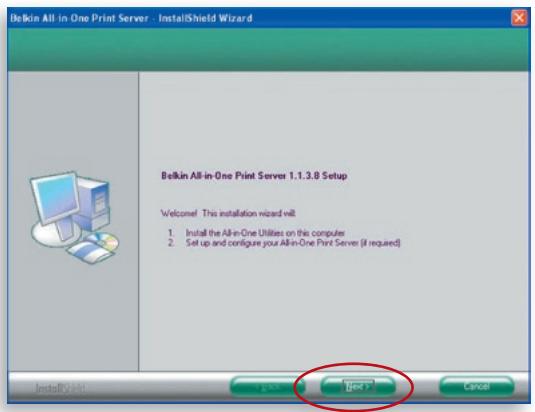
- The Belkin All-In-One Print Server - InstallShield Wizard appears. Click "Next".
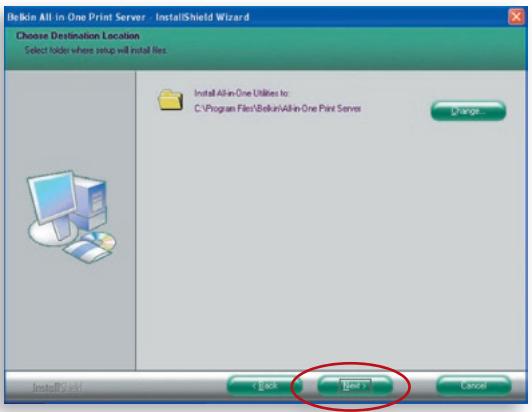
- Click "Next" to install the Print-Server utilities in the default folder (recommended), or click "Change" to specify the destination folder where you would like to install the Print-Server utilities.
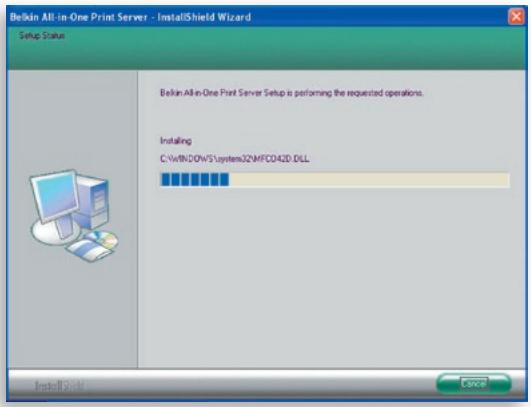
- The system starts installing the Print-Server utilities.
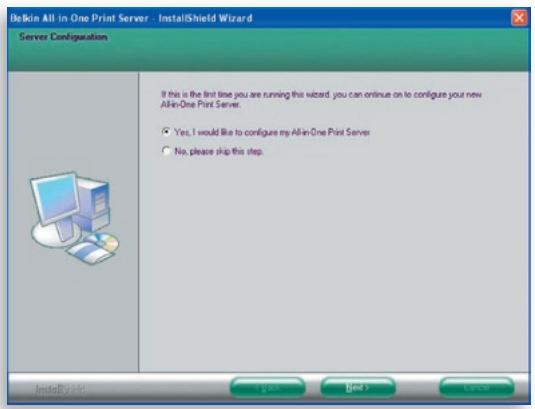
- The "Server Configuration" screen will appear. To configure the Print Server, click "Next" (recommended for first install) and go to step 7, following.
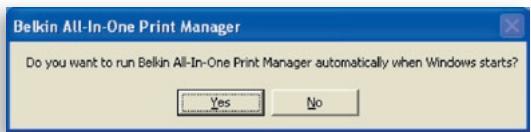
If you do not want to configure the Print Server at this point, select "No, please skip this setup". Then, click "Next" to complete the installation (when adding a new client computer to share a preexisting print-server setup). Indicate whether or not you want to run the Belkin All-In-One Print Manager utility automatically when Windows starts. We recommend that you run the Print Manager when Windows starts.
The following steps are for Print-Server configuration upon choosing "Yes, I would like to configure my All-In-One Print Server".
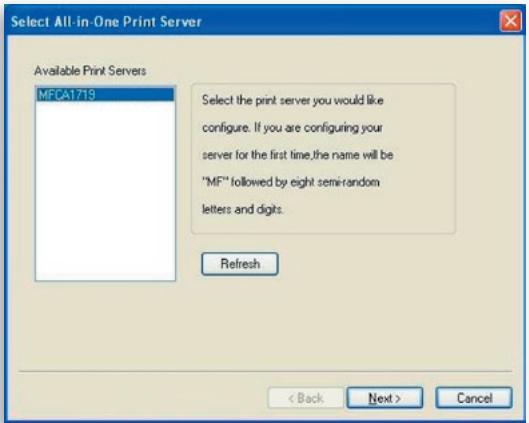
- The Print Server List will search for Print Servers on the network. Select the "Wireless G All-In-One Print Server" and click "Next".
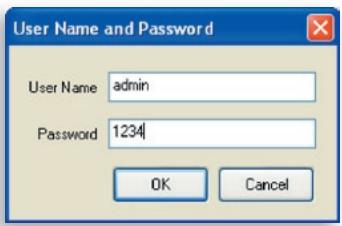
- Enter the user name and password of the Print Server you have selected to log in. The default user name is "admin"; the default password is "1234".
- Set the alias name and description of the Print Server here. Click "Next".
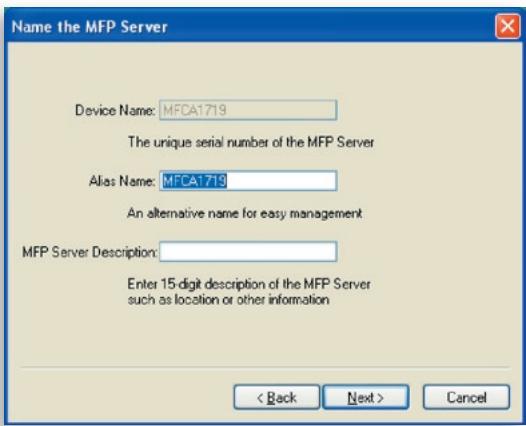
Note: You can define the printer's location or other information about it in the "MFP Server Description" field.
- To set up the IP address of the Print Server, the default is set to "DHCP" for the TCP/IP configuration.
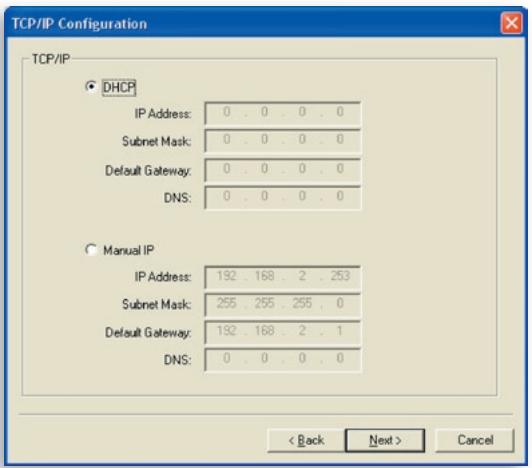
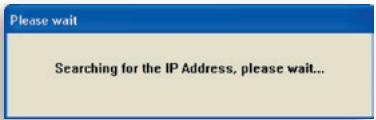
The Print Server by default will try to get an IP address from the connected Belkin Router running the Dynamic Host Configuration Protocol (DHCP) server and the following screen will appear.
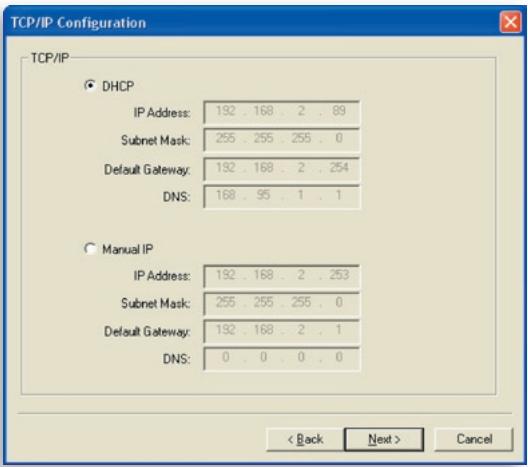
The newly assigned TCP/IP settings will be displayed in the "TCP/IP Configuration" window for your reference. Click "Next" to continue on to step 3 in the installation process.
If the DHCP server is unavailable or not found, the user will be prompted to configure the TCP/IP settings of the Print Server manually by clicking "Yes" on the screen below. Clicking "No" will make the Print Server search for the IP address from a DHCP server on the network.
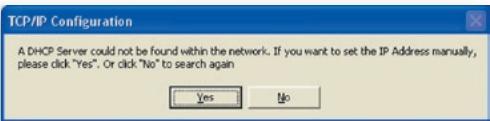
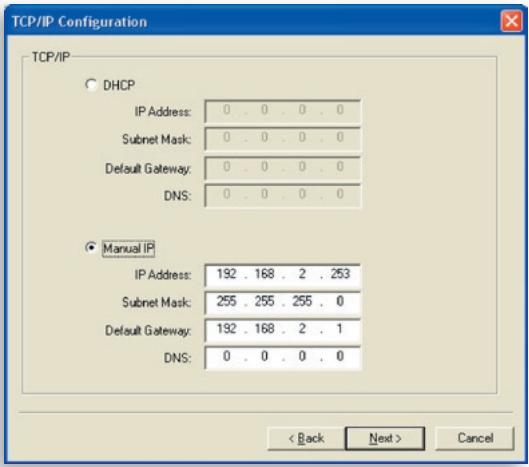
Select "Yes" to configure the TCP/IP settings in the "Manual IP" section. The default TCP/IP-address information in the Manual-IP mode will be what is shown below.
IP Address: 192.168.2.253
Subnet Mask: 255.255.255.0
Default Gateway: 192.168.2.1
DNS: 0.0.0.0
Make sure that the TCP/IP information configured here is correct and matches your network settings. Click "Next" to continue on to step 3 in the installation process.
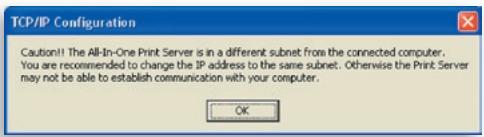
The Print Server will check if the manually configured IP address in "TCP/IP Configuration" is in the same subnet as the connected computer running the installation utility. If the TCP/IP-address settings configured manually are in a different IP subnet than that of the connected computer, the user will be prompted by the alert message shown below. Click "OK" to go back and configure the correct IP-address settings for the Print Server.
Note: If you want to change the TCP/IP settings of the Print Server at some point after the installation, you can use the Server-Manager utility's TCP/IP- configuration option.
Step 3. Configuring Wireless Settings
- The default wireless setting is "Auto" mode. The Print Server will detect a connection to a wired-LAN network through the attached Ethernet cable. If the Print Server is connected to a wired network, it will work in that network. To enable wireless mode, the Ethernet cable must be disconnected after final configurations. However, the Ethernet cable needs to stay plugged in for the required wireless configurations in this section. For more detailed information about wireless settings, refer to the "Wireless Configuration" section.
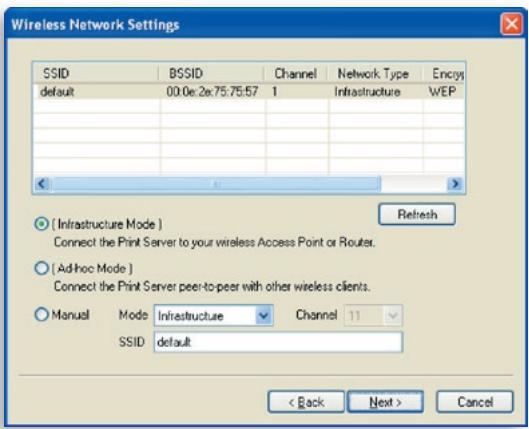
- The "Wireless Network Settings" screen of the Print Server will automatically scan the wireless networks nearby. Select the wireless network to which you would like to connect and click "Next". Alternatively, you can manually enter the wireless-network information ("Manual" mode).
The default wireless settings are as follows:
Mode: Infrastructure
SSID: Default
Channel: 11
- If you choose to connect to an encrypted network, the "Wireless Security Settings" screen will appear. Select "Security Mode" and enter the security settings of your wireless network. You can select one of several security settings: "None", "WEP", or "WPA" with cipher mode "TKIP" or "AES".
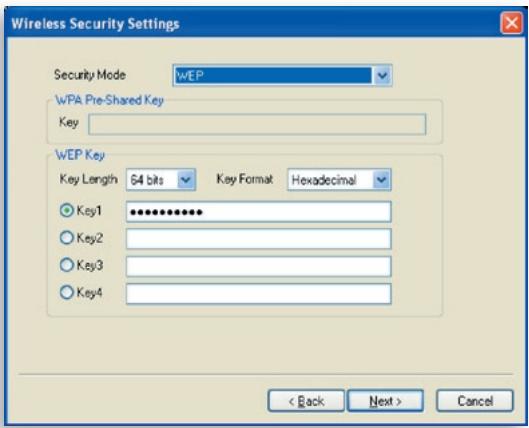
- The configurations are now finished. Click "Finish" to confirm your new settings.
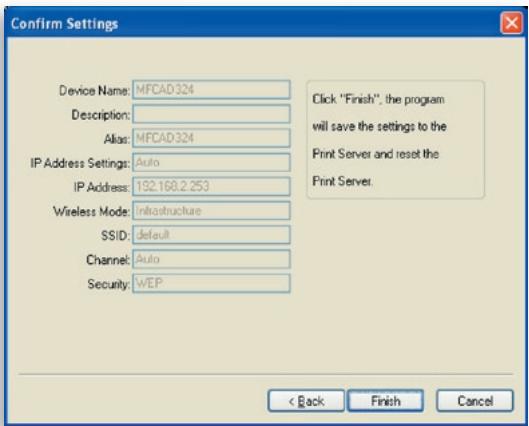
- Click "Finish" to complete the installation.
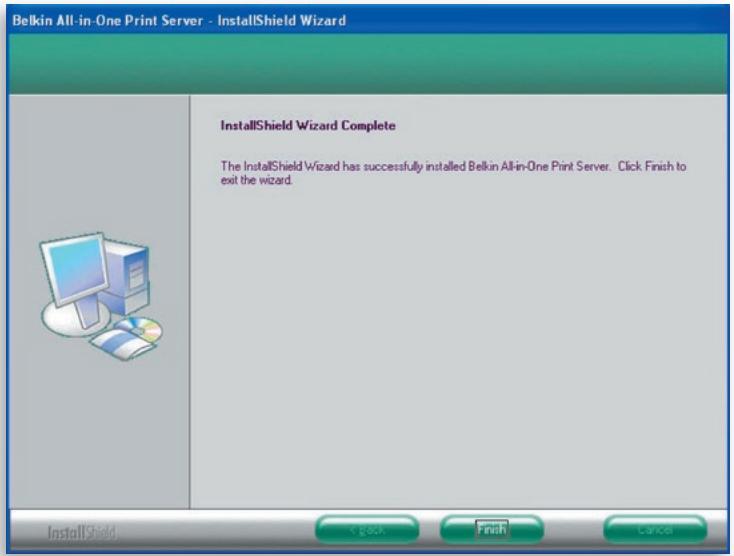
Note: If the Windows XP firewall in your system has been enabled, the Print Server will automatically open some necessary ports for the Print-Server program to run smoothly on your system. These ports will only be opened for computers in your own local IP network and will not jeopardize safety of your system.
- Indicate whether or not you want to run the Belkin All-In-One Print Manager utility automatically when Windows starts. We recommend that you do run the Print Manager when Windows starts.
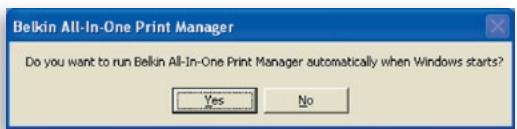
You will now start seeing the Print-Server logo on your computer's system tray.

At this point, disconnect the Ethernet cable between your Print Server and your router to enable the wireless functionality of your Print Server.
Store the Ethernet cable in a safe place in case it is needed to reconfigure the Print Server at some point in the future.
All-In-One Print Server Utilities
After the installation is completed, there will be three utilities and a text file in the Print Server's Program folder.
All-In-One Print Manager - Allows you to manage the connection between the printer and your computer for sharing the printer's various functions.
Server Configuration - Allows you to configure the Print Server's IP address, network protocols, and other advanced features. It also allows you to manage the Print Server.
Uninstall - Assistant for removing all installed Print-Server software programs.
About Version - Display the version of each utility including in the Print-Server software programs
Step 4. Installing MFP Drivers/Utilities
When the Print-Server installation is complete, the "Belkin All-In-One Print Manager" window will appear. Once a printer is connected to the Print Server via a USB cable, the Print Manager will automatically display its name in the Print Server List.
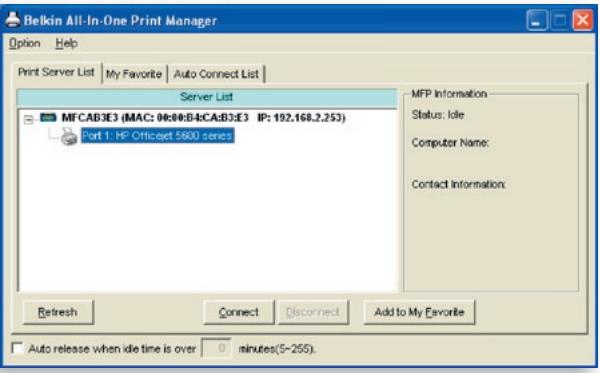
Before you start to install the printer selected from the Print Server List, check your computer's printer-installation status.
- Printer drivers/utilities have not been installed on your computer; refer to section 4.1.
- Printer drivers/utilities have been already installed on your computer; refer to section 4.2.
4.1 Printer drivers/utilitys have not been installed
Before the installation, read the printer's manual. Some printers require users to install the drivers/utilities before connecting the printer to your computer. Some printers require connecting the printer to your computer during the installation. Refer to the illustration below of "HP All-In-One Series," which is the screen displayed during the installation.
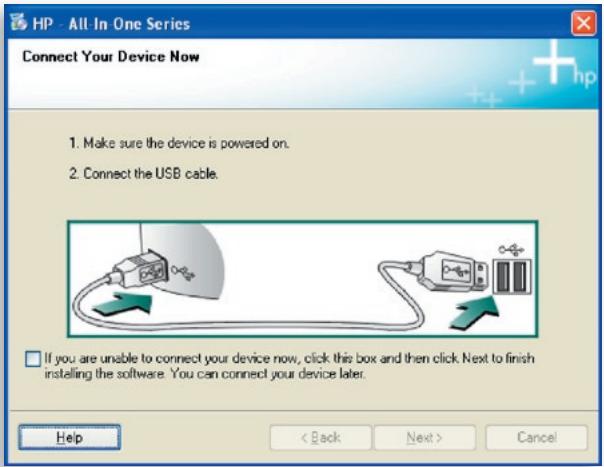
To connect the printer to your computer through the Print Server just like you have directly connected the printer to your computer through the USB cable, you can follow the steps below.
- Select the printer that you want to install in the PrintServer list and click the "Connect" button.
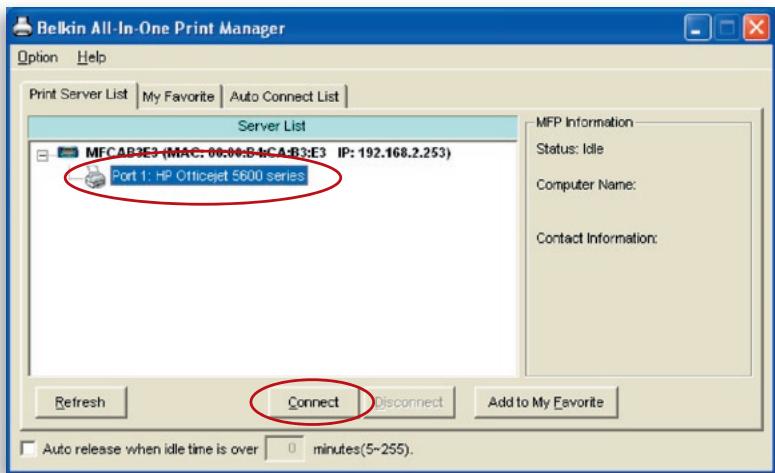
- Windows will detect the new hardware and prompt to install the Print-Server drivers and then the printer drivers. When the system stops prompting, the drivers are all installed. If the system cannot find the printer drivers, insert the printer's installation CD to find the drivers.
- After you have completed the printer installation, you will see the printer is added to "Printers and Faxes" under your Windows operating system.
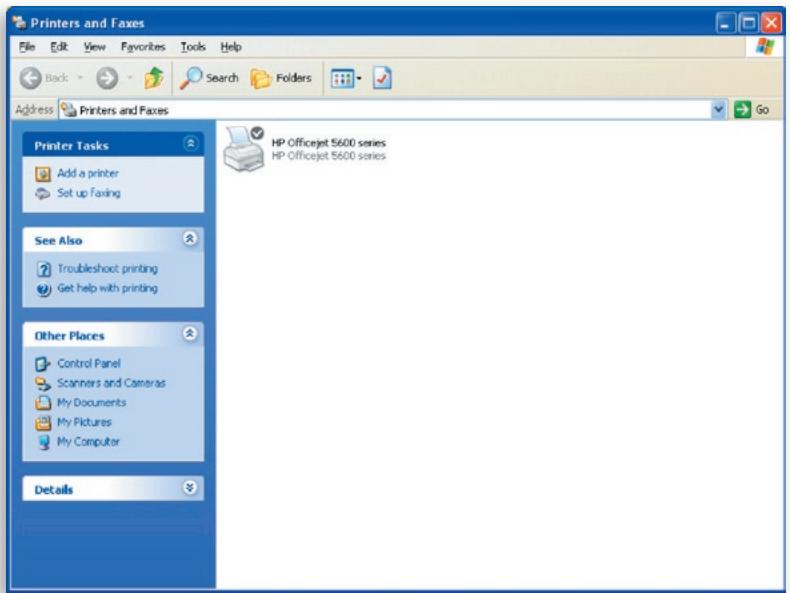
4.2 Printer drivers/utilities have been installed
- To bind the already-installed printer drivers/utilities with the Print Server, follow the steps below. Select the printer that you want to install in the PrintServer list and click the "Connect" button.
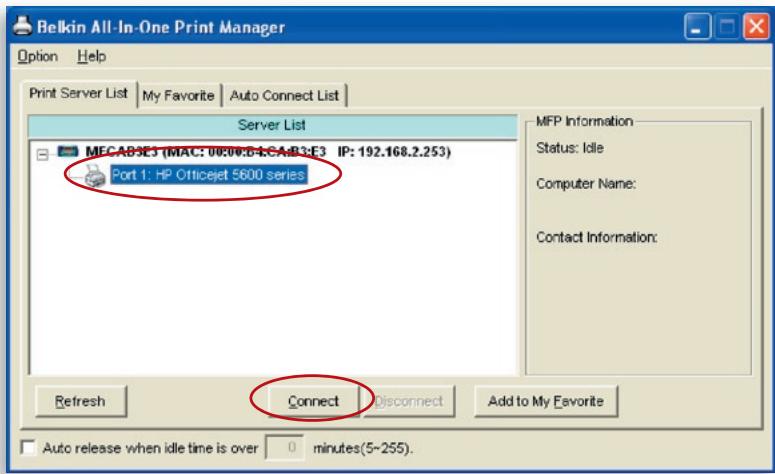
- Windows will detect the new hardware and prompt to install the Print-Server drivers and then the printer drivers. When the system stops prompting, the drivers are all installed. If the system cannot find the printer drivers, insert the printer's installation CD to find the drivers.
- After the installation, a copy of the printer will be added to "Printers and Faxes" under your Windows operating system.
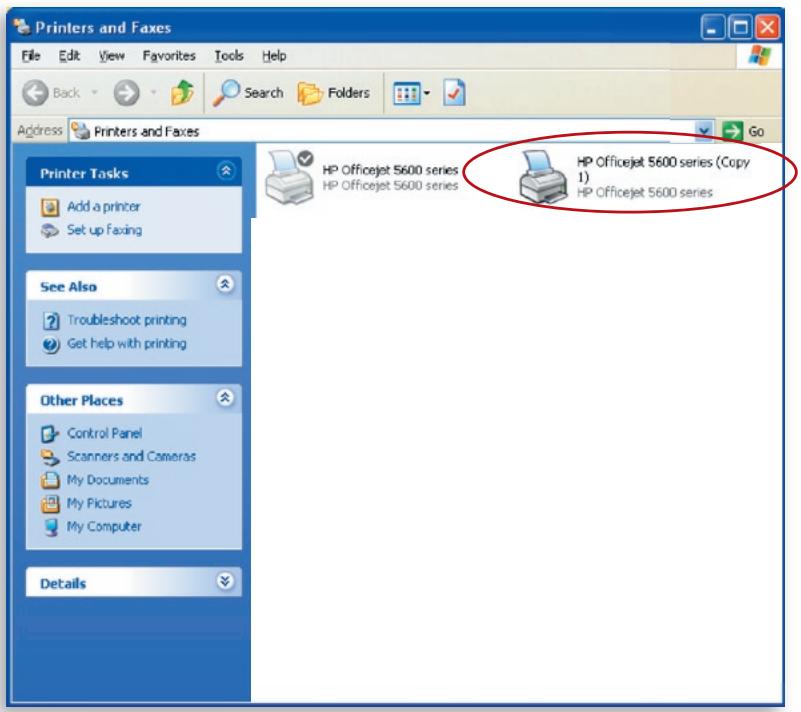
Depending upon the previous configuration of your computer, duplicate system-tray icons or desktop shortcuts for scanners or camera-card readers may also appear. Use the copies of the icons and shortcuts as your defaults for use in conjunction with your Print Server.
Enabling Auto-Timeout Settings
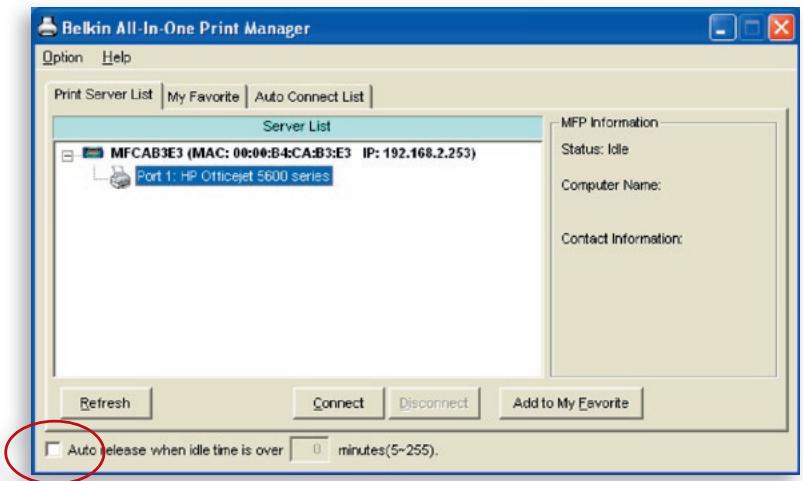
After the printer-driver installation is complete, check the "Auto release when idle time is over" option in the "Belkin All-In-One Print Manager" screen with a 5-minute idle timeout setting.
Adding New Client Computers to Print-Server Setup
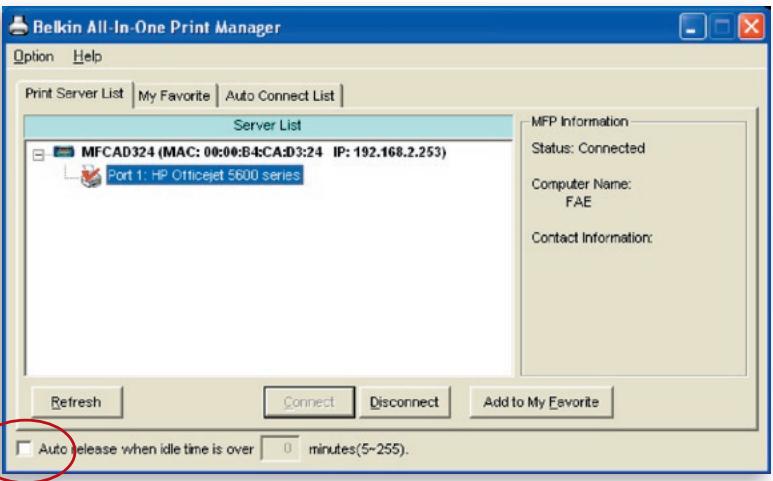
When adding a new client computer to share the print, scan, copy, fax, and card-reader functionality in a preexisting Print-Server network, only follow Step 2 from items 1 to 6, and Step 4.2
Operating Print Server & Using the MFPs
After you have followed the Installation Wizard to finish the printer installation, the printer is now connected to your computer. You can start sharing print, scan, card-reader, or fax functions provided by the MFP.
Tip 1: If you have finished using the printer, click "Disconnect" to release the printer. Another user cannot use the printer until it is released.
Tip 2: We recommend that you enable the "Idle Timeout" setting. The Print Server will automatically release your connection to the printer after a period of idle time that you have assigned. This allows the printer to not be occupied too long and other users to share the printer frequently. Refer to the "All-In-One Print Manager" section for more information.
Share Print
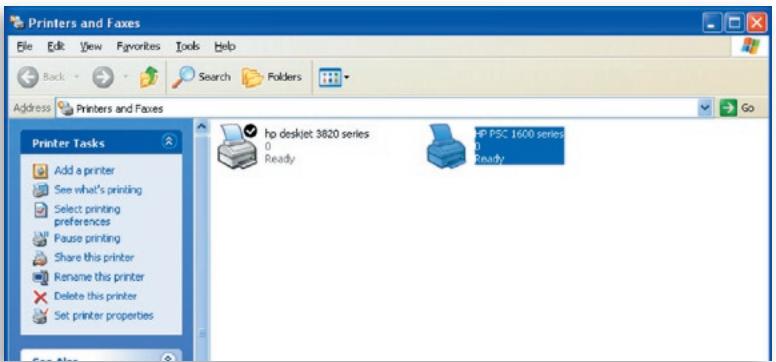
The printer will be added to "Printers and Faxes" in Windows after the printer is installed. When you have connected to the printer by clicking "Connect" in the Belkin All-In-One Print Manager, the Print Server will automatically create the connection between the printer and your computer, and then you can print a document following the same steps as usual.
Tip: If you have sent a print job to the printer while it is still connected to a user, you may be prompted that the device was not found or the document has failed to print. Resend the printing job after the printer is idle or released by another user.
Share Scan
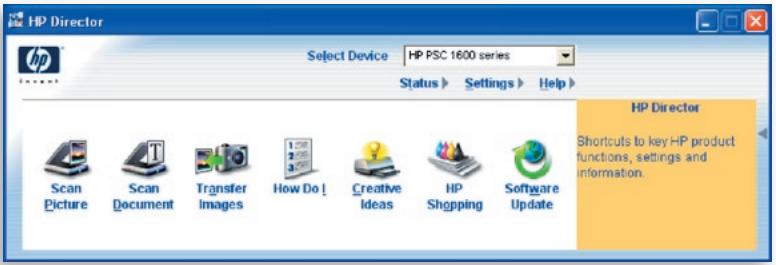
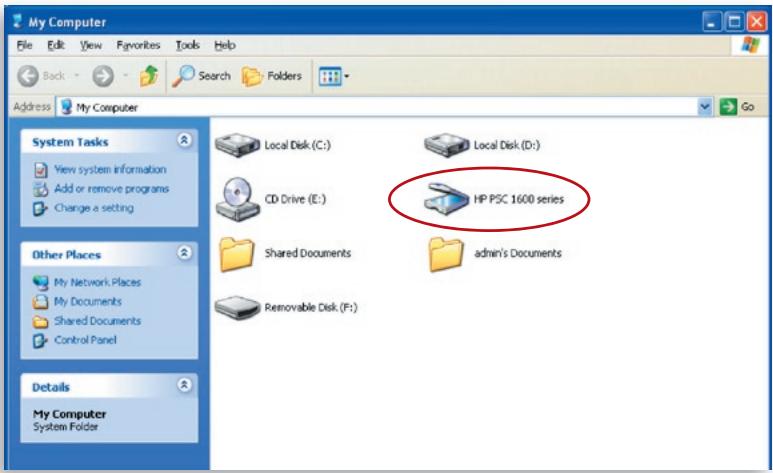
Most of the printers with built-in scanners provide a scan utility for users. You can scan pictures or documents through the utility. In Windows XP, users can also scan from the Windows XP scanning utility. You can also use third-party scanning utilities such as Photoshop®, Photolpact®, Paint Shop Pro®, etc.
An example: HP 1600 Series Utilities
Windows XP Scanning Utility
Share Card Reader
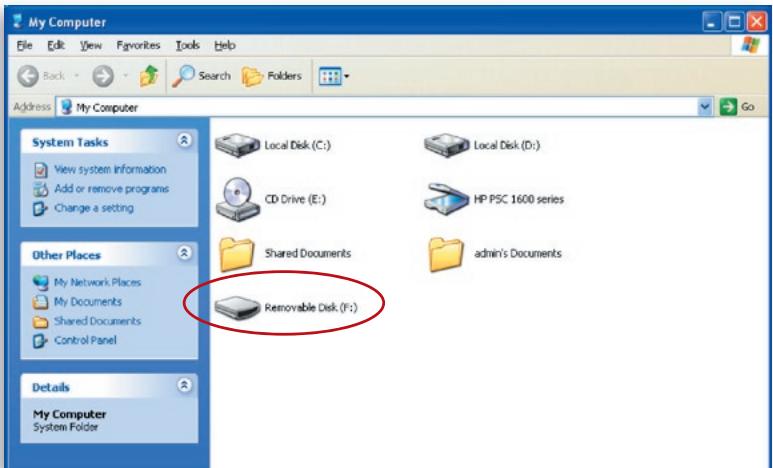
If your printer has built-in media-card readers, you can read the files from the plugged card reader through the Print Server.
Fax a File
If your printer has a fax function, you can fax files from your computer to the fax number you designated.
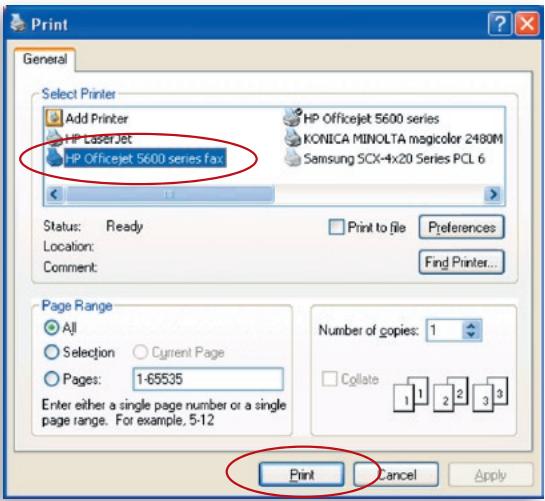
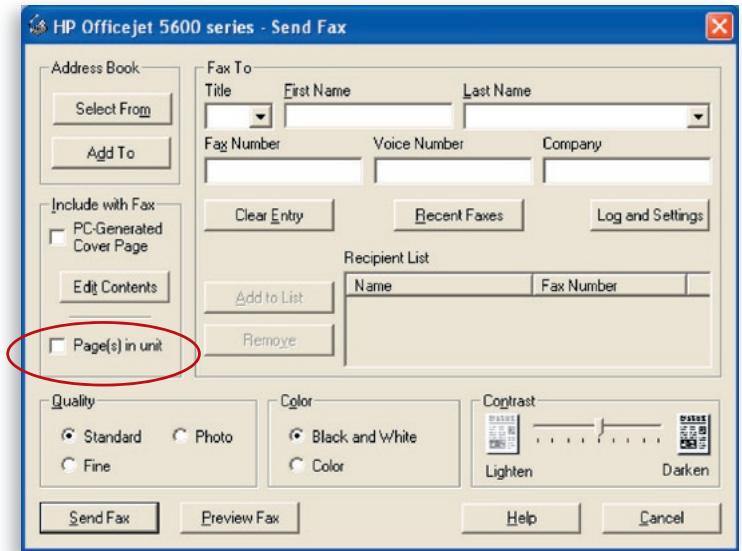
An example: Fax through HP Officejet 5600 Series
After the printer is installed, a fax device will be added to "Printers and Faxes" in Windows. When you have connected to the printer by clicking "Connect" in the Belkin All-In-One Print Manager, you can fax a file through the Print Server to the fax device.
Procedures to Fax a File
- In Microsoft® Office or other programs, select "Print" from the "File" menu.
- When the following screen pops up, select the fax device and then click "Print".
- The "Send Fax" screen appears. Configure the file and enter the fax number, and then click "Send Fax" to fax the file.
Print Server List
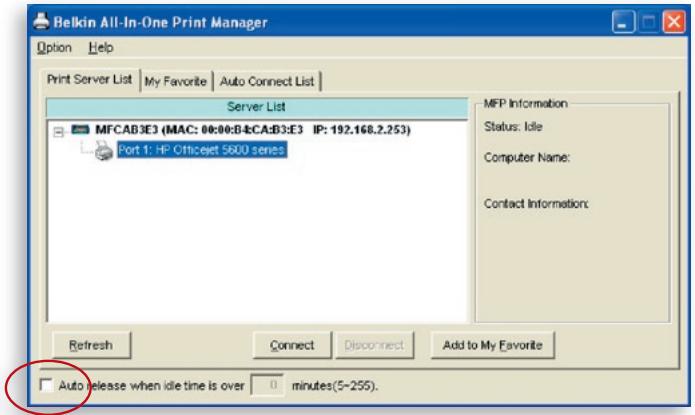
The Belkin All-In-One Print Manager can automatically find the Print Server in the network and show it in the Print Server List. Users can select a printer and click "Connect" to connect the printer as if they have directly connected the printer to their computer through a USB cable. It also displays the information of the connection status.
When you don't want to use the printer, click "Disconnect" so that other users can use the device. Or, you can enable the "Idle Timeout" setting, so that the Print Server will release your connection after a period of idle time that you have assigned.
If you unplug the USB cable or turn off the printer while using it, the device will not display in the list. After you reconnect the USB cable or turn on the printer, you have to click the "Refresh" and "Connect" buttons in the Belkin All-In-One Print Manager to recover the connection.
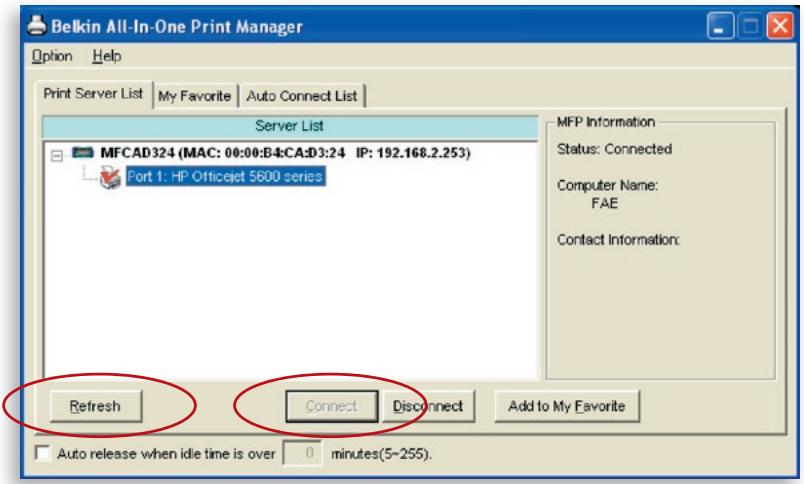
| Print Server List | The Print Server List will show all the Print Servers within the network. You can find the Print Server's information including “All-In-One Print Server Name”, “MAC ID”, “IP Address”, and the device that is connected to the Print Server. |
| All-In-One Print Server/Multifunction-Printer (MFP) Information | When you click on the Print Server in the Print-Server list, you will see the “All-In-One Print Server Description” and the “Idle Timeout” setting for that Print Server. |
| All-In-One Print Server Description | This description helps users identify the location and the name of the Print Server. |
| Idle Timeout | From here, each user can know his/her idle-timeout setting. To avoid occupying the printer overtime, each user can set the “Idle Timeout” from “Option\General Setting”. It is used to disconnect the connection after the printer is idle for a specified period of time. By default, there is no timeout setting. When you click on the printer in the Print-Server list, you will see information including “Status”, “Computer Name”, and “Contact Information”. |
| Status | This displays the status of the printer including “Connected”, “Idle”, and “Busy”. When the status is “Connected”, it indicates that you are connecting the MFP. When the status is “Idle”, it indicates that the printer is not being used. When the status is “Busy”, it indicates that another user is using the printer to scan, print, etc. |
| Computer Name | It display the computer name of the user who is connecting to the printer. |
| Contact Information | When the current user has set his “Contact Information”, you can see it here. You can contact with the current user for asking to disconnect the printer. |
| Refresh | Refreshes the Print-Server list immediately. |
| Connect | Allows printer connection to your computer. |
| Disconnect | Disconnects the selected printer. |
| Add to “My Favorite” list | Adds the Print Servers that you frequently use to the “My Favorite” list. |
| Auto Release when idle time is over xx minutes (5-255) | To avoid occupying the printer for too long, you can set up and idle-timeout setting. It is used to disconnect the current connection after the printer is idle for a specified period of time. By default, there is no timeout setting. We recommend that you enable the idle-timeout setting after the printer and Print Server are installed completely so that the printer resource will not be occupied easily. |
My Favorite
You can add the frequently used Print Servers to the "My Favorite" list. The Print Server in the list will be added to the quick-link list when you right-click the Print-Server icon in the system tray. Refer to the "Quick Setup" section to know more about the quick-setup functions.
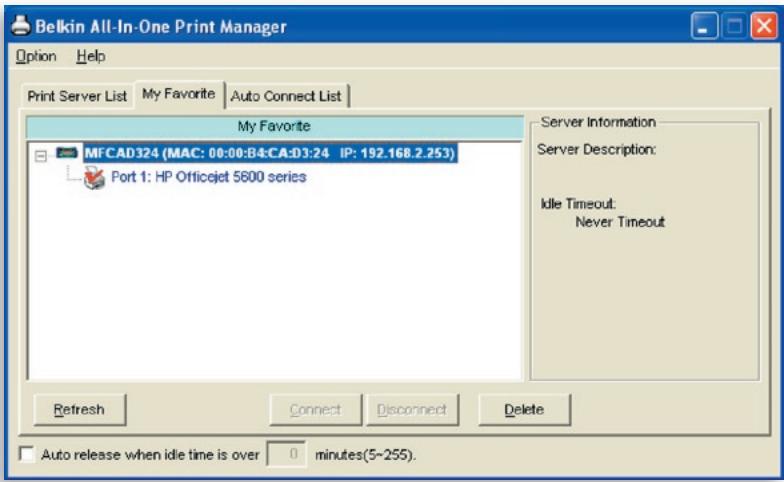
| "My Favorite" List | |
| "My Favorite" List | The "My Favorite" list will show your favorite Print Servers. You can find the Print Server's information including its name, MAC ID, IP address, and any connected devices. |
| All-In-One Print Server/MFP Information | The information listed here is the same as the Print Server List. Refer to the "Print Server List" section for more information. |
| Refresh | Refreshes the Print Server List immediately. |
| Connect | Allows printer connection to your computer. |
| Disconnect | Disconnects the selected MFP. |
| Delete | Deletes the selected Print Server from the "My Favorite" list. |
| Auto Release when idle time is over xx minutes (5-255) | To avoid occupying the printer for too long, you can set up an idle-timeout setting. It is used to disconnect the current connection after the printer is idle for a specified period of time. By default, there is no timeout setting. We recommend that you enable an idle-timeout setting after the printer and Print Server are installed completely so that the printer resource will not be occupied easily. |
Auto Connect List
To let the system occupy the Print Server automatically when you want to print a document, just like the behavior of using a traditional print server, you can add the printer into your Auto Connect List. The system will send the printing jobs to the printer when the Print Server is idle and there is no connection.
To add the printer to the Auto Connect List, follow the steps below.
- Click "Add" from the Auto Connect List.
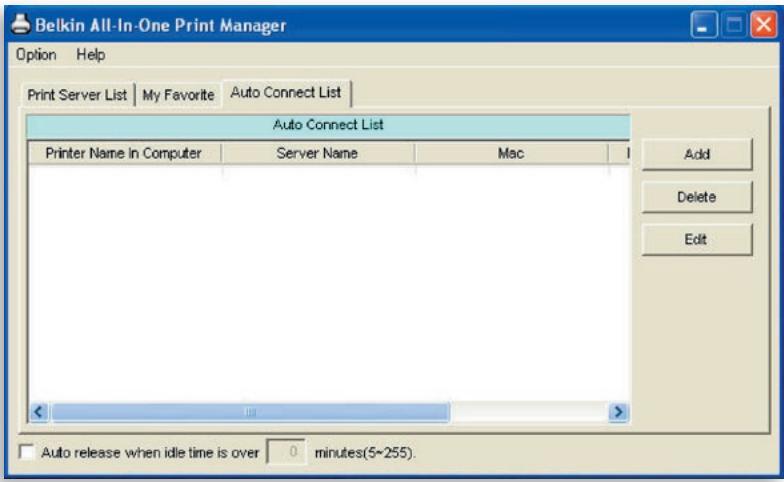
- The Print Servers within the network will be displayed in the following screen. Select the Print Server you would like to add to the list.
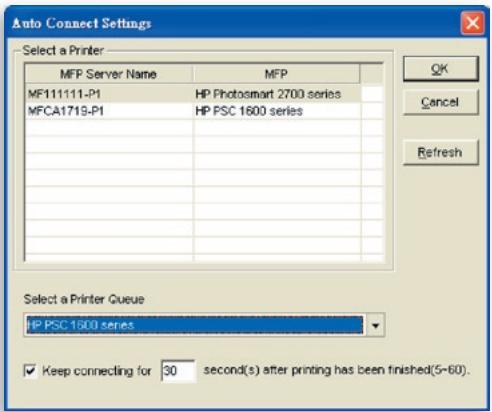
- Select the printer that is connected to the selected Print Server. Click "OK". Note that in some cases, new printing jobs cannot be printed because the printer is already disconnected. It will cause unformatted messages to be printed out. "Keep connecting for 30 second(s) after printing has been finished (5-60)" is enabled by default. It will help to avoid this kind of situation.
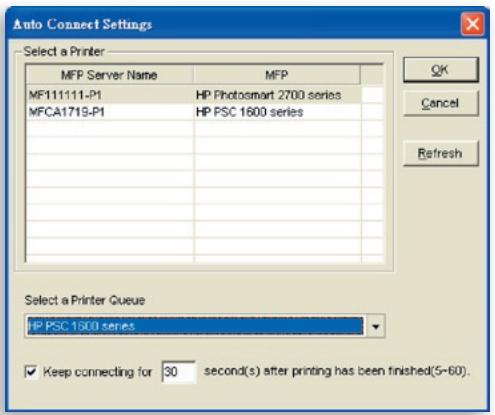
- The setup is finished.
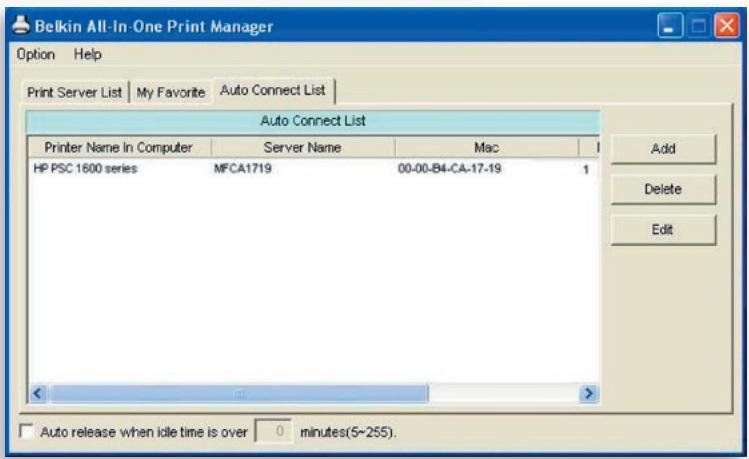
Quick Setup
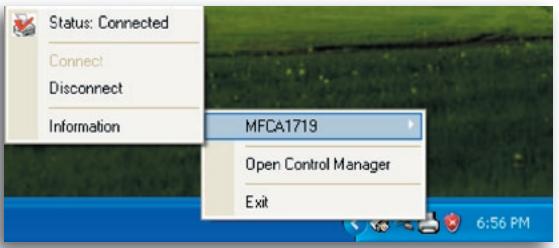
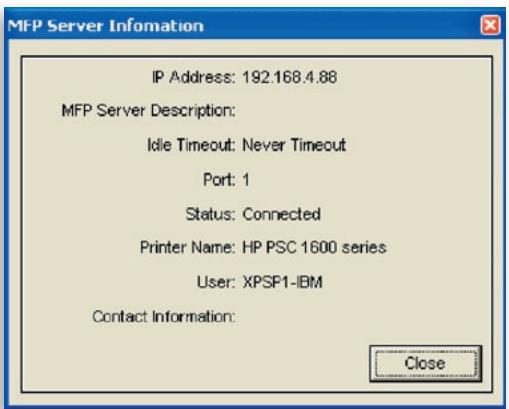
Right-click on the Print-Server icon in the system tray so you can see the Print Servers that you have designated to the "My Favorite" list. You can directly connect or disconnect the printer and check the printer information from there easily.
| Quick Setup | |
| Status | The current status of the printer will be displayed here. “Connected” indicates that you are connecting to the printer. “Busy” indicates that the printer is being used. “Idle” indicates that the printer is free to use by any users. |
| Connect | If the printer is free to use, the “Connect” button will be available to click for occupying the printer. Otherwise, it will be grayed out. |
| Disconnect | Disconnects the selected printer. The “Disconnect” button will be available only for the current user. |
| Information | To check more information about the Print Server and the printer, click this button. The information will be listed as in the illustration above. |
General Settings
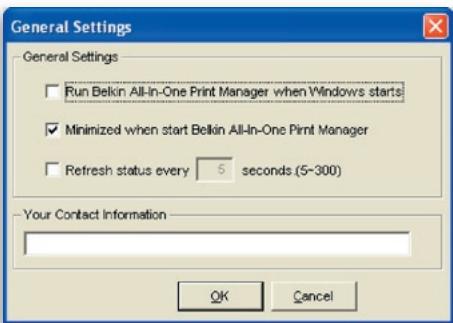
| General Setting | |
| Start Control Manager on Windows startup | Executes the Belkin All-In-One Print Manager when Windows starts every time. By default, it is enabled. |
| Minimized when start Control Manager | Minimizes the Belkin All-In-One Print Manager to an icon in the system tray when you start the Belkin All-In-One Print Manager. By default, it is disabled. |
| Refresh status every xx seconds. (5~300) | Sets up the refresh interval for device-status update. By default, it is disabled. |
| Your Contract Information | Enter your contact information here. When you connect to the printer, your contact information will be displayed in the right side of the program for other users to contact you. |
Search for All-In-One Print Server
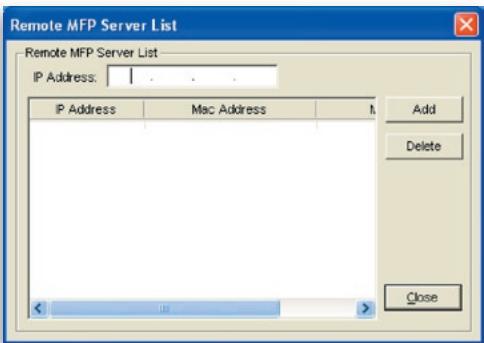
If the Print Server is not in the network as your computer, you can enter the IP address of the Print Server to do the remote search. The Print Server in the Remote MFP Server List will be added to the Print Server List for you to configure.
Introduction
This chapter introduces the Print Server's system-configuration utility in a Windows environment. This utility provides the most complete management and configuration functions on the PrintServer side. This utility only provides configuration functions for the Print Server itself; it does not include configuration functions for the client side or other file server in the network environment.
The configuration utility provides the following configuration and management functions:
- Search All-In-One Print Server: Searches all available Print Servers on the network.
Status: Displays Print Server's network status. - Setup: Shows configuration settings for the Print Server.
- General Configuration: Configure general settings about the Print Server such as server name, password, etc.
- TCP/IP Configuration: IP-address and DHCP-server configuration.
- System Configuration: Print Server's networkability setting and firmware upgrades.
- Wireless Configuration: Searches for available wireless networks and configures the wireless settings of the Print Server for the wireless connection.
- All-In-One Print Server Management: Allows the administrator to manage the Print Server. Administrator can force-disconnect the current connection of the Print Server.
Report: Lists the information of all available Print Servers on the network.
We will explain each function separately in the following section.
Search for Print Servers
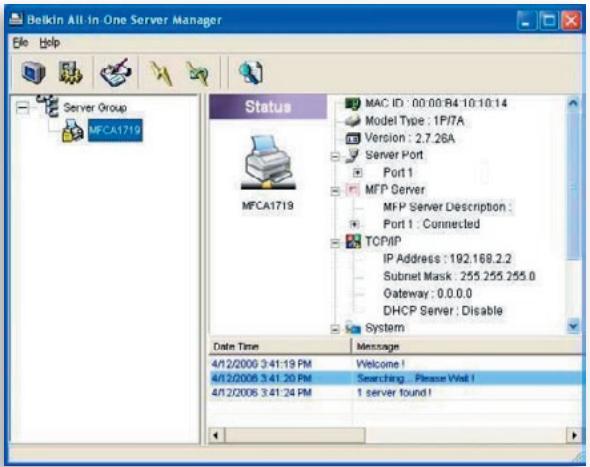

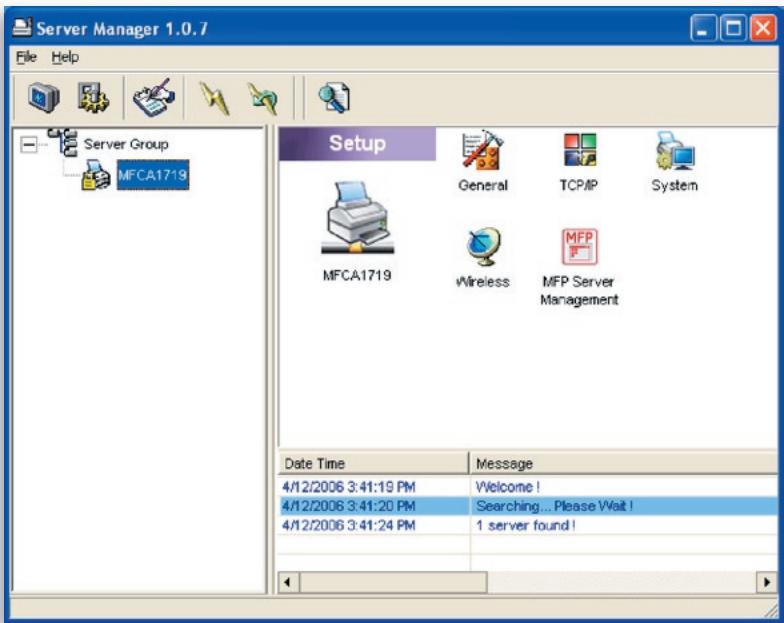
Every time you run the "Server Manager" configuration utility, click the "Search" icon on the tool bar. The configuration utility will delay for several seconds because the utility is using the system's available network protocols to search for all Print Servers on the network. All available Print Servers will be listed under "Server Group" on the left side of the window.
You must select the Print Server you would like to configure from the list. The system will, at the same time, display the selected Print Server's status on the right side of the window.
Status of Print Servers
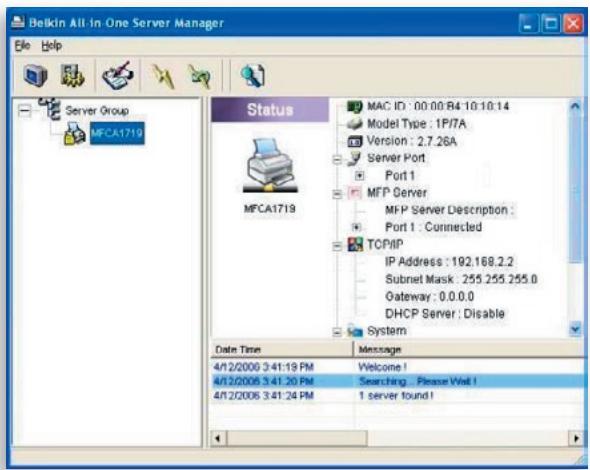

Clicking the "Status" icon on the tool bar will show the status of the currently selected Print Server on the right side of the window. The Print-Server information displayed includes the MAC ID, model type, firmware version, port status, IP address, subnet mask, default gateway, and supported printing protocols.

You can refresh the Print Server's status by pressing the "Refresh" button

You can restart the Print Server by pressing the "Reboot" button
Set Up the All-In-One Print Server
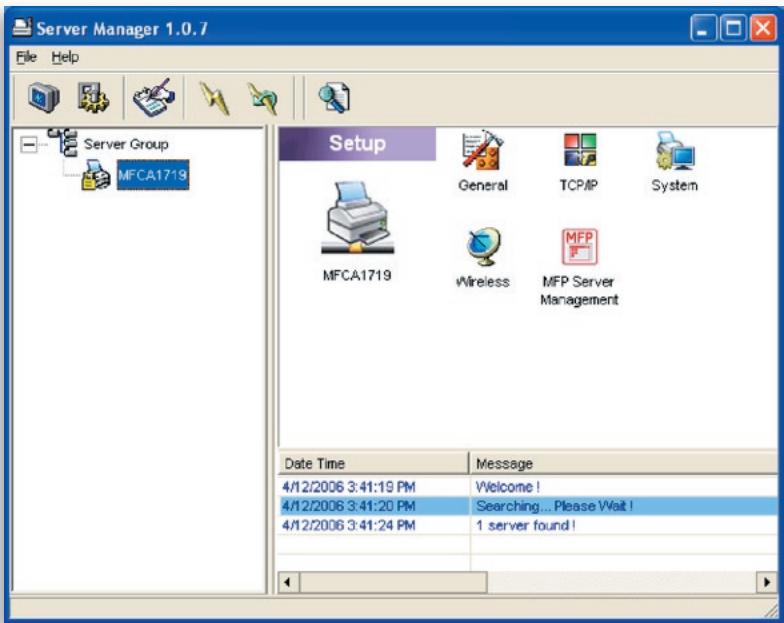

Clicking the "Setup" icon on the tool bar will show the selected Print Server's setup items on the right side of the window.
Double-click one of the icons to set up the selected Print Server. A screen pops up to verify the Print Server's user name and password. The default values are:
UserID:admin
Password: 1234

Tip: When you have finished selecting the settings, click “ ” to restart the Print Server to allow the settings to take effect
General Configuration
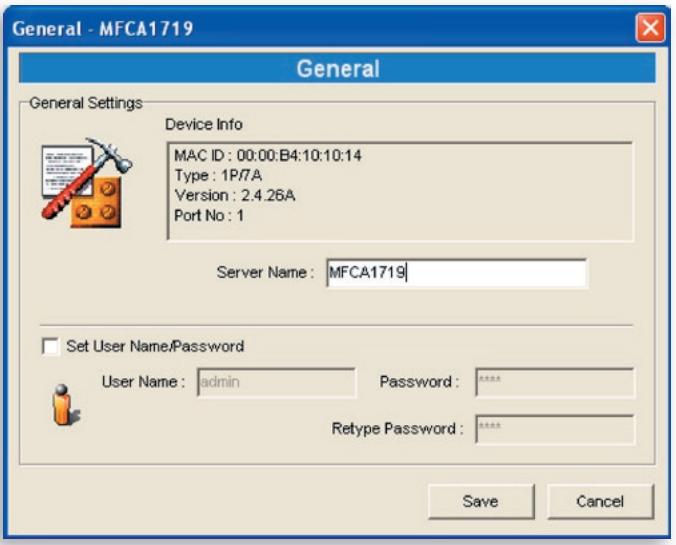
Double-click the "General" icon and the "General" configuration window will appear. You can view basic Print-Server information in this page. You also can configure the server name, user name, and Password here.
Server Name: the name of the Print Server. You can use this name to identify the Print Server when you are searching for it with the "Server Manger" utility.
User Name / Password: used to authenticate the administrator to log in to the Print Server for configuring it from the "Server Manger" utility or the web-management tool. Also note that passwords cannot exceed more than seven characters.
TCP/IP Configuration
Double-click the "TCP/IP" icon and the "TCP/IP" configuration window opens. You can configure the Print Server to automatically get an IP address from a DHCP server (enabled by default), or manually specify static-IP configurations. The Print Server also has a built-in DHCP server (disabled by default).
IP Settings
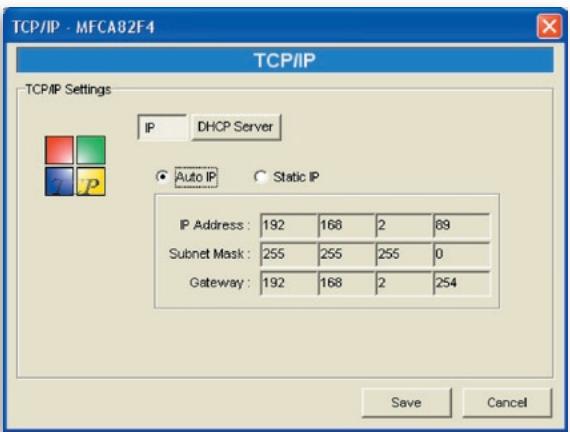
Click the "IP" button to enter the IP-setting page. By default, "Auto IP" is selected to enable the Print Server to automatically get an IP address from a DHCP server.
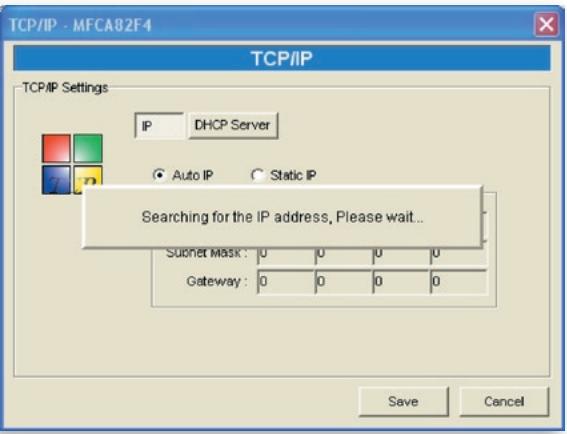
The window will show the IP-address information acquired from a DHCP server for user reference.
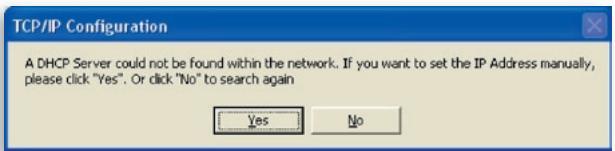
If the DHCP server is unavailable or not found, the user will be prompted to configure the TCP/IP settings of the Print Server manually by clicking "Yes" on the screen below. Clicking "No" will make the Print Server search for the IP address from a DHCP server on the network.
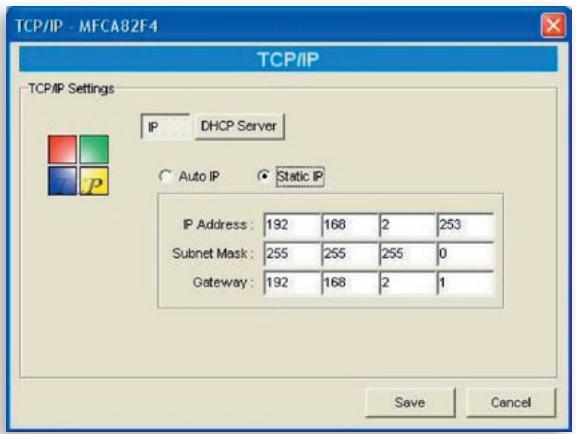
You can select "Static IP" to manually assign the IP address, subnet mask, and gateway for the Print Server. The default TCP/IP-address information in the "Static IP" mode will be:
IP Address: 192.168.2.253
Subnet Mask: 255.255.255.0
Gateway: 192.168.2.1
Make sure that the TCP/IP information configured here is correct and matches your network settings, as it may be used as an alternative if a DHCP server on the network is ever unavailable or not found.
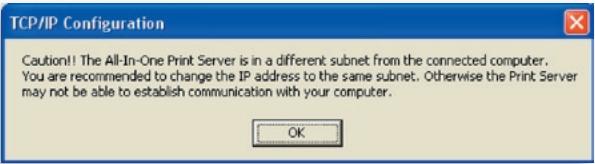
The Print Server will check if the manually configured IP address is in the same subnet as the network or connected computer. If the TCP/IP-address settings configured manually are in a different IP subnet than that of the connected networking devices, the user will be prompted by the alert message shown below. Click "OK" to go back and configure the correct IP-address settings for the Print Server.
Internal DHCP Server
Click the "DHCP Server" button to enter into the internal DHCP server's setting page. You can enable/disable the DHCP server and assign a range of IP addresses here. By default, the DHCP server is disabled (recommended). When it comes to assigning an IP address to the Print Server, the internal DHCP server takes lower precedence to either getting an IP address from an external DHCP server or using the configured static IP address. Both options are described in the "IP Settings" section above.
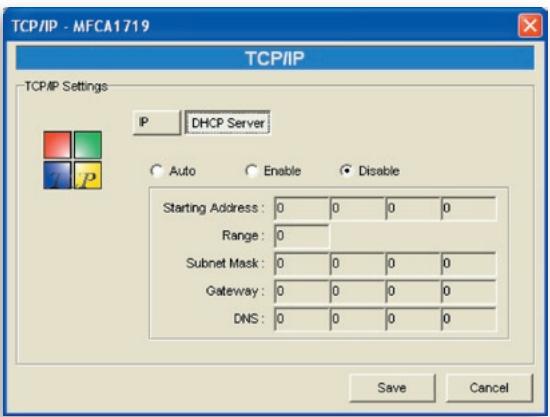
If the DHCP server is enabled, you have to assign a valid range of IP addresses. Fill in the "Starting Address", "Range", "Subnet Mask", "Gateway", and "DNS" fields; then the Print Server will assign a unique IP address to each DHCP client. However, the Print Server itself will get an IP address from the external DHCP server or use the configured static IP address, if the Print Server is configured for either of these two options as described in the "IP Settings" section above. Otherwise, the internal DHCP server will assign the first IP address to itself if no external DHCP server is found and the Print Server is not set up to use a static IP.
There is another option called "Auto" for the internal DHCP server. "Auto" means that the Print Server will first search for and detect DHCP servers within the network automatically. If a DHCP server exists on the network, the internal DHCP server will stay idle (disabled) and would not respond back to DHCP requests that it receives from clients. If a DHCP server doesn't exist on the network, the Print Server will turn on its own internal DHCP server and assign IP addresses to clients. In this case, the internal DHCP server will also assign the first IP address to itself only if the Print Server is not set for a static IP as described in the "IP Settings" section above, as static IP takes precedence. Fill in the "Starting Address", "Range", "Subnet Mask", "Gateway", and "DNS" fields; then the Print Server will assign a unique IP to each DHCP client.
System Configuration
Double-click the "System" icon and the "System" configuration window pops up.
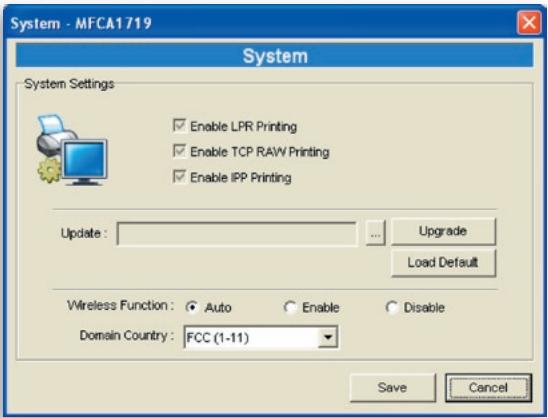
In the System configuration page, you can see all available printing protocols and upgrade the new firmware for this Print Server.
Upgrade Firmware: You can use this "Upgrade Firmware" tool to update the newest firmware of the Print Server. Click the "... button and select the correct firmware in your computer. After selecting the firmware file, click the "Upgrade" button to finish the firmware-update process.
Tip: Before you upgrade the firmware, make sure that the IP-address settings of the Print Server are in the same network as your computer.
Load Default: If you want to reset the Print Server to default factory settings, click "Load Default".
Wireless Function: You can select to enable or disable the wireless function manually. If you manually enable wireless function, the Print Server's wireless LAN will be always enabled and Ethernet will be always disabled. If you manually disable the wireless function, the Print Server's wireless LAN will be always disabled and Ethernet will be always enabled. You can also select "Auto" to let the Print Server automatically decide to enable or disable the wireless function. The Print Server only can work in either Ethernet or wireless-LAN mode. It cannot work in both Ethernet and wireless-LAN mode at the same time. When the Print Server starts up, it will automatically detect if the LAN port is connected to an active network by an Ethernet cable. If the Print Server is connected to an active network by Ethernet cable when starting up, the Print Server will run in Ethernet mode. If the Print Server is not connected to an active network by Ethernet cable when starting up, the Print Server will run in wireless-LAN mode. The Print Server's default is in "Auto" mode.
Domain Country: The wireless channels are different from country to country. Generally, the channels are from 1 to 11 in the USA and from 1 to 13 in Europe. The operating channel will be set to the Print Server before importing. If you are in a different country, make sure that you have set the available channels according to your location
Wireless Configuration
If you want to use the Print Server through a wireless LAN, set it up through Ethernet first and make sure your wireless-LAN setting is correct. After setting up the wireless LAN, unplug the Ethernet cable and restart the Print Server. You can start to use the Print Server through a wireless LAN. If the wireless configuration does not work, plug in the Ethernet cable again, restart the Print Server, and configure it through Ethernet until the wireless-LAN settings are correct.
The default settings of the Print-Server wireless function are as follows:
Mode: Infrastructure
SSID: Default
Channel: 11
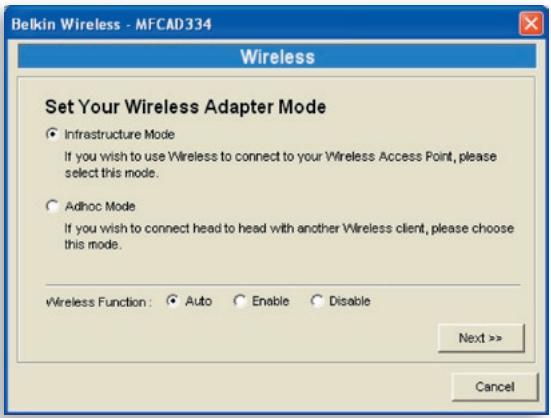
Double-click the "Wireless" icon and the "Wireless" configuration window pops up. If you use an access point to build up your wireless network, you have to select "Infrastructure Mode". If you do not have an access point and want to use a peer-to-peer connection to build up your wireless network, you have to select "Ad-Hoc Mode". After selecting the operation modes of the wireless function, click "Next" to go to further detailed configuration.
Infrastructure Mode:
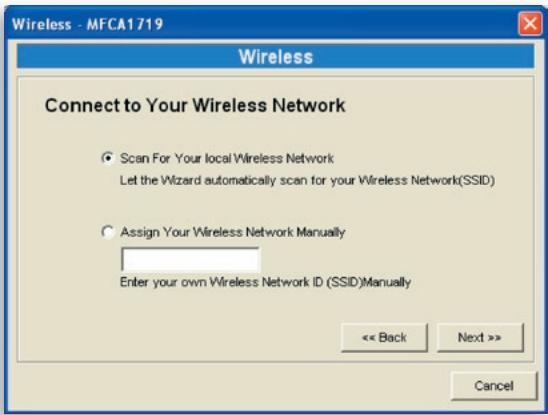
In the Infrastructure mode, you have to allow the Print Server to associate with an access point. You can choose to let the Print Server scan for an available access point automatically, or you can manually assign the SSID of the access point you want to use.
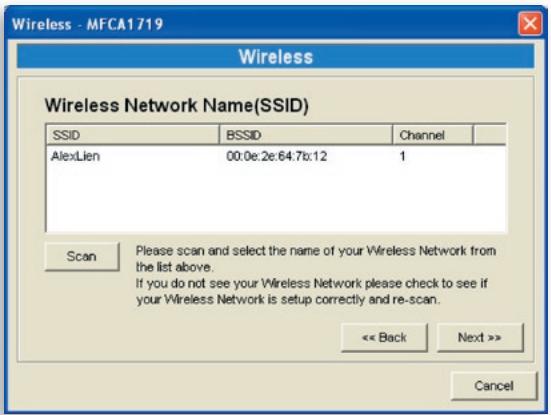
If you select to allow the Print Server to scan for an available access point, the following window will pop up.
The table will list the available access points near the Print Server. Select an access point from the list and click "Next". If you cannot find the access point that you want to use, click "Scan" to allow the Print Server to scan again.
Ad-Hoc Mode:
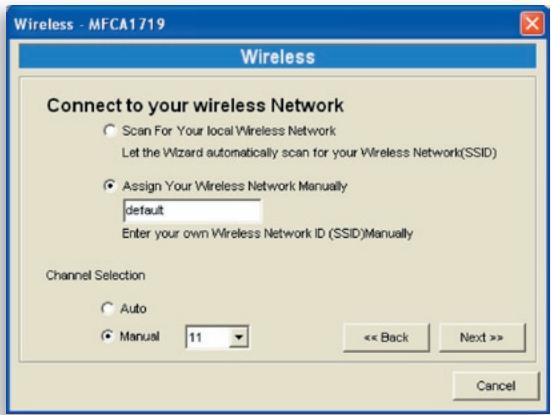
In the Ad-Hoc mode, you can allow the Print Server to automatically associate with another wireless station, or you can manually assign the SSID of your wireless network. You can allow the Print Server to automatically select the channel that is the same as the wireless station with which you want to connect, or you can manually assign a channel.
If you select to allow the Print Server to scan for an active wireless station, the following window will pop up
The list shows the scanned active wireless stations. Select a wireless station from the list and
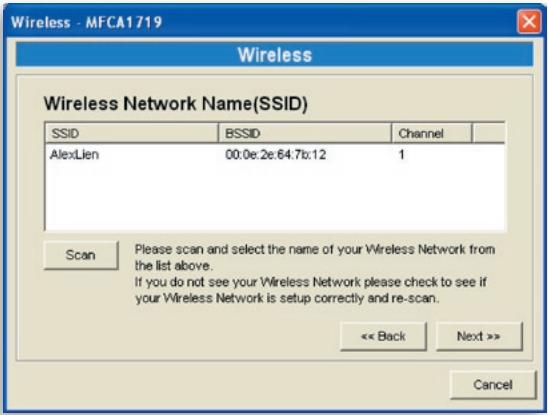
click "Next". If you cannot find the wireless station with which you want the Print Server to communicate, click "Scan" to allow the Print Server to scan again.
Both Infrastructure and Ad-Hoc modes have to go through the following procedure:
Wireless Security:
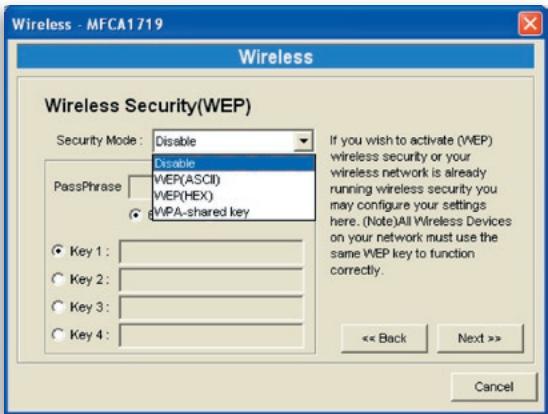
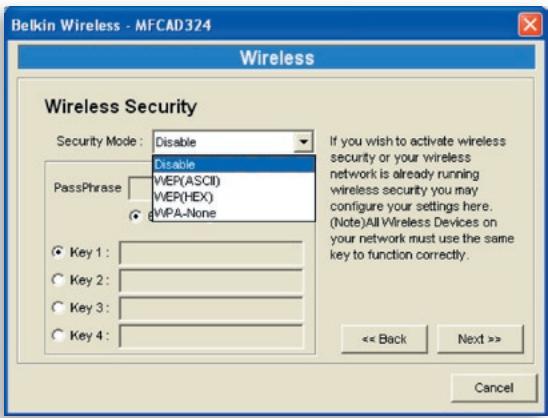
This Print Server supports Wired Equivalent Privacy (WEP) and Wi-Fi® Protected Access-Pre-Shared Key (WPA-PSK) security modes. If you want to use WEP encryption to protect your wireless network, you have to select "WEP(ASCII)" or "WEP(HEX)". If you want to use
WPA-PSK, you have to select "WPA-shared key" or "WPA-None" specified for Ad-Hoc mode. The wireless-security setting should be the same as the other wireless devices in the same network. WPA currently supports cipher modes Temporal Key Integrity Protocol (TKIP) and Advanced Encryption Standard (AES).
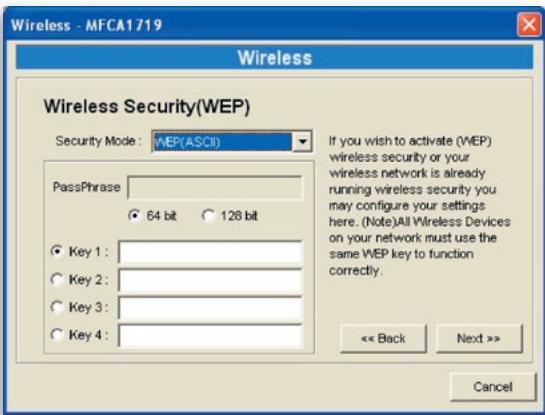
WEP Security Mode:
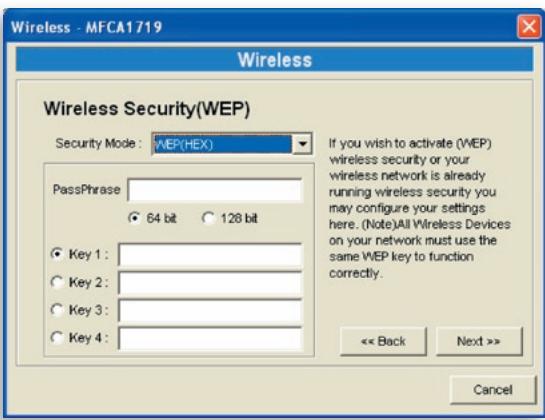
You can select "64 bit" or "128 bit" length and "Hexadecimal" or "ASCII" format for the encryption key. A longer key length can provide stronger security.
PassPhrase - A "PassPhrase" simplifies the WEP encryption process by automatically generating the WEP encryption keys for the Print Server. This setting is only valid when the security mode is in "WEP(HEX)".
Key 1 to Key 4 - Enter four key values by following the rules below and select one key as the default key.
If the key length is 64-bit, enter 10-digit hex values or 5-digit ASCII values as the encryption keys. For example: "0123456aef" or "Guest".
If the key length is 128-bit, enter 26-digit hex values or 13-digit ASCII values as the encryption keys. For example: "01234567890123456789abcdef" or "administrator".
WPA-Shared Key or WPA-None Security Mode:
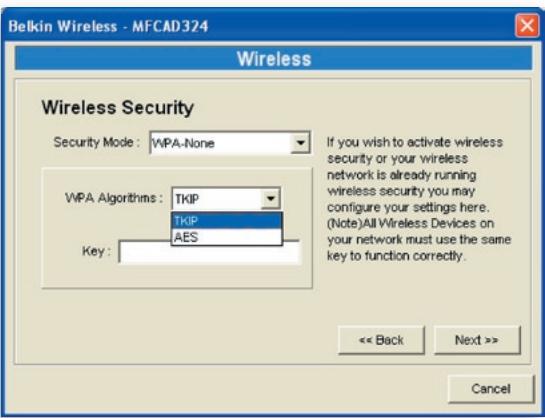
"WPA-shared key" (for an infrastructure network) or "WPA-None" (enables WPA security for your ad-hoc network) requires users to select the advanced encryption methods, i.e. TKIP or AES, and enter a set of shared keys.
TKIP - TKIP changes the temporal key every 10,000 packets. This ensures much greater security than the standard WEP security.
AES - AES has been developed to ensure the highest degree of security and authenticity for digital information and it is the most advanced solution defined by IEEE 802.11i for the security in the wireless network.
Key - Enter eight to 63 digits of ASCII format to be the key for the authentication within the network.
When you finish configuring the wireless security, click "Next" to go to the next step.
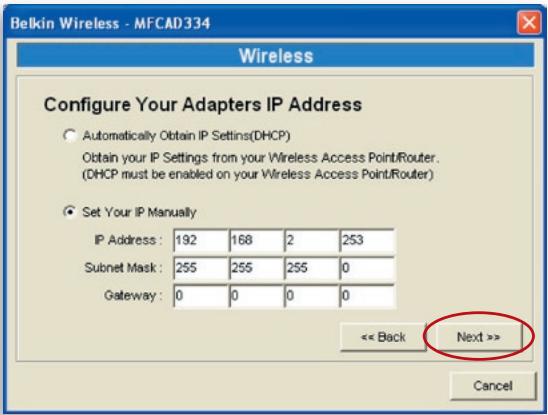
You can select to allow the Print Server to obtain automatically the IP settings with a DHCP client, or you can manually assign the IP settings.
If you manually assign the IP settings, you have to enter the IP address, subnet mask, and default gateway address.
When you finish configuring the IP settings, click "Next" to confirm the IP-address configuration.
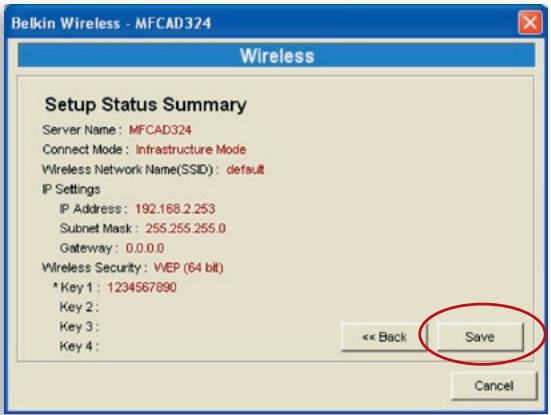
Click "Save" to save the wireless configuration.
Print-Server Management
Double-click the "All-In-One Print Server Management" icon and the Print-Server configuration window pops up. You are able to manage the Print Server as outlined below.
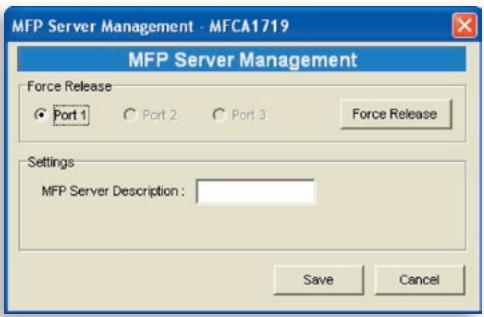
Force Release: Select the port number and then click "Force Release" to disconnect the current connection between the user and the connected device. This allows the administrator to force-disconnect the connection and free up the printer.
All-In-One Print Server Description: Enter a 15-digit description of the Print Server, such as location or other information, to help users find it easily.
Report

Click the "Report" icon on the toolbar and the "Report" window pops up.
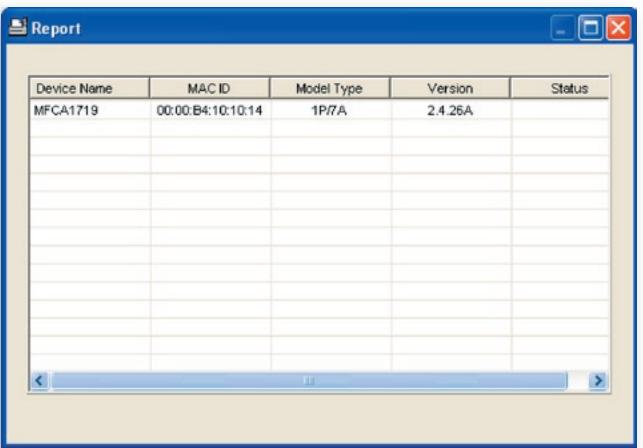
The report lists basic information of all available Print Servers on the network. The information includes the device name, MAC ID, model type, and firmware version of the Print Server.
Introduction
The Print Server can be configured and managed on the Web. Through a Local Area Network (LAN), or even the Internet, an administrator can easily configure and manage the Print Server's various main functions through browsers. Simply enter the Print Server's IP address into your browser's address field to manage it through its built-in web server.
The default IP address, user name, and password settings of the Print Server are as follows:
IP Address: 192.168.2.253
User Name: Admin
Password: 1234
Note: You can configure the Print Server through Web Management. To let the changes take effect, you have to click "Save Settings" in the left-side menu to reboot the Print Server.
Login
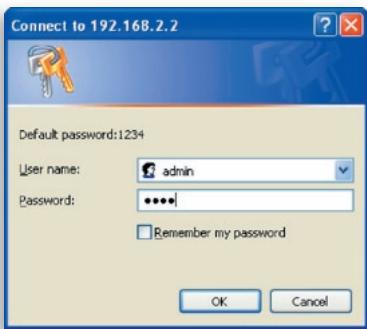
You may use any web browser to review the status or configure the settings of the Print Server. After entering the Print Server's IP address, a login page displays. You have to enter the correct user name and password before going to the "Web Management" pages.
Note: The default user name is "admin" and the default password is "1234".
Device Settings
System
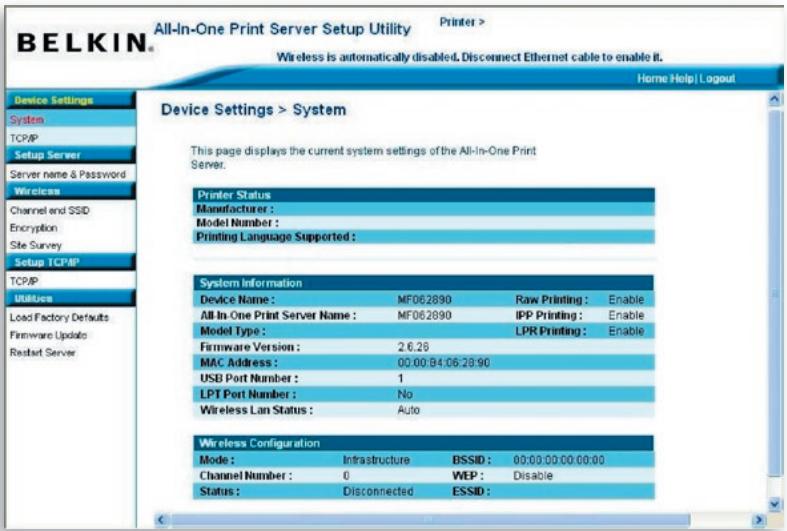
System Information includes the device name, Print-Server name, model type, firmware version, MAC address, wireless configuration, and the protocols' status, etc.
TCP/IP
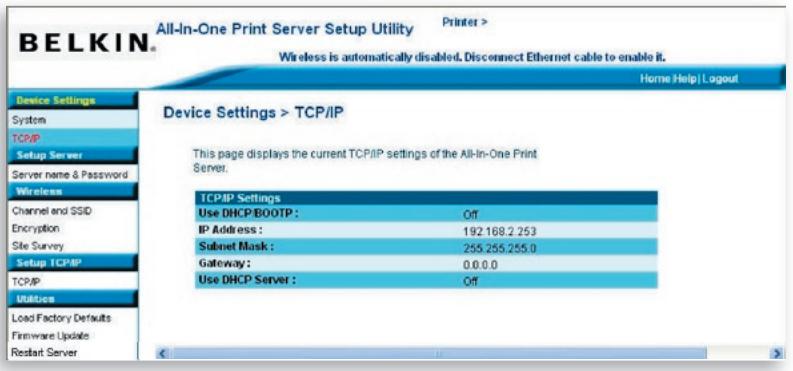
The TCP/IP page shows the IP address, subnet mask, and gateway IP address being used by the device and whether this all-in-one device was set up to receive these TCP/IP settings from a DHCP/BOOTP device. This page also shows the status of the Print Server's internal DHCP server.
Setup Server
Server Name and Password
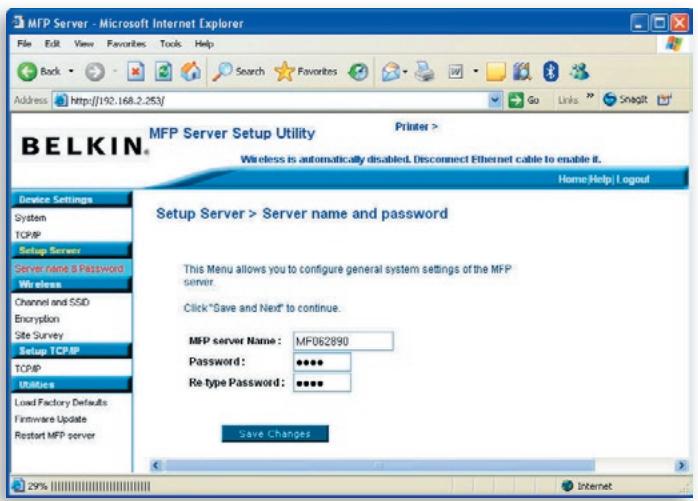
This page shows the name of your Print Server and allows the user to change the password.
All-In-One Print Server Name: the name of the Print Server. You can use this name to identify the Print Server when you are searching for it through the "Server Manager" utilities.
Password: enter the password you want to change to the Print Server. The password can have up to seven digits in an alphanumeric format. The default password is "1234".
Re-type Password: enter the same password for the Print Server again.
Wireless
Channel and SSD
If you want to use the Print Server through a wireless LAN, set it up through Ethernet first and make sure your wireless LAN setting is correct. After setting up the wireless LAN, unplug the Ethernet cable and restart the Print Server. This allows you to use the Print Server through a wireless LAN. If the wireless configuration does not work, plug in the Ethernet cable again, restart the Print Server, and configure it through Ethernet until the wireless-LAN settings are correct.
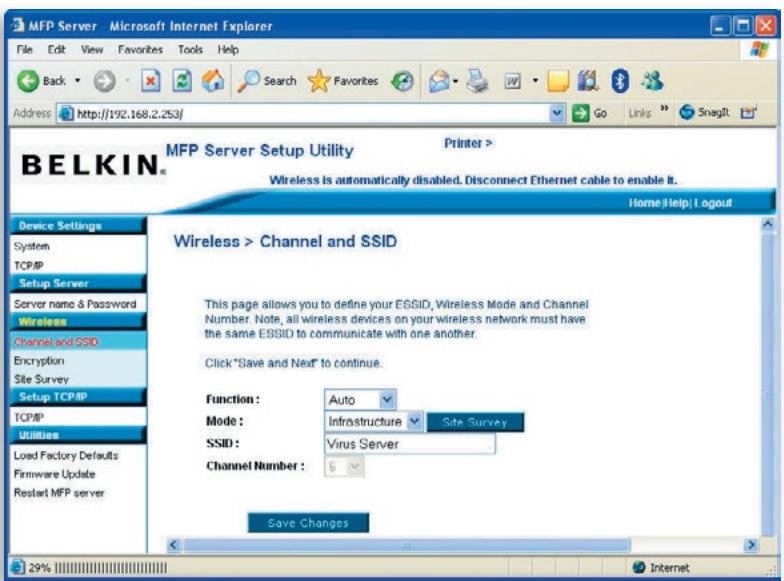
This page allows the user to define the Extended Service Set Identifier (ESSID), wireless mode (Infrastructure or Ad-Hoc), and channel number.
You can enable/disable the wireless function and set up the wireless parameters for the Print Server from here. The parameters include function, mode, ESSID, and channel number. You can manually set the wireless network to which you want to connect in this page, or use the "Site Survey" function to automatically search for an available wireless network with which to associate.
Function is for the user to disable, enable, or allow the Print Server to automatically select to connect to the wired or wireless network. If "Disable" is selected, the Print Server can only connect to the network through wired Ethernet. If "Enable" is selected, the Print Server can only connect to the network through a wireless LAN. If "Auto" is selected, the Print Server can automatically decide to enable or disable the wireless function. The Print Server only can work in either Ethernet or wireless-LAN mode. It cannot work in both Ethernet and wireless-LAN modes at the same time. When the Print Server starts up, it will auto-detect if the LAN port is connected to an active network by an Ethernet cable. If the Print Server is connected to an active network by an Ethernet cable when starting up, the Print Server will run in Ethernet mode. If the Print Server is not connected to an active network by an Ethernet cable when starting up, the Print Server will run in wireless-LAN mode. The Print Server's default is in "Auto" mode.
Mode is the operation mode of a wireless station. You can choose either "Ad-Hoc" or "Infrastructure" mode. If you do not have an access point and want to use a peer-to-peer connection, you have to choose "Ad-Hoc" mode. If you have an access point as the wireless-LAN infrastructure, you have to choose "Infrastructure" mode.
ESSID is the unique-name identification in a wireless LAN. The ID prevents the unintentional merging of two co-located WLANs. Make sure that the ESSID of all stations and access points in the same WLAN network are the same.
Channel Number is the channel number of your wireless LAN. Make sure that the channel number of all stations and access points in the same WLAN network are the same.
Encryption
This page allows the user to configure encryption for the wireless network.
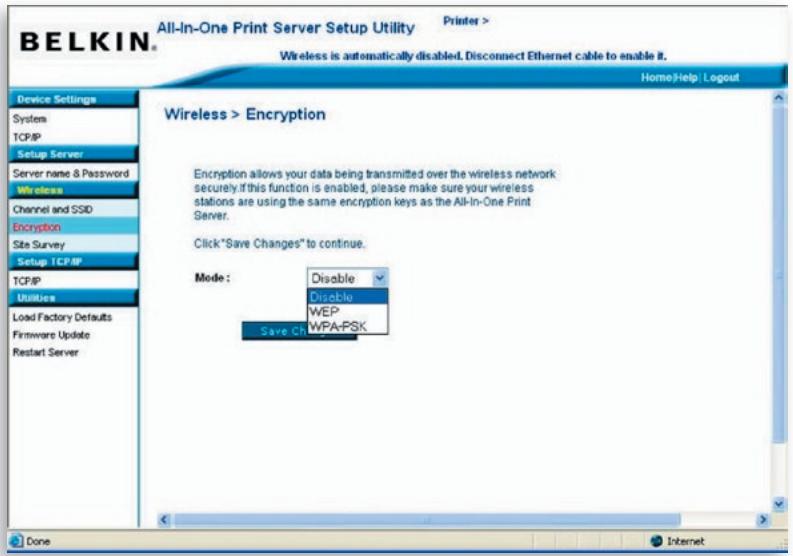
This Print Server supports WEP and WPA-PSK security modes. If you want to use WEP encryption to protect your wireless network, you have to select "WEP". If you want to use WPA-PSK, you have to select "WPA-PSK" (for an infrastructure network) or "WPA-None" (enables WPA security for an ad-hoc network). The wireless security setting should be the same with other wireless devices in the same network.
WEP Security Mode
Key Length - You can choose "64-bit" to use WEP with 64-bit key-length encryption or choose "128-bit" to use WEP with 128-bit key-length encryption. The longer key length can provide better security but worse transmission throughput.
Key Format - You may select to use ASCII characters (alphanumeric format) or hexadecimal digits (in the “A-F”, “a-f”, and “0-9” range) to be the WEP key.
PassPhrase - A "PassPhrase" simplifies the WEP-encryption process by automatically generating the WEP-encryption keys for the Print Server.
Default Key - Select one of the four keys to encrypt your data. Only the key you select in the "Default key" field will take effect.
Key 1 - Key 4 - The WEP keys are used to encrypt data transmitted within the wireless network. Fill in the text box by following the rules below:
64-bit WEP: input 10-digit hex values (in the “A-F”, “a-f”, and “0-9” range) or 5-digit ASCII characters as the encryption keys. For example: “0123456aef” or “Guest”.
128-bit WEP: input 26-digit hex values (in the “A-F”, “a-f”, and “0-9” range) or 10-digit ASCII characters as the encryption keys. For example: “01234567890123456789abcdef” or “administrator”.
WPA-PSK or WPA-None Mode
"WPA-shared key" (for an infrastructure network) or "WPA-None" (enables WPA security for your ad-hoc network) requires users to select the advanced encryption methods, i.e. TKIP or AES, and enter a set of shared keys.
TKIP - Temporal Key Integrity Protocol (TKIP) changes the temporal key every 10,000 packets. This ensures much greater security than the standard WEP security.
AES - Advanced Encryption Standard (AES) has been developed to ensure the highest degree of security and authenticity for digital information and is the most advanced solution defined by IEEE 802.11i for the security in a wireless network.
Key - Enter eight to 63 digits of ASCII format to be the key for the authentication within the network.
When you finish configuring the wireless security, click "Save & Next" to confirm the configuration.
Site Survey
This page allows the user to scan the wireless network. Refer to the "Wireless Configuration" chapter for more information.
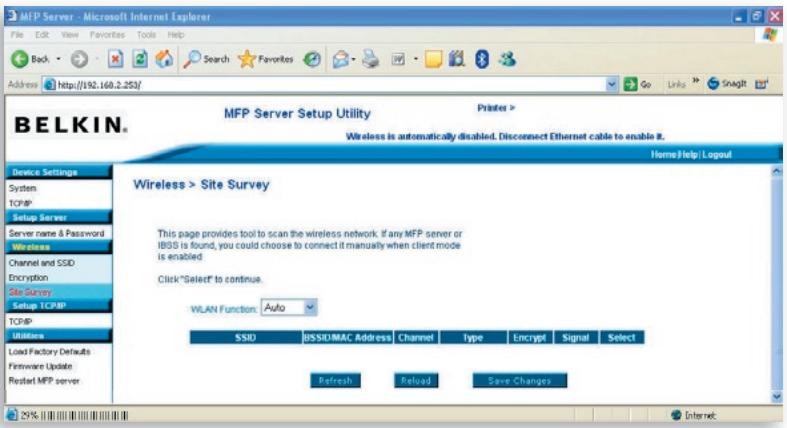
You can use this "Site Survey" function to search for available access points in your location. This list provides the information for all available access points or wireless stations, including SSID, BSSID, channel, type, encryption, and signal strength. You can select one wireless device in the list with which the Print Server can associate, or you can go back to the "Wireless" page to manually set up the wireless parameters.
A "WLAN Function" setting allows you to set up auto/disable/enable the wireless function of the Print Server. Refer to the "Wireless Configuration" section to know more about this setting.
Set Up TCP/IP
TCP/IP
This page allows the user to configure the TCP/IP-related settings of the Print Server including IP address, subnet mask, and gateway. It also can tell if the Print Server's internal DHCP server is enabled or disabled.
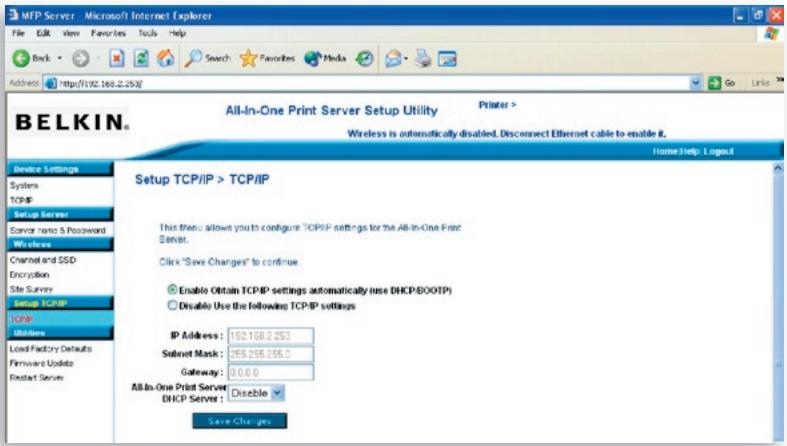
You can configure the Print Server to automatically get an IP address from a DHCP server or manually specify a static IP address. The Print Server also has a built-in DHCP server, which is disabled by default (recommended). You can enable this DHCP server and let it manage IP addresses for you.
If you need the Print Server to automatically get an IP address from the DHCP server, select "Enable Obtain TCP/IP Settings Automatically (Use DHCP/ BOOTP)". You also can select "Disable Use the following TCP/IP Settings" to manually assign the IP address, subnet mask, and gateway for the Print Server. The default TCP/IP-address information in Static IP mode will be what is shown below, even though it might display all zeroes in the "Web Management TCP/IP" page. The correct static IP address will be shown on this page if it is configured differently than the default TCP/IP settings below.
IP Address: 192.168.2.253
Subnet Mask: 255.255.255.0
Gateway: 192.168.2.1
Make sure that the TCP/IP information configured here is correct and matches your network settings, as it may be used as an alternative if a DHCP server on the network is ever unavailable or not found and the internal DHCP server is disabled.
Print-Server DHCP Server
Pull down the "DHCP Server" menu bar and select to "Auto", "Enable", or "Disable" the Print Server's internal DHCP Server. By the default, the internal DHCP server is disabled (recommended). When it comes to assigning an IP address to the Print Server, the internal DHCP server takes lower precedence to either getting an IP address from an external DHCP server or using the configured static IP address, as either one of these options is selected on this page.
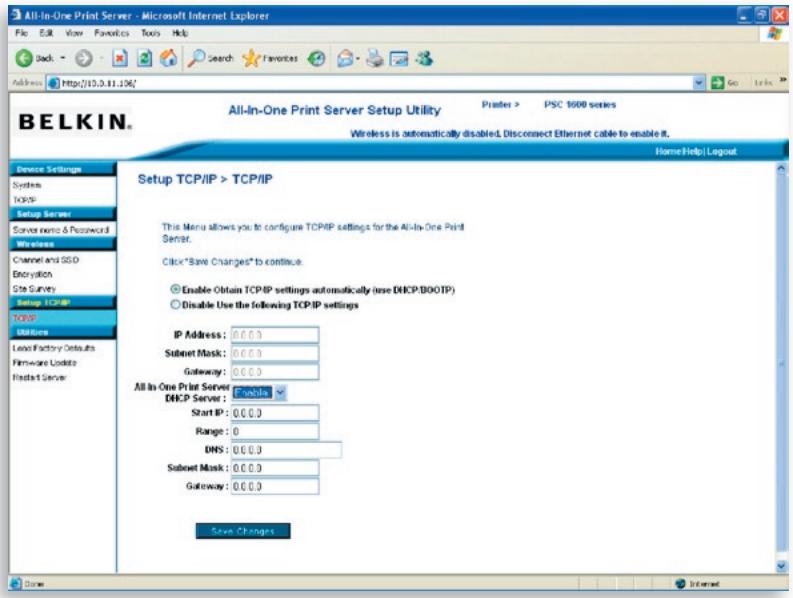
Disable - The internal DHCP server is disabled (recommended). The Print Server has to get an IP address from a DHCP server in the network or the user has to set the IP address manually.
Enable - If DHCP is enabled, you have to assign a valid range of IP addresses. Fill in the "Starting Address", "Range", "Subnet Mask", "Gateway", and "DNS" fields; then the Print Server will assign a unique IP to each DHCP client. However, the Print Server itself will get an IP address from the external DHCP server or use the configured static IP address, if the Print Server is configured for either of these two options on this page. Otherwise, the internal DHCP server will assign the first IP address to itself if no external DHCP server is found and the Print Server is not set up to use a static IP address.
Auto - There is another option called "Auto" for the internal DHCP server. "Auto" means that the Print Server will first search for and detect DHCP servers within the network automatically. If a DHCP server exists on the network, the internal DHCP server will stay idle (disabled) and would not respond back to DHCP requests that it receives from clients. If a DHCP server doesn't exist on the network, the Print Server will turn on its own internal DHCP server and assign IP addresses to clients. In this case, the internal DHCP server will also assign the first IP address to the Print Server only if the static IP option is not selected on this page, as static IP takes precedence. Fill in the "Starting Address", "Range", "Subnet Mask", "Gateway", and "DNS" fields; then the Print Server will assign a unique IP address to each DHCP client.
Note: After configuring the Print Server, you have to click "Save Changes" to save the settings and restart the system.
Utilities
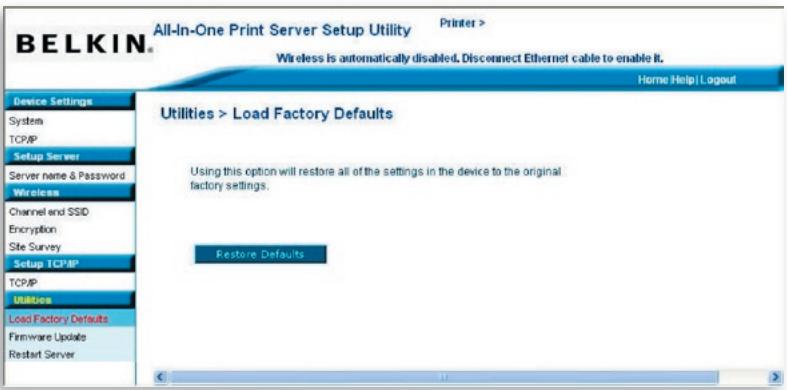
Load Factory Defaults
This page allows the user to restore factory defaults on the Print Server by erasing all the previous configurations.
Firmware Upgrade
From time to time, Belkin may release new upgrades to the firmware. Firmware upgrades usually include improvements in functionality and performance and resolve any minor problems that may have existed.
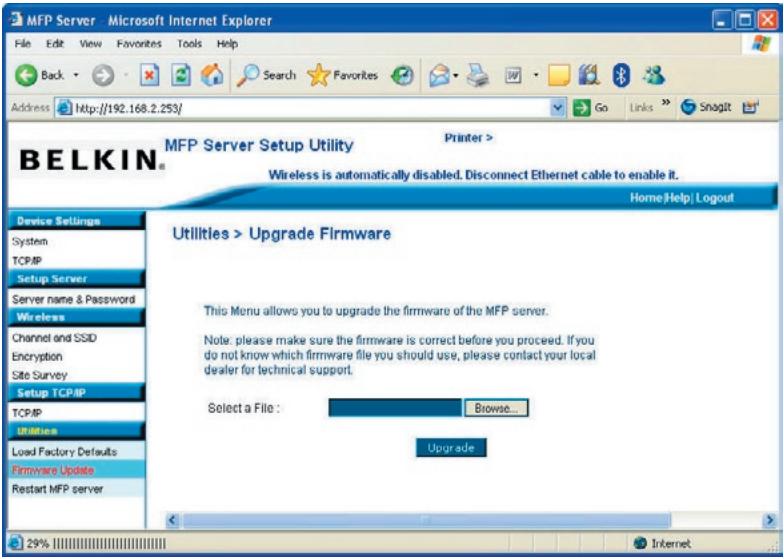
This page allows the user to upgrade firmware of the Print Server. Click "Browse" to select the new firmware in your storage and then click "OK"; the firmware will be updated in several minutes.
Be aware that if you have started upgrading firmware, you have to follow all the upgrading steps or the Print Server can't turn back to normal configuration.
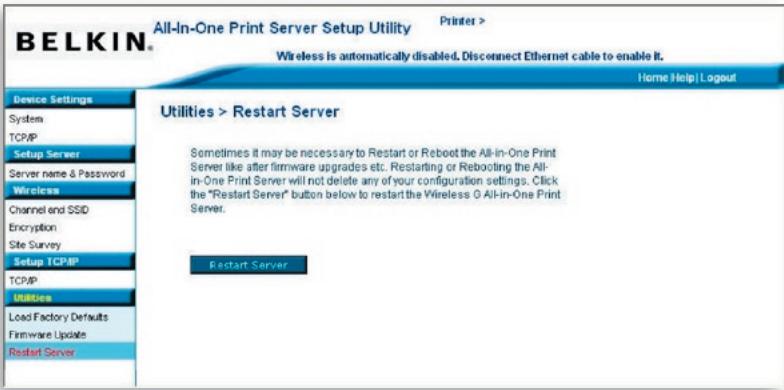
Restart MFP Server
This page allows the user to restart or reboot the Print Server.
Home|Help|Logout
There are a three shortcut buttons in the top, right-hand corner of the "Web Management" screen.
By clicking the "Home" button, the user is directed back to the "Device Settings > System" page, as below.
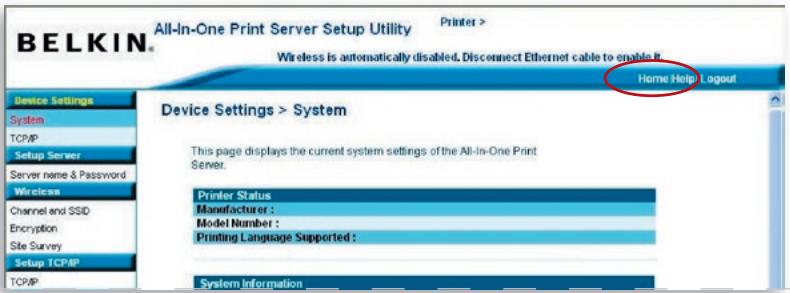
A basic help menu is available to users by clicking the "Help" button. This page shows the glossary of terms used in configuration and management of the Print Server.
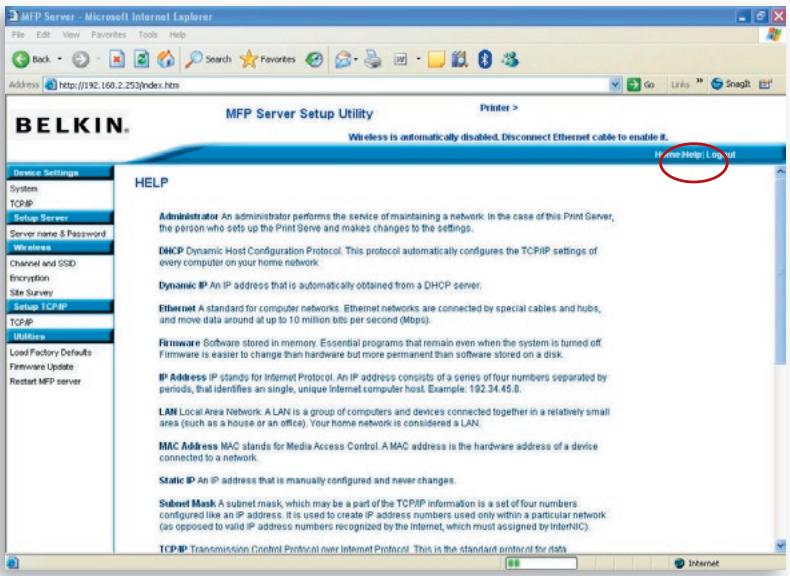
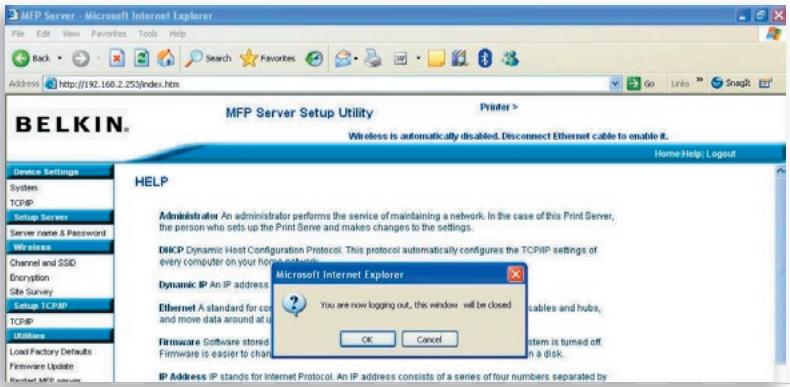
Clicking the "Logout" button will log the user out of the Print Server and close the browser window
Line Printer Remote (LPR) technology allows users to connect to printers via TCP/IP for print sharing. A computer with Windows 98SE, Me, NT, 2000, XP, or 2003 can use this protocol to share printing in the network. The Print Server can support LPR printing by default.
If you install the Print Server in Windows 98SE, Me, or NT, it provides a "Network Port Setup" tool that helps to add the LPR protocol to a user's computer easily. Refer to the "Print-Server Installation in Windows 98SE/Me/NT" chapter for more information.
To configure the LPR setting in Windows 2000, XP, or 2003, follow the steps below.
- Click "Start", choose "Settings", and select "Printers and Faxes".
- Click "Add a Printer".
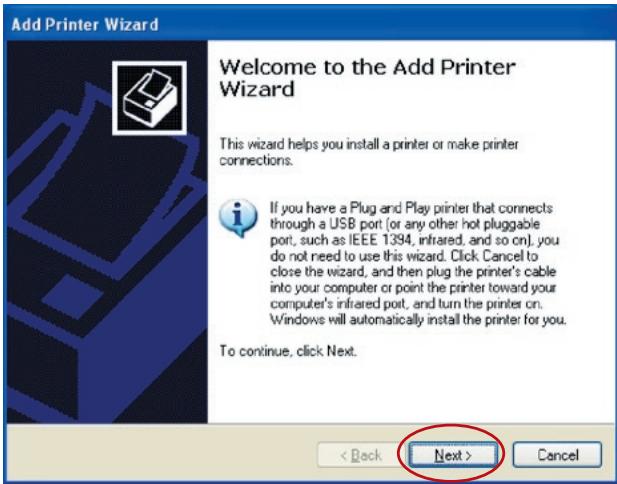
- The Add Printer Wizard appears. Click "Next".
- Select "Local printer attached to this computer" and click "Next".
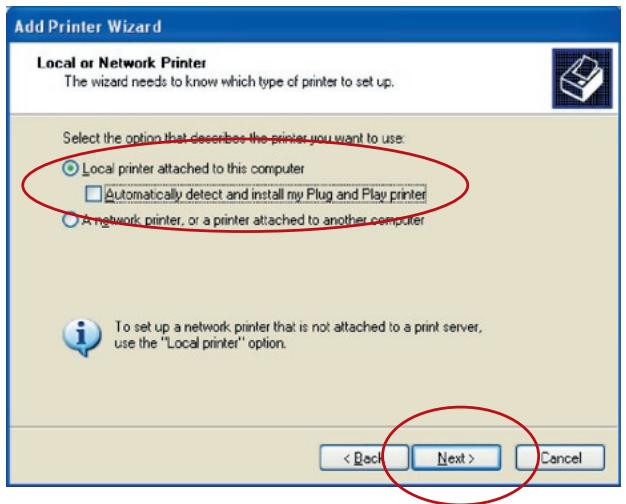
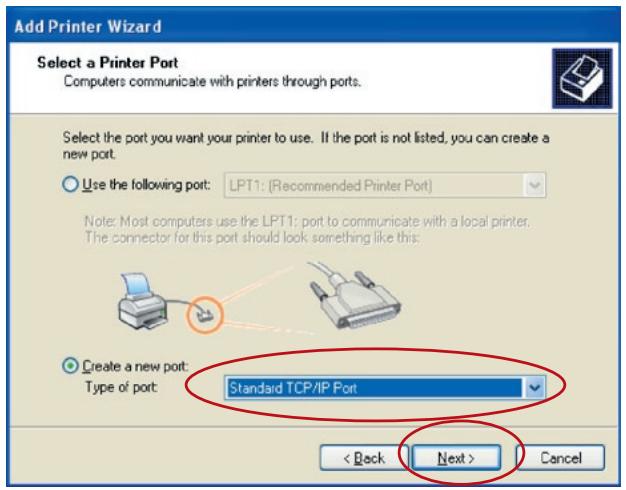
- Choose "Create a new port" and "Standard TCP/IP Port". Click "Next".
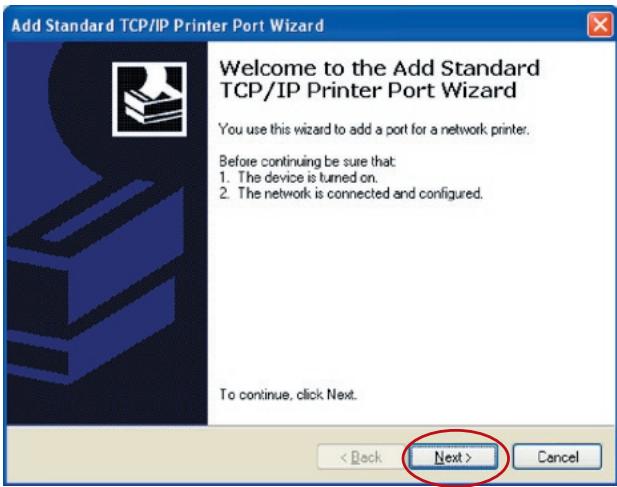
- Make sure that the Print Server and the printer are on and connected to the network correctly before you continue. Click "Next".
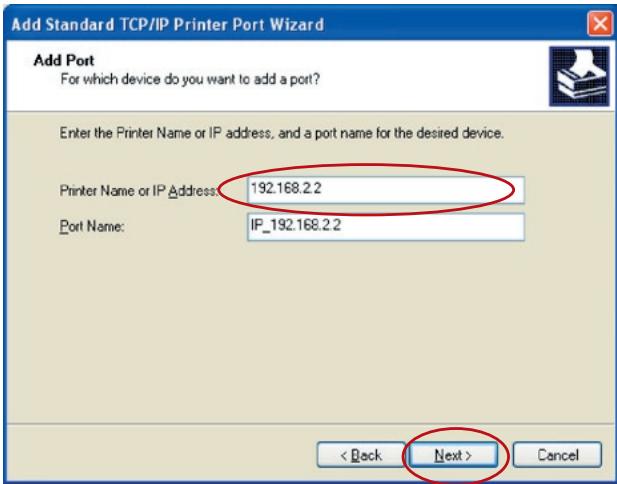
- Enter the Print Server's IP address in the "Printer Name or IP Address" field. Click "Next".
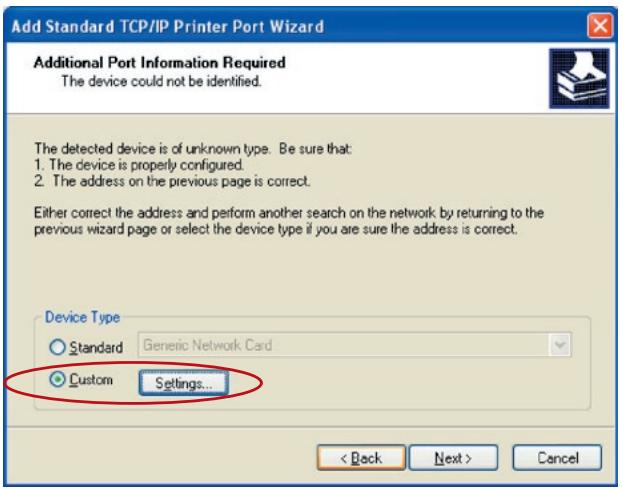
- Select "Custom" and click "Settings". When you have finished the settings at step 9, click "Next" to continue.
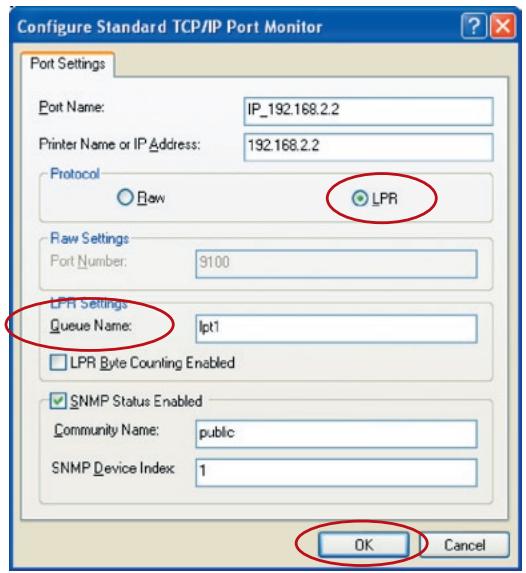
- Select "LPR" and enter "Ipt1" in the "Queue Name" box, then click "OK". By default, the queue name of the Print Server is "Ipt1".
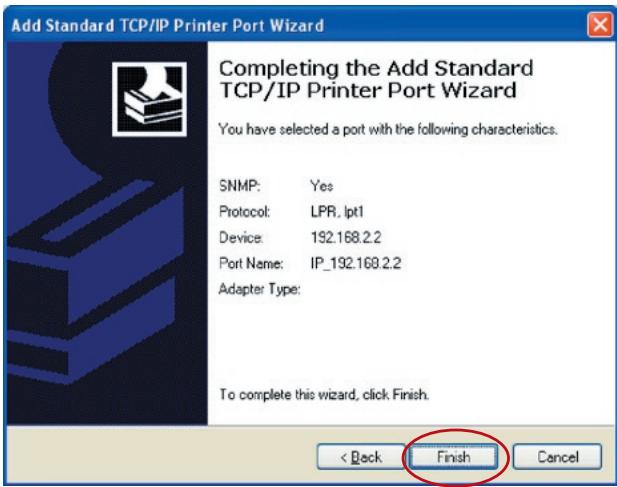
- Click "Finish".
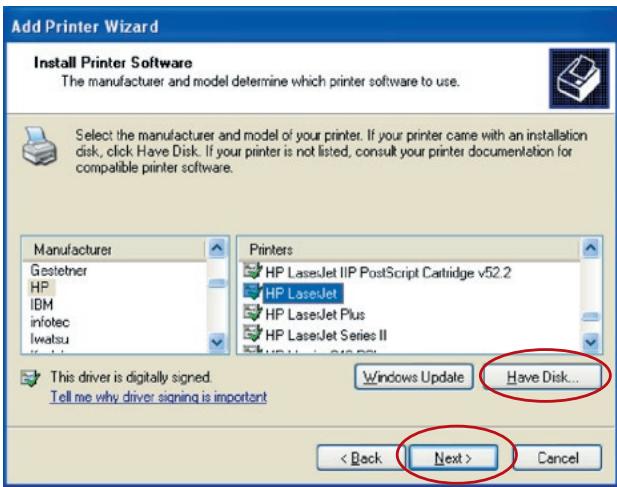
- Select a suitable printer manufacturer and the printer model, and click "Next". If your printer is not on the list, click "Have Disk..." to install the printer's driver. After installation, the printer model will be added to the list.
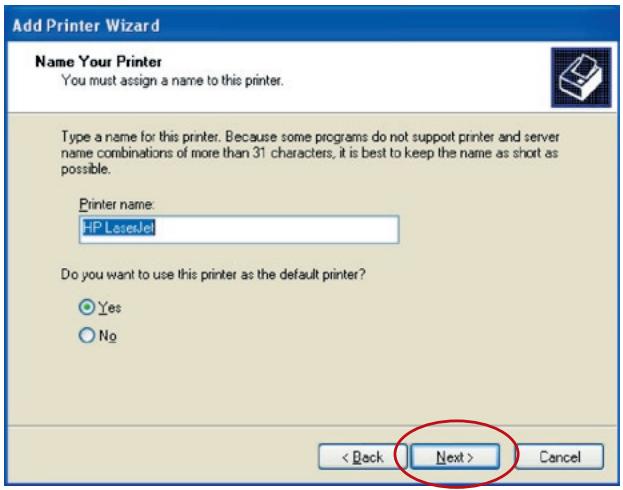
- Choose to set the printer as either a default printer or not. Click "Next".
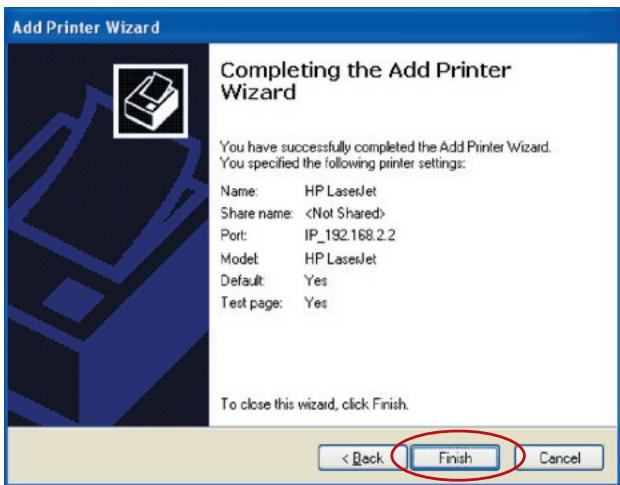
- You have added the network printer to the computer successfully. The printer's information appears in the following window. Click "Finish".
Read-After-Write (RAW) printing allows a user to connect to printers via TCP/IP for print sharing. A computer with a Windows 2000, XP, or 2003 operating system can use the protocol to share printing in the network. The Print Server can support RAW printing by default.
To configure the RAW setting in Windows 2000, XP, or 2003, follow the steps below.
- Click "Start", choose "Settings", and select "Printers and Faxes".
- Click "Add a Printer".
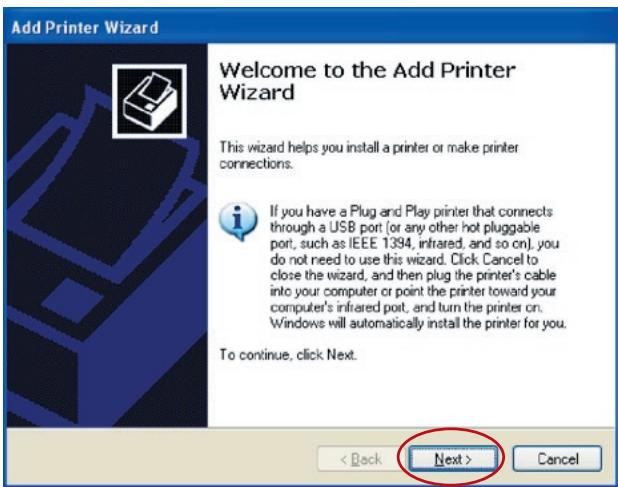
- The Add Printer Wizard appears. Click "Next".
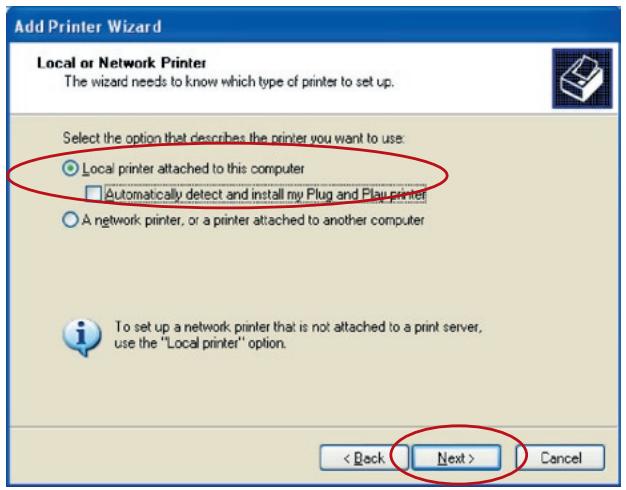
- Select "Local printer attached to this computer" and click "Next".
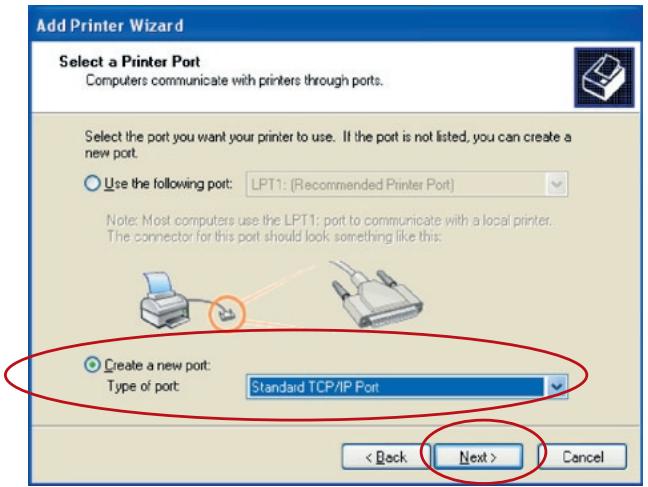
- Choose "Create a new port" and "Standard TCP/IP Port". Click "Next".
- Make sure that the Print Server and the printer are on and connected to the network correctly before you continue. Click "Next".
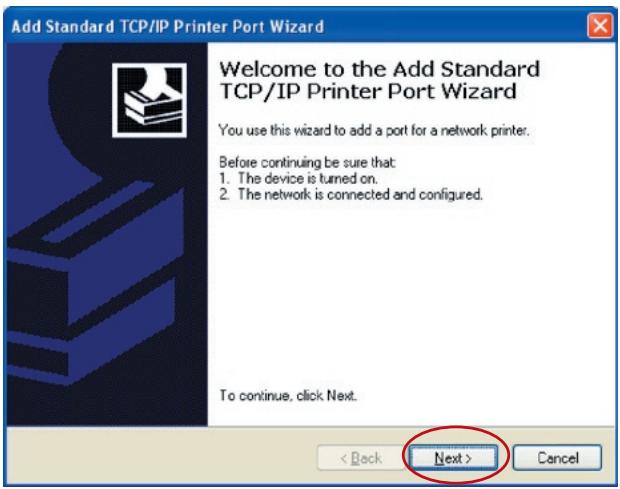
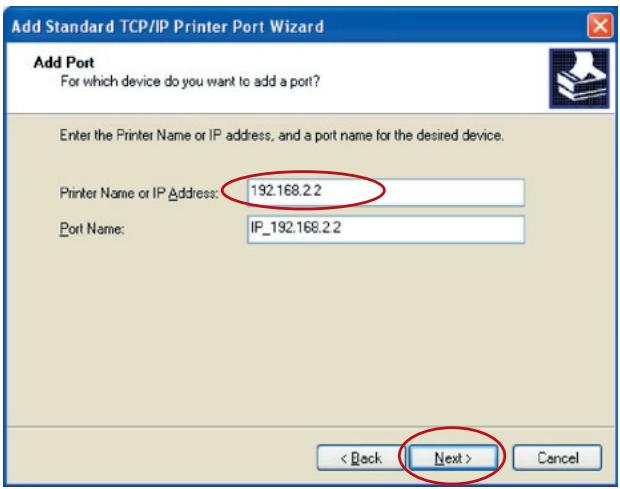
- Enter the Print Server's IP address in the "Printer Name or IP Address" field. Click "Next".
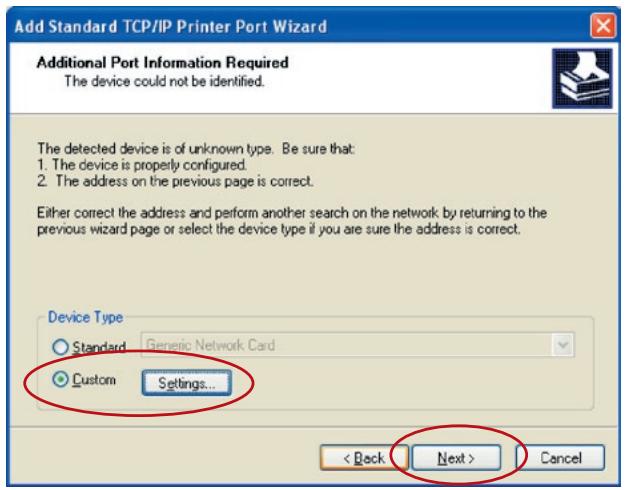
- Select "Custom" and click "Settings". When you have finished the settings at step 9, click "Next" to continue.
- Select "Raw" and enter "Ipt1" in the "Queue Name" field, and then click "OK". By default, the queue name of the Print Server is "Ipt1".
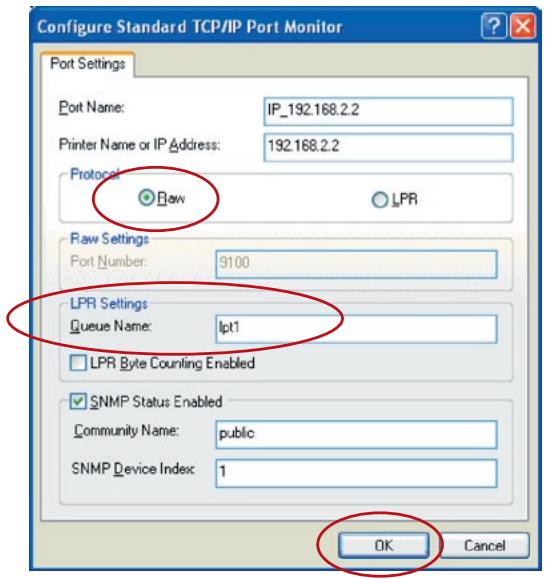
10. Click "Finish".
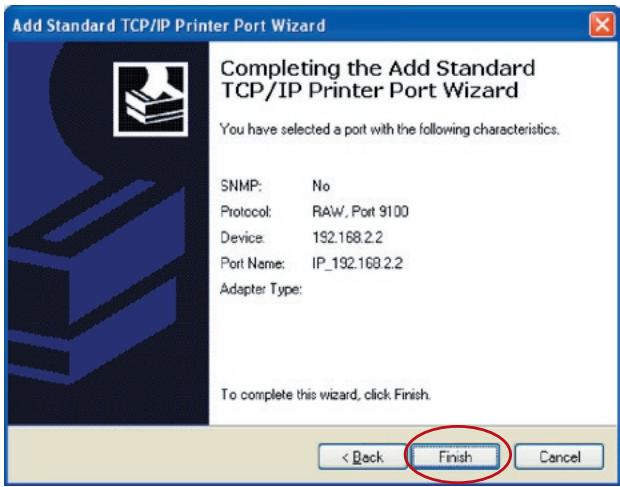
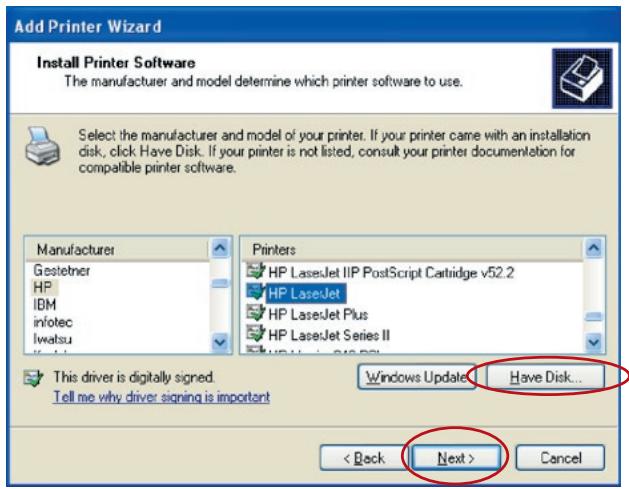
- Select a suitable printer manufacturer and the printer model, and click "Next". If your printer is not on the list, click "Have Disk..." to install the printer's driver. After installation, the printer model will be added to the list.
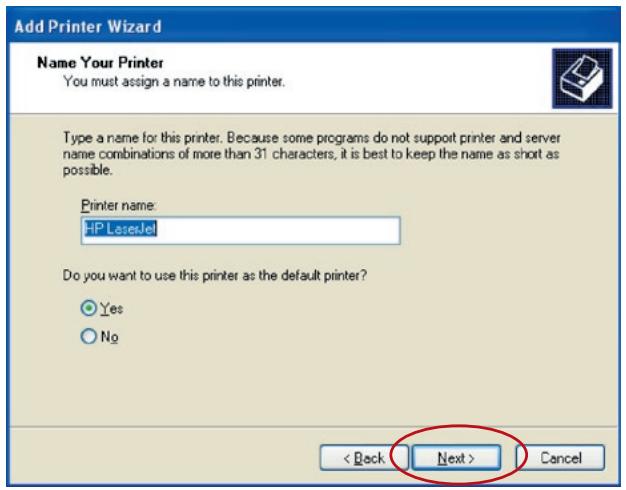
- Choose to set the printer as either a default printer or not. Click "Next".
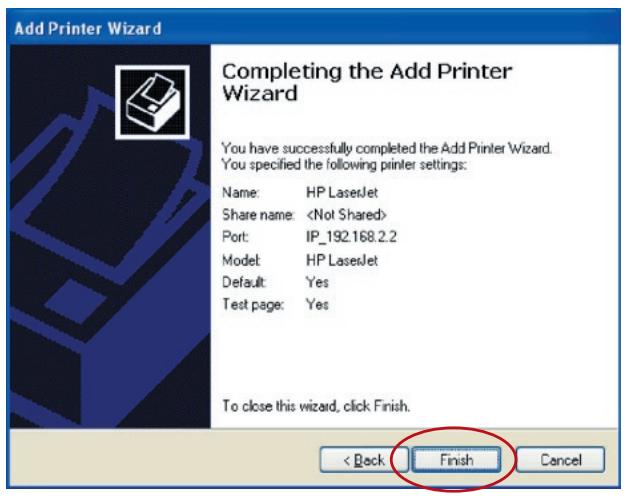
- You have added the network printer to the computer successfully. The printer's information appears in the following window. Click "Finish".
Introduction
Internet Printing Protocol (IPP) printing provides a convenient remote-printing service through TCP/IP. The Print Server can support IPP printing in Windows 2000, XP, or 2003 by default. By using IPP printing, you can share the printer with all the computers that can access the Print Server through IP. You can even share your printer with Internet users.
System Setup
Print-Server Side
You do not have to perform any settings on the Print-Server side. Make sure the Print Server has the correct IP settings. If you want to share the printers with Internet users, you have to set a real IP address to the Print Server. You should also make sure that any gateway router or firewall does not block IPP protocol if you have gateway devices installed in your network.
Client Side
You only need to perform a Windows standard "Add New Printer" procedure.
- Click "Start", choose "Settings", and select "Printers and Faxes".
- Click "Add a Printer".
- The Add Printer Wizard appears. Click "Next".
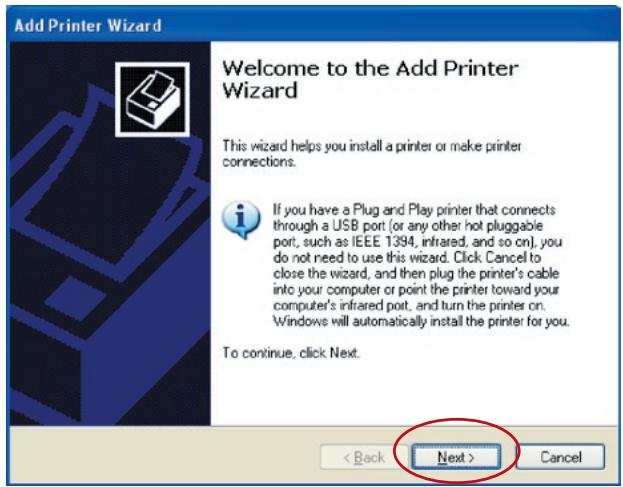
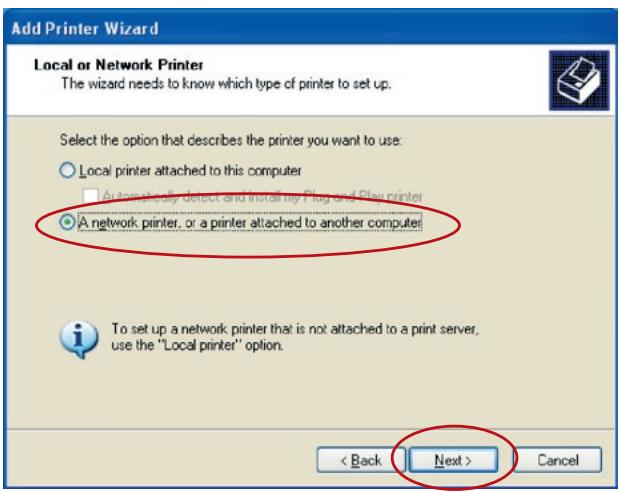
- Select "A network printer, or a printer attached
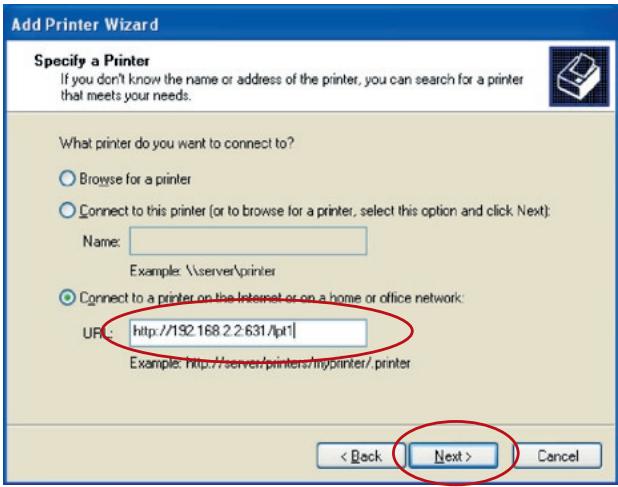
- Select "Connect to a printer on the Internet or on a home or office network" and enter the Print Server's URL. The URL format is "http://IP:631/PortName". The IP address should be the Print Server's IP address. The number "631" is a standard IPP port number. The port name refers to the one to which your printer is connected. The default port name is "Ipt1". One example of the URL is "http://192.168.2.2:631/Ipt1". After entering the Print Server's URL, click "Next".
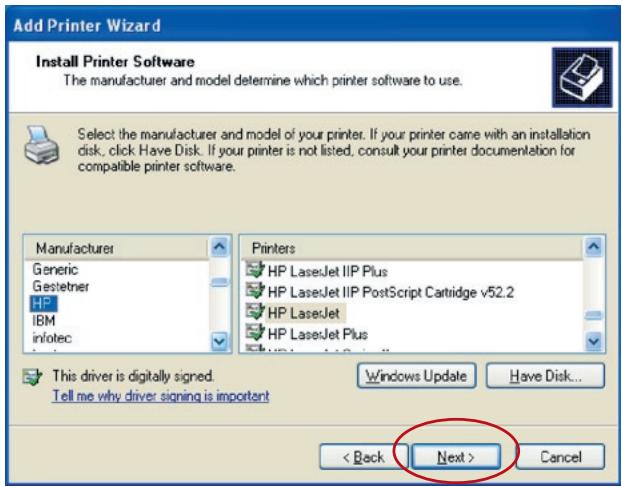
- Select a suitable printer manufacturer and the printer model, and click "Next". If your printer is not on the list, click "Have Disk..." to install the printer's driver. After installation, the printer model will be added to the list.
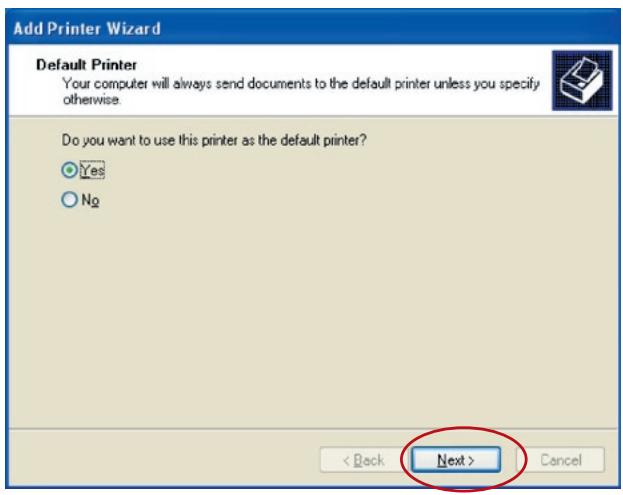
7. Choose to set the printer as either a default
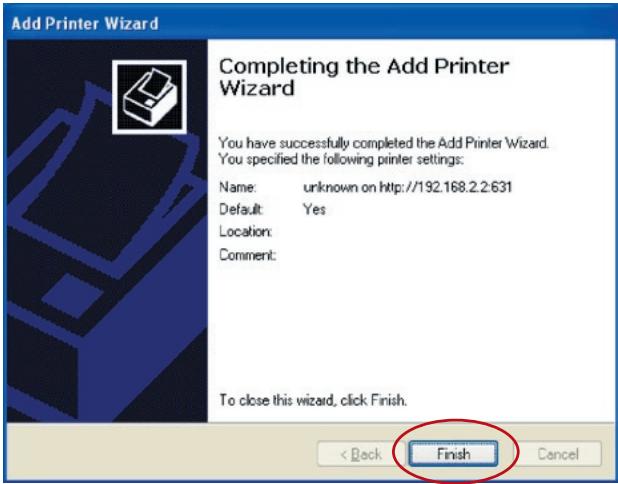
- You have added the network printer to the computer successfully. The printer's information appears in the following window. Click "Finish".
This All-In-One Print Server supports TCP/IP network protocol and IPP, RAW, and LPR printing protocols, it can be a standard print server when you operate it in Windows 98SE, Me, NT, 2000, XP, or 2003; UNIX/Linux; and Mac OS. The IPP and RAW printing protocols can be used in Windows 2000, XP, or 2003. The LPR printing protocol can be used in Windows 98SE, Me, NT, 2000, XP, or 2003; UNIX/Linux; and Mac OS. For the LPR, RAW, and IPP settings in Windows 2000, XP, or 2003, refer to the "LPR Printing", "RAW Printing", and "IPP Printing" chapters.
This chapter shows you how to install the Print Server in Windows 98SE, Me, or NT.
Before you start, you should have:
a. One computer with Windows 98SE, Me, or NT
b. A TCP/IP network protocol installed on your computer
Software-Installation Procedure
The installation steps in Windows 98SE follow. To install the Print Server in Windows Me or NT, the procedure is similar.
- Insert the CD shipped with the Print Server into your CD-ROM drive. The autorun.exe program should be executed automatically. If not, run autorun.exe manually from your CD-ROM drive's root directory.
- The Installation Manager will appear as follows. Click "All-In-One Print Server Installation".
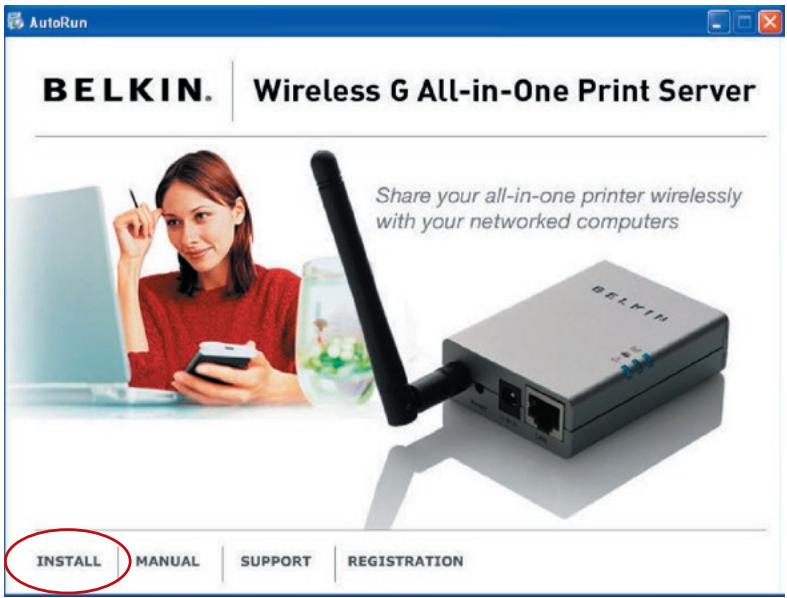
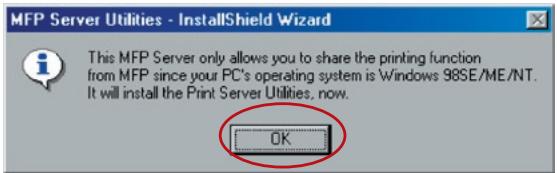
- The following message reminds you that the Print Server will only support the print-sharing function because your computer's operating system is Windows 98SE, Me, or NT. Click "OK".
- The Belkin All-In-One Print Server - InstallShield Wizard appears. Click "Next".
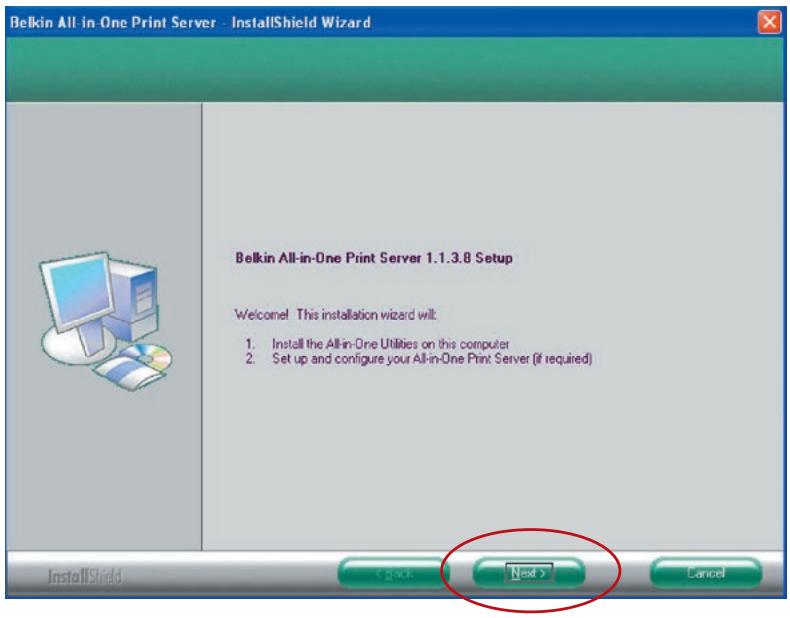
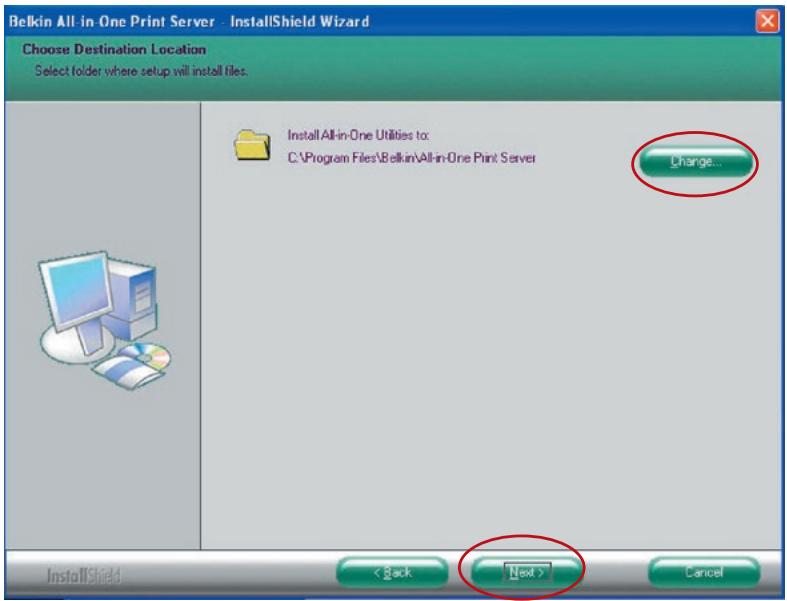
- Click "Next" to install the Print-Server utilities in the default folder, or click "Change" to specify the destination folder where you would like to install them.
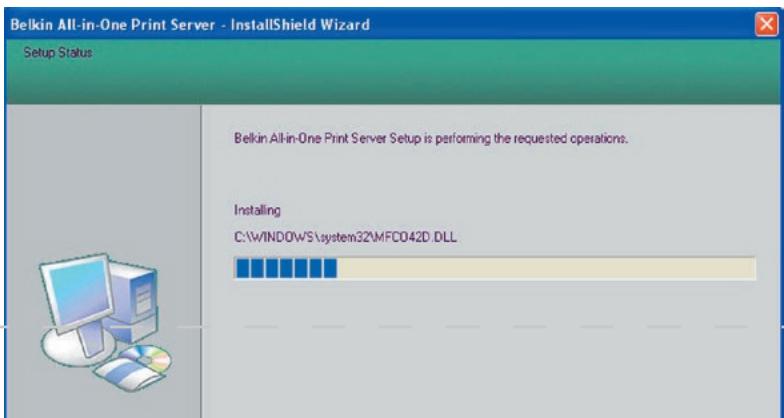
- The Print-Server utilities are being installed.
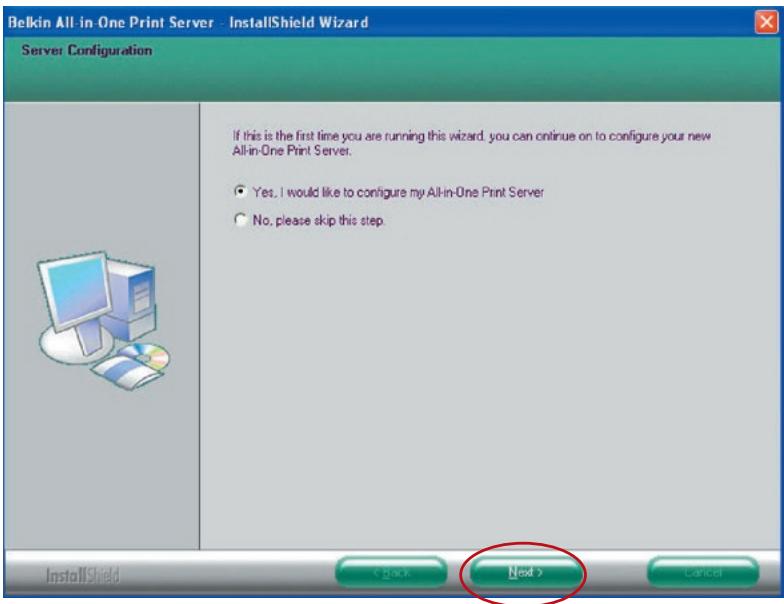
- The "Configuration" screen appears. If you want to configure the Print Server, click "Next".
You can select "No, please skip this setup" and click "Next" to complete the installation (when adding a new client computer to share a preexisting print-server setup). Choose if you want to run the Belkin All-In-One Print Manager utility automatically when Windows starts. We recommend that you enable this setting.
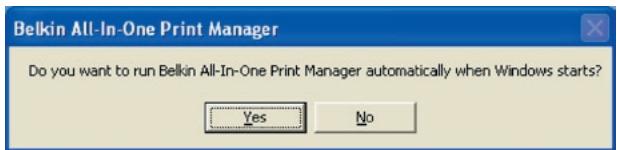
The following steps are for Print-Server configuration upon choosing "Yes, I would like to configure my All-In-One Print Server".
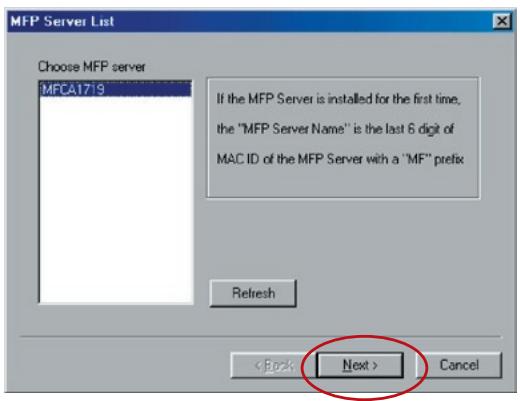
- The MFP Server List will automatically search the Print Servers in the network. Select the Print Server you want to set up and click "Next" to continue.
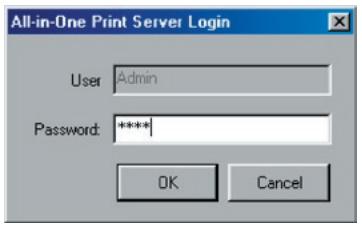
Enter the "UserID" and "Password" of the MFP Server you have selected to login the MFP Server. The default "UserID" is "admin"; default "Password" is "1234."
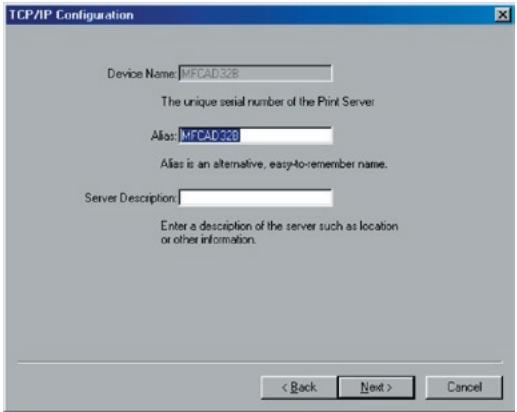
- Set the alias name of the Print Server here. Click "Next".
- To set up the IP address of the Print Server, the default is set to "DHCP" for the TCP/IP configuration. The Print Server by default will try to get an IP address from the connected Belkin Router running the Dynamic Host Configuration Protocol (DHCP) server. The newly assigned TCP/IP settings will be displayed in the "TCP/IP Configuration" window for your reference. Click "Next" to continue on to next step in the installation process.
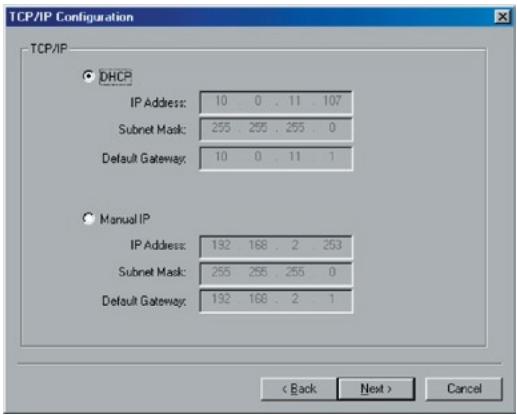
If the DHCP server is unavailable or not found, the user will be prompted to configure the TCP/IP settings of the Print Server manually. The default TCP/IP-address information in the Manual-IP mode will be what is shown below.
IP Address: 192.168.2.253
Subnet Mask: 255.255.255.0
Default Gateway: 192.168.2.1
DNS: 0.0.0.0
Make sure that the TCP/IP information configured here is correct and matches your network settings. Click "Next" to continue on to next step in the installation process. The Print Server will check if the manually configured IP address in "TCP/IP Configuration" is in the same subnet as the connected computer running the installation utility. If the TCP/IP-address settings configured manually are in a different IP subnet than that of the connected computer, the user will be prompted by an alert message. Click "OK" to go back and configure the correct IP-address settings for the Print Server.
Note: If you want to change the TCP/IP settings of the Print Server at some point after the installation, you can use the Server-Manager utility's TCP/IP- configuration option.
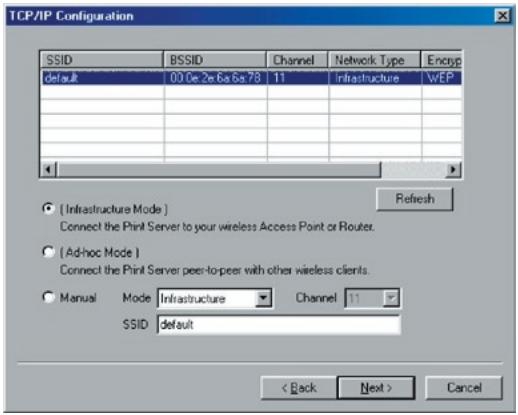
- The default wireless setting is "Auto" mode. The Print Server will detect a connection to a wired-LAN network through the attached Ethernet cable. If the Print Server is connected to a wired network, it will work in that network. To enable wireless mode, the Ethernet cable must be disconnected after final configurations. However, the Ethernet cable needs to stay plugged in for the required wireless configurations in this section. For more detailed information about wireless settings, refer to the "Wireless Configuration" section.
The "Wireless Network Settings" screen of the Print Server will automatically scan the wireless networks nearby. Select the wireless network to which you would like to connect and click "Next". Alternatively, you can manually enter the wireless-network information ("Manual" mode).
The default wireless settings are as follows:
Mode: Infrastructure
SSID: Default
Channel: 11
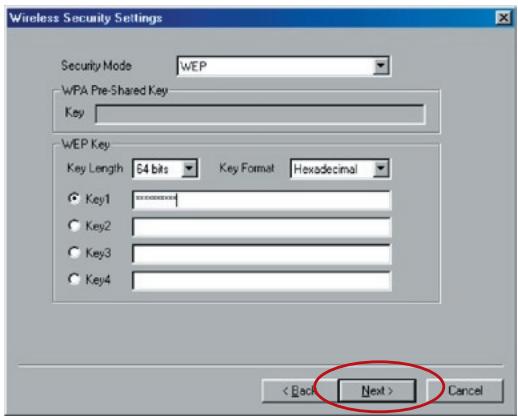
- If you choose to connect to an encrypted network, the "Wireless Security Settings" screen will appear. Select "Security Mode" and enter the security settings of your wireless network. You can select one of several security settings: "None", "WEP", or "WPA" with cipher mode "TKIP" or "AES".V
- The settings are finished. Click "Finish" to apply new settings.
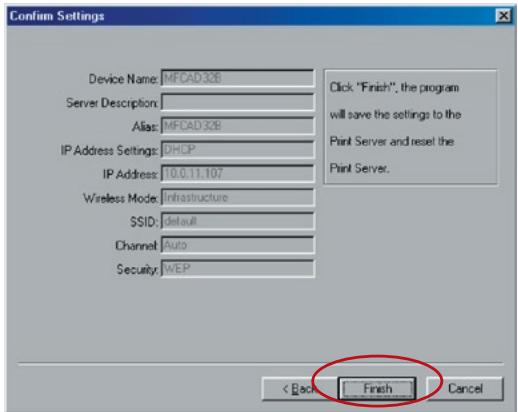
- Click "Finish" to complete the installation.
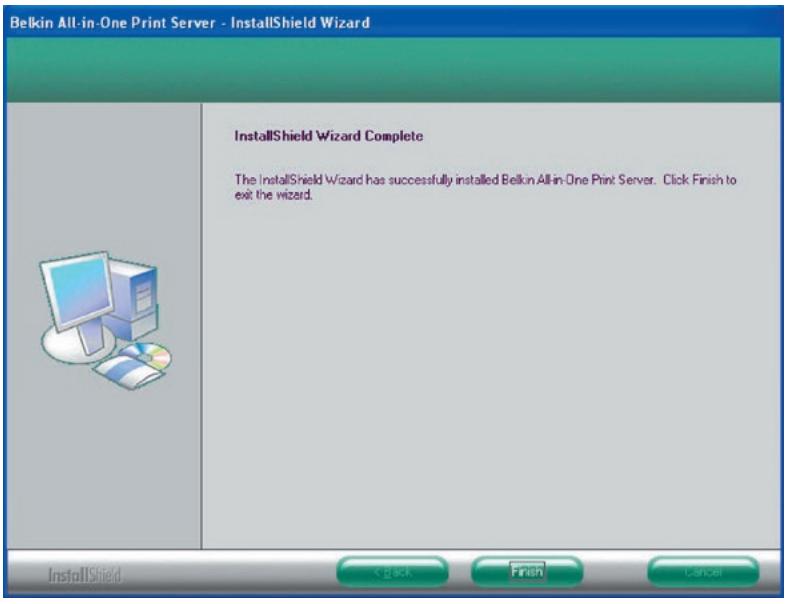
At this point, disconnect the Ethernet cable between your Print Server and your router to enable the wireless functionality of your Print Server.
Store the Ethernet cable in a safe place in case it is needed to reconfigure the Print Server at some point in the future.
Server Utilities
When the installation is complete, there will be three utilities and a text file in the Print Server's Program folder.
Network-Port Setup - Add the network ports of the Print Server within the network to your computer.
Server Configuration - Allows you to configure the IP address, network protocols, and other advanced functions. Refer to the "Print Server Manager" chapter for detailed instruction of the configuration.
Uninstall - Assistant for removing all installed software.
About Version - Display the version of each utility including those in the Print Server's software programs.
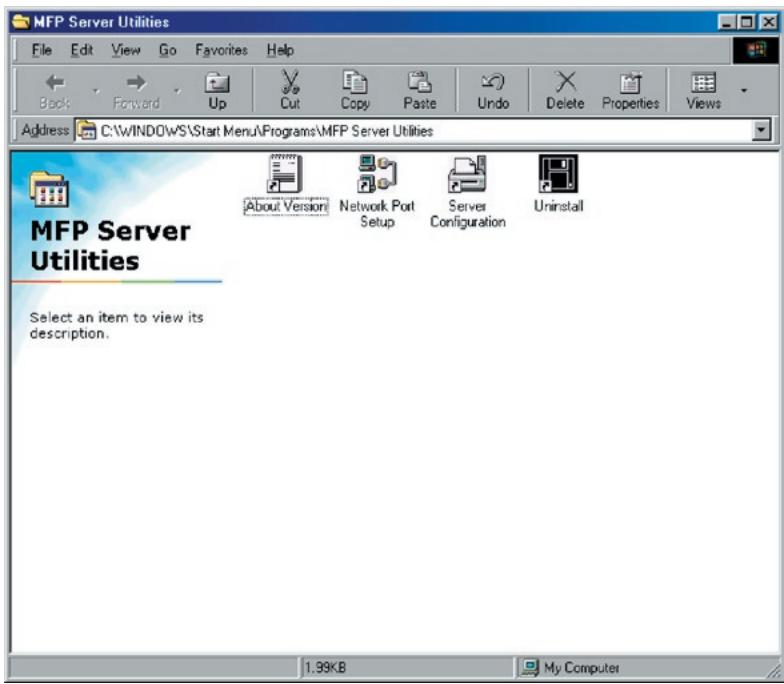
Network-Port Setup
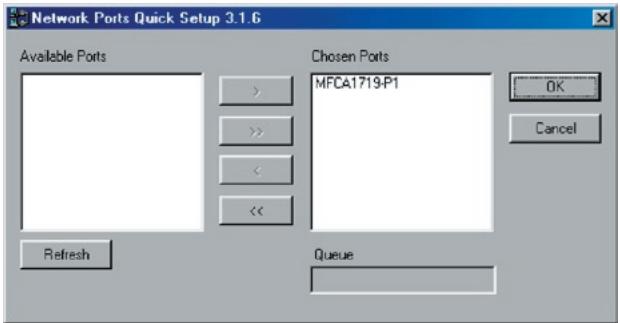
The "Network Port Setup" utility offers a very simple method to add or remove the Print Server's printer port from the client's computer.
During the Print Server's installation procedure, the system will automatically search for all Print Servers on the network, and add the printer port of the Print Server you have selected to the user's computer (see below).
If you have just installed another new Print Server in the network, you must run this program first. This program will search for new Print Servers and allow you to add the new network printer port into your computer conveniently. Perform the standard "Add Printer" procedure, and then you can print directly to the printer through the newly installed Print Server.
Note: Be aware that "Network Port Setup" utility can only detect and configure all Print Servers within the same network; it cannot search and configure the Print Servers on other subnets across network segments.
Add Printer
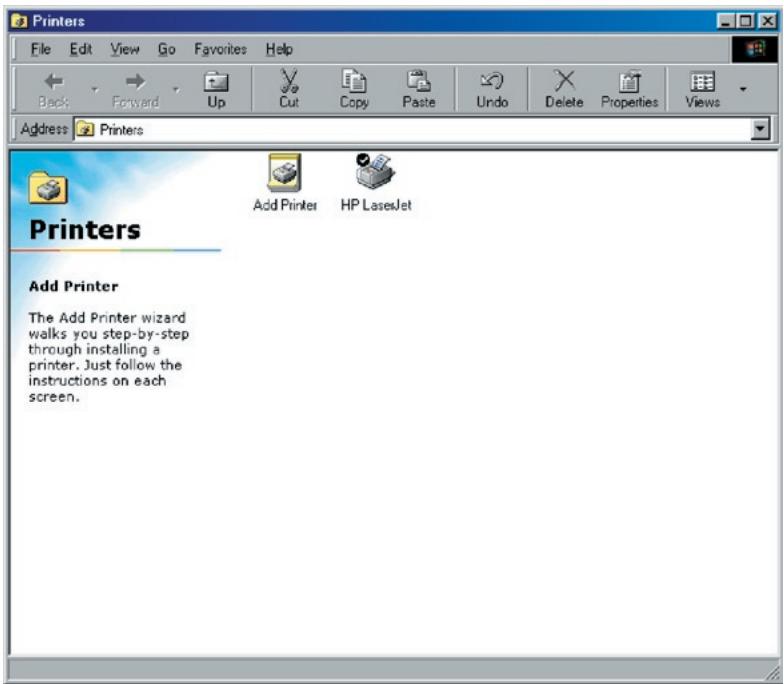
After adding a network port of the Print Server to your computer, you can follow the procedure described below to add a printer to Windows. Note that the following "Add Printer" steps are running in Windows 98SE, the steps in other operating systems are similar.
- Click "Start", choose "Settings", and select "Printers".
- Click "Add Printer".
- The Add Printer Wizard appears. Click "Next".
Add Printer Wizard
This wizard will help you to install your printer quickly and easily.
To begin installing your printer, click Next.
<Back
Next>
Cancel
- Select "Local printer" and click "Next".
Add Printer Wizard

How is this printer attached to your computer?
If it is directly attached to your computer, click Local Printer. If it is attached to another computer, click Network Printer
Local printer
Network printer
<Back
Next>
Cancel
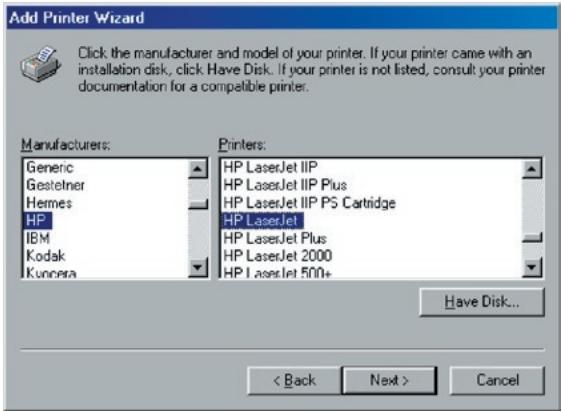
- Select a suitable printer manufacturer and the printer model, and click "Next". If your printer is not on the list, click "Have Disk..." to install the printer's driver. After installation, the printer model will be added to the list.
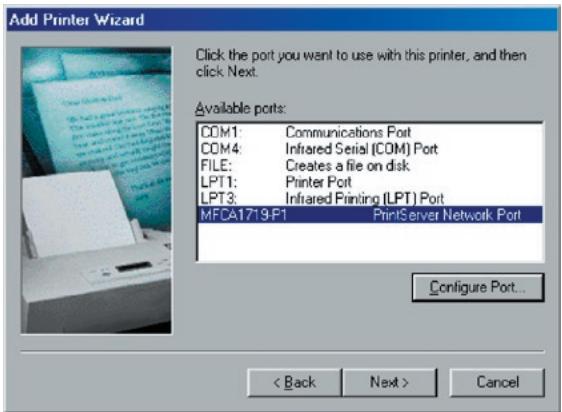
- Choose the suitable "Print Server Network Port" and click "Next".
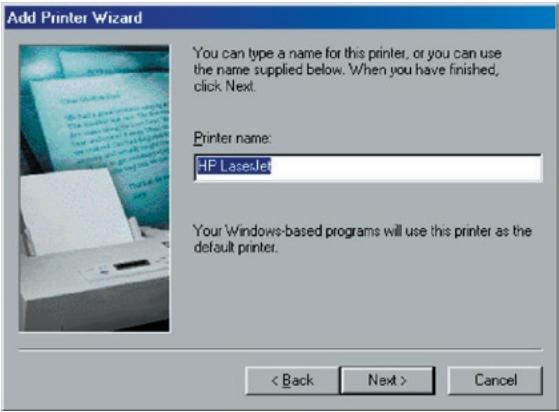
- Enter the new name for the printer or click "Next" to keep the default printer name.
- Choose to print the test page or not. We recommended that you print a test page. Click "Finish".
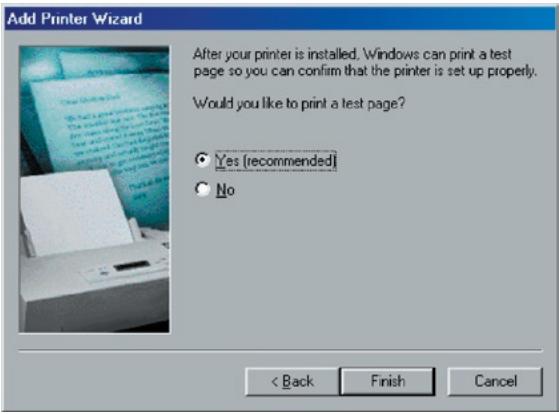
- The printer's drivers will be installed. After the installation
Introduction
The Print Server is available for TCP/IP printing by UNIX/Linux Line Printer Daemon (LPD) protocol. This chapter explains how to set the MFP Server with the LPD protocol in the Unix/Linux system. Following describes the two modes to configure the MFP Server. In the GUI Mode, we follow the settings in the Fedora Core 4 system.
GUI Mode
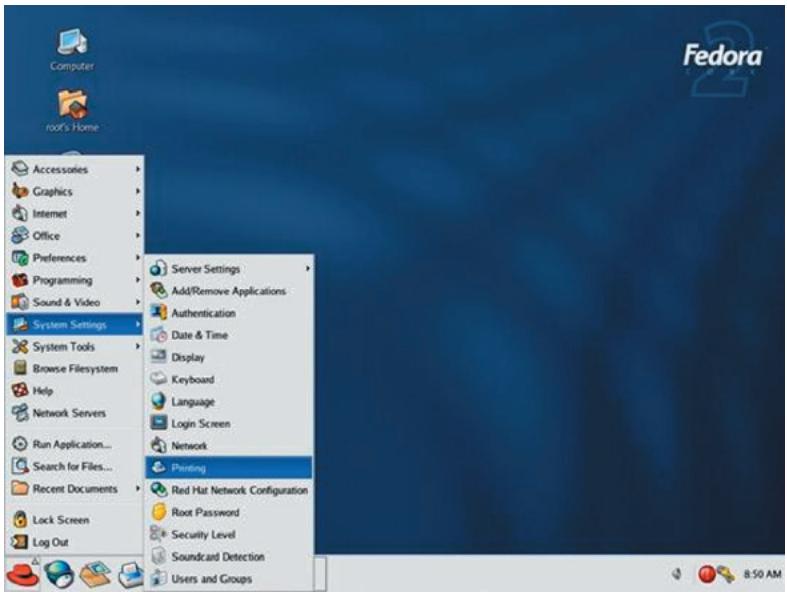
- Select "Printing" from "System Settings".
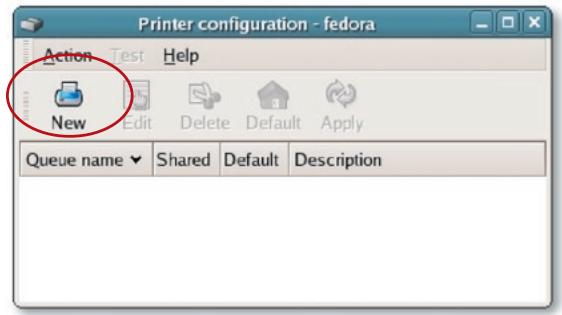
- Click "New" to add the printer with the All-In-One Print Server.
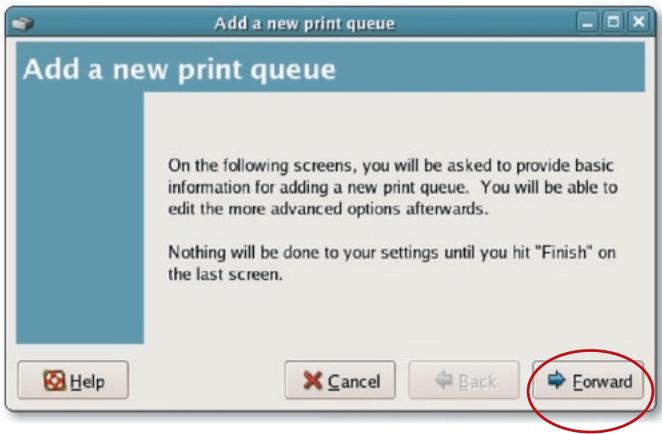
- Click "Forward".
- Set the printer queue name and the short description of the printer and click "Forward".
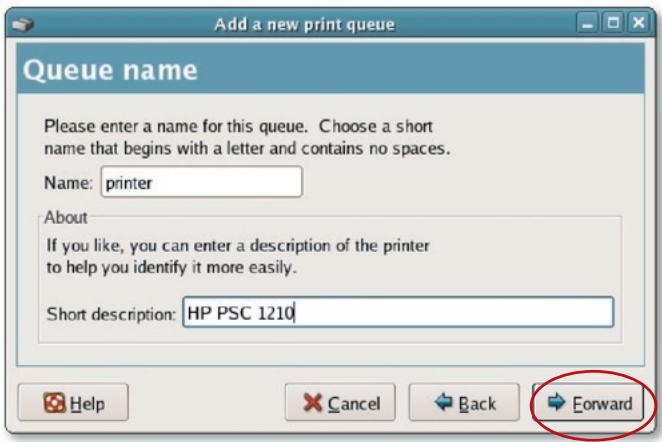
- In the following screen, please configure as below. Then click "Forward" to continue.
Select a queue type: Select "Network Unix (LPD)" as the queue type.
Server: Enter the IP Address of the Print Server, for example: 192.168.2.253.
Queue: Set the queue name to lpt1.
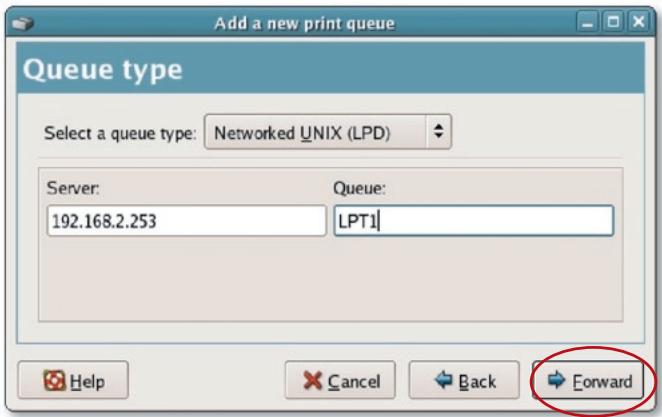
- Select the printer manufacturer and model and click "Forward".
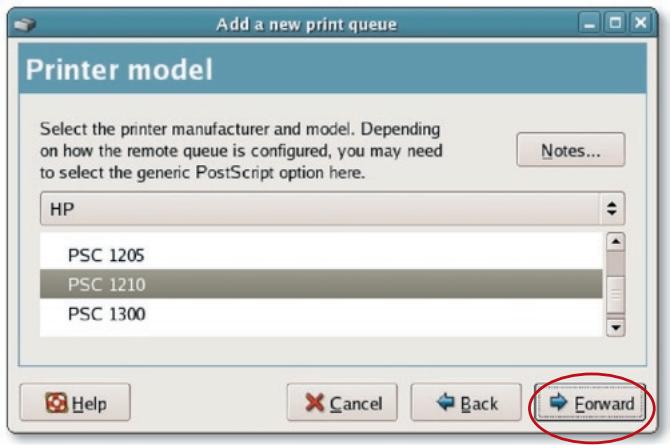
- Please review the settings. If the settings are OK, click "Finish".
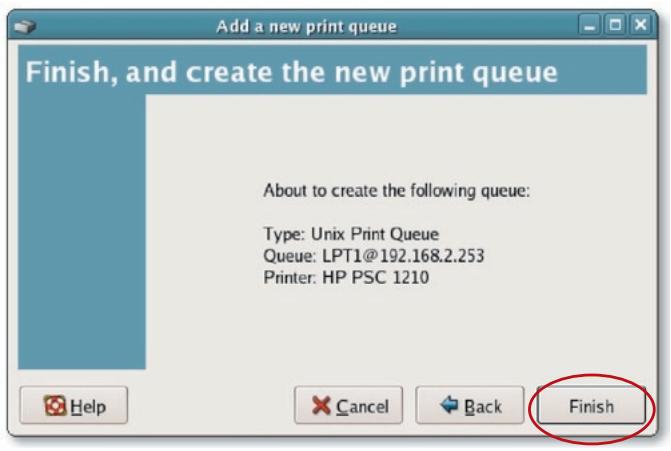
- To print a test page and apply all the settings, please click "Yes".
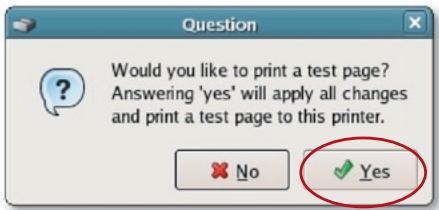
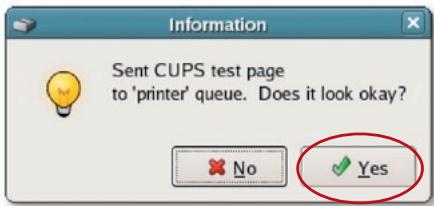
- If the test page prints without any problem, please click "Yes". If it fails to print, please click "No" to go back to "Printer configuration - Fedora" screen and configure again.
Console Mode
The LPD protocol originated with UNIX release is based on the Berkeley Software Distribution (BSD) version of UNIX and is supported under most versions of UNIX.
This chapter explains how to configure the Print Server for TCP/IP operation, and how to modify configuration files on your UNIX system to allow printing to the Print Server. The configuration examples in this User Manual follow the syntax for BSD-based UNIX systems. Refer to the related system documentation for the correct syntax of your systems.
Setup and Configuration
To configure the Print Server for LPD printing, perform the procedures below:
- Enable the Print Server's TCP/IP support.
- Set up the Print Server's IP address.
- Verify the Print Server's IP address.
- Configure remote LPD printing on the host.
- Print a test page.
In the next sections, we will describe these five procedures step by step.
Enable the Print Server's TCP/IP Support
The Print Server's default configuration is to have TCP/IP support enabled. You can also configure the Print Server to enable TCP/IP support using the configuration program.
Set Up Print Server's IP Address
The Print Server must have a unique IP address in order to be recognized by the network.
You can set up the IP address on the various UNIX/Linux systems using any one of the following methods:
- DHCP (Dynamic Host Configuration Protocol)
- BOOTP (Bootstrap Protocol)
The Print Server will use the last two methods to obtain its IP address automatically if its IP address is configured as "Auto" (0.0.0.0).
DHCP
There are many UNIX/Linux systems that support DHCP protocol, and the procedures to configure the DHCP server database are different. Refer to the UNIX/Linux manual for instructions on using a different DHCP server. It is highly recommended that the DHCP server should be located on the same network as the Print Server.
BOOTP
If you have the BOOTP daemon, bootpd, running on your UNIX/Linux system that is accessible by the Print Server, you can use the BOOTP protocol to set up the Print Server's IP address. We recommend that the BOOTP server is located on the same subnet as the Print Server. If you use Network Information Services (NIS) in your system, you may need to rebuild the NIS map with the BOOTP services before doing the following BOOTP configuration. To rebuild the NIS map, refer to your system documentation.
To configure the IP-address data for the BOOTP server, you will need to log in the host of the BOOTP server as the "superuser" (root). Perform the following steps to add address entries:
- Optionally, assign a name corresponding to the Print Server's IP address. You can add this address to the "/etc/hosts" file by adding a line such as:
203.66.191.12
pserver
- Add an entry to the host's "/etc/bootptab" file, similar to the following:
hostname:\
:ht=1:\n
:ha=MFP Servers_ethernet_address:\
:ip= MFP Server ip_address:
Lines should be indented with tabs.
Where "hostname" is the device name of a Print Server, the "ht=1" tag specifies that the hardware type is Ethernet, and the "ha=" tag specifies the Ethernet address of a Print Server, which is the node ID located on the Print Server. The "ha" tag must be preceded by the "ht" tag. The "ip=" tag should correspond to the IP address you want to assign to the Print Server.
For example, a Print Server with the following configuration:
Node ID: 0000B4010101 (this implies
Ethernet address is 0000B4010101),
IP address: 203.66.191.12
The entry for this Print Server in the /etc/bootstab file should be:
MF010101:\
:ht=1:\n
:ha=0000B4010101:\n
:ip=203.66.191.12:
Verify Print Server's IP Address
To verify that your Print Server is responding to the newly assigned IP address using a PING command:
ping ip-address
Configure Remote LPD Printing on the Host
The procedure you use to configure your UNIX/Linux host(s) to allow printing to your network remote Print Server varies between different varieties of UNIX/Linux. The procedure below can be used for UNIX/Linux variants that are related to BSD UNIX, such as SunOS or Linux. For other versions of UNIX/Linux, consult your system documentation, keeping in mind that:
- The Print Server should be treated as a BSD-networked Print-Server host.
- The hostname should be the name (or IP address) that you have assigned to the Print Server.
- The printer name (or queue name) on the remote host should be lpt1, lpt2, or lpt3, the name of the printer port on the Print Server.
You will need to perform the tasks below, logged in as the "superuser" (root). To configure your UNIX/Linux host for printing:
- Optionally, assign a name corresponding to the Print Server's IP address. You can add this address to the "/etc/hosts" file, by adding a line such as: 203.66.191.186 pserver
- Create a spool directory for the printer in the same directory where spool directories are normally kept on the machine, such as "/var/spool" or "/var/spool/lpd": mkdir /var/spool/lpd/pserverd chown daemon /var/spool/lpd/pserverd chgrp daemon /var/spool/lpd/pserverd chmod 775 /var/spool/lpd/pserverd
- Add an entry to the host's "/etc/printcap" file, similar to the following: printer-name:\ :lp=:\ :rm=203.66.191.186:\ :rp=Ipt1:\ :lf=/var/spool/lpd/pserverd.log:\ :sd=/var/spool/lpd/pserverd:\ :mx#0:
Lines should be indented with tabs. More than one printer name can be used, with variants separated by vertical bars (name1|name2).
The "rm=" entry should correspond to the IP address you have assigned to the Print Server. You can also use a hostname if you have assigned one in the "/etc/hosts" file.
The "sd=" entry should correspond to the spool directory you created in the previous step.
The "rp=" entry should correspond to the port name of the remote printer. The values should be one of lpt1, lpt2, or lpt3, depending on the printer port.
The Print Server should now be available for printing from your UNIX/ Linux host.
LPR technology allows Macintosh® computers to connect to multifunction printers (MFPs) via TCP/IP. LPR printing can be set up on any Macintosh with Mac OS v9.x and above.
MAC X v10.4.x
To enable LPR Printing in Macintosh 10.4.x, please follow the procedures below.
- Open Print and Fax from the System Preferences.
- With the Printing tab is selected, click the "Add" button.
- When the Printer Browser opens, select "IP Printer".
- In the "IP Printer" screen, please configure as below.
Protocol: Select Line Printer Daemon - LPD as the Protocol.
IP Address: Set the address to the MFP Server's IP Address, for example: 192.168.2.253.
Queue: Set the queue name to lpt1.
Name: You can designate a name for the printer.
Location: You can enter the location of the printer.
Printer: Select the printer model that is attached to the Print Server.
- Click "Add" to complete the printer installation.
MAC X v10.3.x
To enable LPR printing on a Mac® OS X 10.3.x computer, follow the procedures below:
- From your computer's desktop, click "System Preferences".
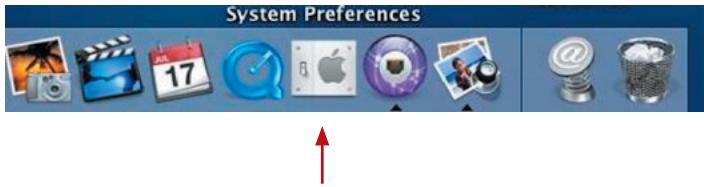
- Click "Print & Fax".
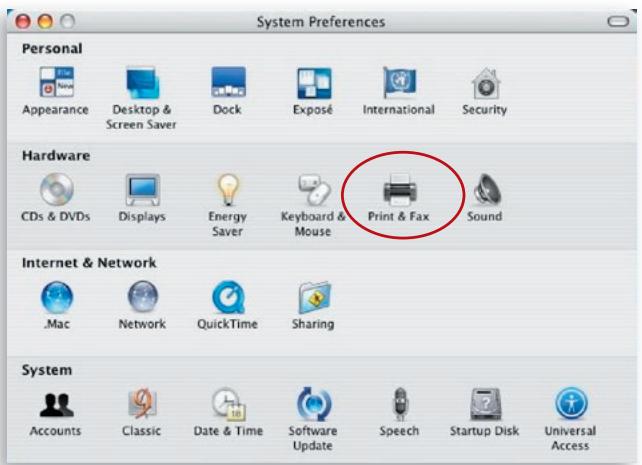
- From the "Print & Fax" screen, click "Set Up Printers...".
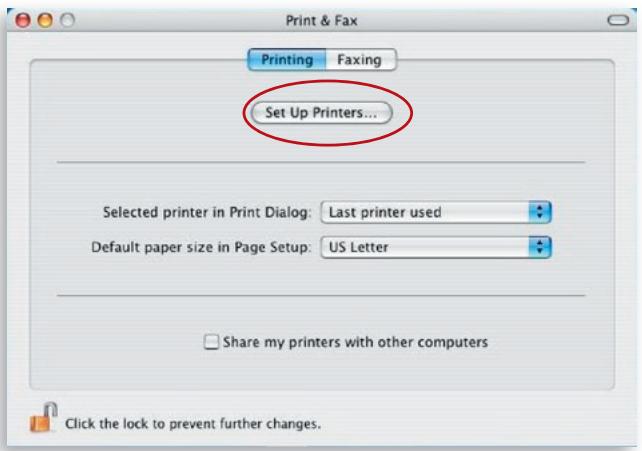
- Click "Add" to add the new Print Server through TCP/IP.
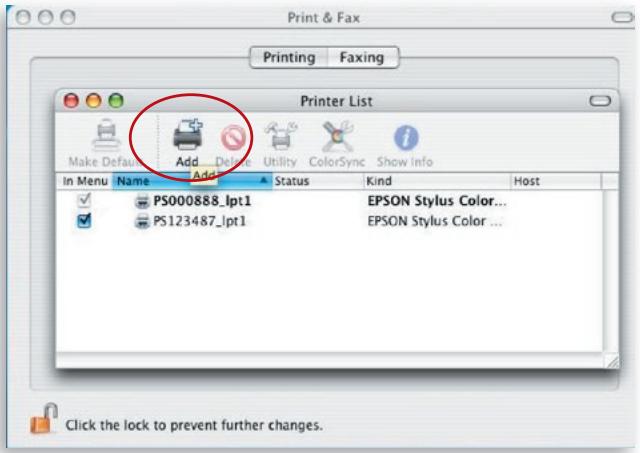
- Enter the printer type, printer address, and queue name, and select the printer model to set up the Print Server. Click "Add" to continue.
Printer Type: LPD/LPR
Printer Address: Input the Print Server's IP address
Queue Name: The Print Server's queue name is "Ipt1"
Printer Model: Select the printer model
that is attached to the Print Server
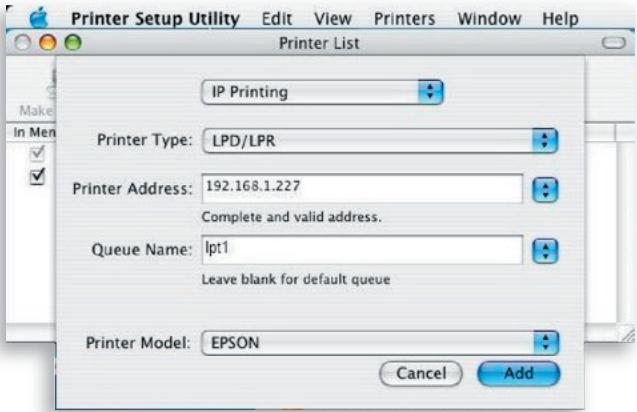
- The Print Server is installed completely. You can see it in the Printer List.
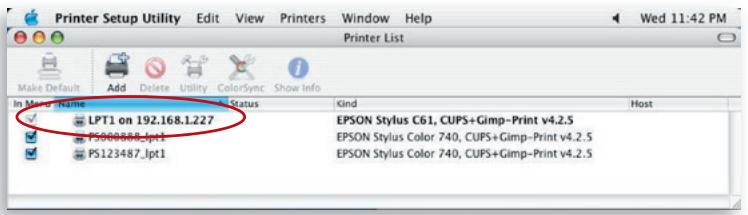
- You can print a file to check whether the Print Server is installed successfully.
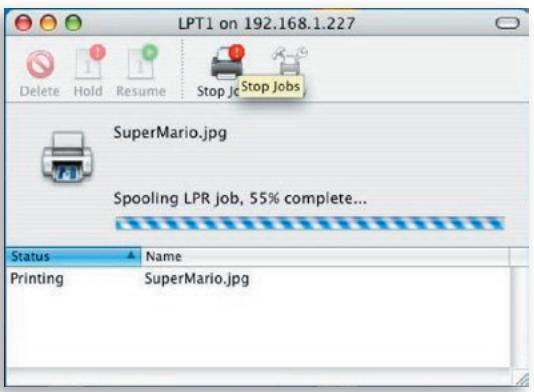
1. This product is not found even after searching by the Belkin All-In-One Print Manager.
- Check if the power adapter and the network cable are connected to the Print Server properly.
- Check if the LAN or WLAN LED is turned on.
-
Check if the IP address of the Print Server is in the network segment as your computer.
-
If you are not sure of the Print Server's IP-address setting, check the TCP/IP setting of the Print Server from the Server Manager.
2. Following are instructions on how to change the Print Server's IP address:
- A DHCP server is installed in the network.
If a DHCP server is installed, you can choose to allow the Print Server to get an IP address from the DHCP server automatically.
- Open "Server Manager" and then select "TCP/IP" setting.
- Select "Auto IP" and click "Save".
- Reboot the All-In-One Print Server.
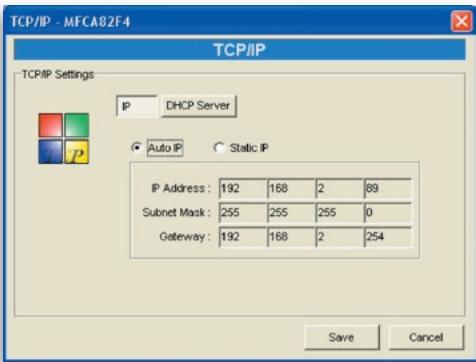
-
Set up the IP address manually.
-
Open "Server Manager" and then select "TCP/IP" setting.
- Select "Static IP" and enter the IP address and subnet mask by referring to your computer's TCP/IP settings. Click "Save".
- Reboot the Print Server.
Note: Setting up a static IP address to the Print Server might be beneficial in cases where the DHCP server's availability is intermittent.
-
A user always connects the Print Server.
-
Contact the current user and ask him or her to disconnect the device.
-
If the user forgets to disconnect the device, you can inform the administrator to release the device.
-
I can't use the multifunction printer (MFP) to scan, print, read the card reader, or fax a file, even though I have followed installation procedures as written in this User Manual.
-
Check if the MFP you are using is in the Compatibility List in on Belkin's Technical-Support website.
-
Attach the MFP to the computer directly to see if all the functions work properly.
-
My computer has a firewall installed and the Print Server can't work normally.
-
Some firewalls (for example, the "Network Access Manager" firewall program attached with nVidia network cards) may block the communication between the Print Server and your
computer; you have to add the Print-Server programs to your firewall's exception list. The programs are as follows:
- Add "servoap.exe" program to the exception list.
- Add "mfpagent.exe" program to the exception list.
6. When I use LPR, IPP, or RAW printing, I am not able to print to the printer.
- Check to see if the printer is "Idle" but not being connected. Printing from all computers connected to the Print Server will be performed when the Print Server is not being connected. The printing jobs are queuing in the Windows spooler when a computer is connected to the Print Server.
-
Disable Bi-Directional Support. Follow the steps below:
-
Right-click the printer from the "Printers and Faxes" folder in the Windows Control Panel.
- Select "Properties" and select "Ports".
-
Uncheck "Enable bidirectional support".
-
Check to see if the printer you are using is in the Compatibility List on Belkin's Technical-Support website or contact your dealer.
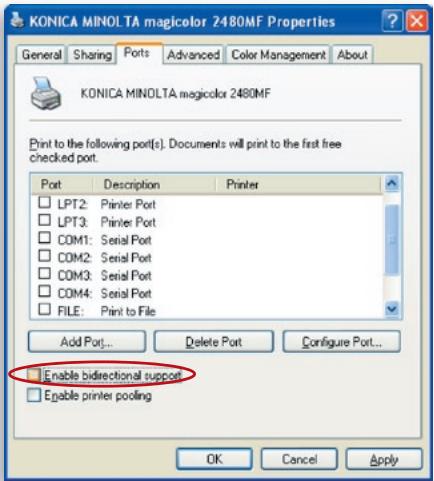
Before you Call
If possible, turn on your system before you call Belkin for technical assistance, and call from a telephone at or near the computer. You may be asked to describe detailed information during operation.
Free Tech Support
You can find additional support information on our website www.belkin.com through the tech-support area.
If you want to contact technical support by phone, please call the number you need from the list below*.
*Local rates apply
| Country | Number | Internet adress |
| AUSTRIA | 0820 200766 | http://www BELKIN.com/uk/networking/ |
| BELGIUM | 07 07 00 073 | http://www.belkin.com/nl/networking/ |
| CZECH REPUBLIC | 239 000 406 | http://www.belkin.com/uk/networking/ |
| DENMARK | 701 22 403 | http://www.belkin.com/uk/networking/ |
| FINLAND | 00800 - 22 35 54 60 | http://www.belkin.com/uk/networking/ |
| FRANCE | 08 - 25 54 00 26 | http://www.belkin.com/fr/networking/ |
| GERMANY | 0180 - 500 57 09 | http://www.belkin.com/de/networking/ |
| GREECE | 00800 - 44 14 23 90 | http://www.belkin.com/uk/networking/ |
| HUNGARY | 06 - 17 77 49 06 | http://www.belkin.com/uk/networking/ |
| ICELAND | 800 8534 | http://www.belkin.com/uk/networking/ |
| IRELAND | 0818 55 50 06 | http://www.belkin.com/uk/networking/ |
| ITALY | 02 - 69 43 02 51 | http://www.belkin.com/it/support/tech/issues_more.asp |
| LUXEMBOURG | 34 20 80 85 60 | http://www.belkin.com/uk/networking/ |
| NETHERLANDS | 0900 - 040 07 90 €0.10 per minute | http://www.belkin.com/nl/networking/ |
| NORWAY | 81 50 0287 | http://www.belkin.com/uk/networking/ |
| POLAND | 00800 - 441 17 37 | http://www.belkin.com/uk/networking/ |
| PORTUGAL | 707 200 676 | http://www.belkin.com/uk/networking/ |
| RUSSIA | 495 580 9541 | http://www.belkin.com/networking/ |
| SOUTH AFRICA | 0800 - 99 15 21 | http://www.belkin.com/uk/networking/ |
| SPAIN | 902 - 02 43 66 | http://www.belkin.com/es/support/tech/networkingsupport.asp |
| SWEDEN | 07 - 71 40 04 53 | http://www.belkin.com/se/support/tech/networkingsupport.asp |
| SWITZERLAND | 08 - 48 00 02 19 | http://www.belkin.com/uk/networking/ |
| UNITED KINGDOM | 0845 - 607 77 87 | http://www.belkin.com/uk/networking/ |
| OTHER COUNTRIES | +44 - 1933 35 20 00 | |
Federal Communication Commission Interference Statement
This equipment has been tested and found to comply with the limits for a Class B digital device, pursuant to Part 15 of FCC Rules. These limits are designed to provide reasonable protection against harmful interference in a residential installation. This equipment generates, uses, and can radiate radio frequency energy and, if not installed and used in accordance with the instructions, may cause harmful interference to radio communications. However, there is no guarantee that interference will not occur in a particular installation. If this equipment does cause harmful interference to radio or television reception, which can be determined by turning the equipment off and on, the user is encouraged to try to correct the interference by one or more of the following measures:
- Reorient or relocate the receiving antenna.
- Increase the separation between the equipment and receiver.
- Connect the equipment into an outlet on a circuit different from that to which the receiver is connected.
- Consult the dealer or an experienced radio technician for help.
FCC Caution
This equipment must be installed and operated in accordance with provided instructions and a minimum 20cm (8 inches) spacing must be provided between computer-mounted antenna and person's body (excluding extremities of hands, wrist, and feet) during wireless modes of operation.
This device complies with Part 15 of the FCC Rules. Operation is subject to the following two conditions: (1) this device may not cause harmful interference, and (2) this device must accept any interference received, including interference that may cause undesired operation.
Any changes or modifications not expressly approved by the party responsible for compliance could void the authority to operate equipment.
Federal Communication Commission (FCC) Radiation Exposure Statement
This equipment complies with FCC radiation exposure set forth for an uncontrolled environment. In order to avoid the possibility of exceeding the FCC radio frequency exposure limits, human proximity to the antenna shall not be less than 20cm (8 inches) during normal operation.
The antenna(s) used for this transmitter must not be co-located or operating in conjunction with any other antenna or transmitter.
R&TTE Compliance Statement
This equipment complies with all the requirements of DIRECTIVE 1999/5/EC OF THE EUROPEAN PARLIAMENT AND THE COUNCIL of March 9, 1999, on radio equipment and telecommunication terminal equipment and the mutual recognition of their conformity (R&TTE).
The R&TTE Directive repeals and replaces in the directive 98/13/EEC (Telecommunications Terminal Equipment and Satellite Earth Station Equipment) as of April 8, 2000.
Safety
This equipment is designed with the utmost care for the safety of those who install and use it. However, special attention must be paid to the dangers of electric shock and static electricity when working with electrical equipment. All guidelines of this and of the computer manufacturer must therefore be allowed at all times to ensure the safe use of the equipment.
Please read the following safety information carefully before installing the Switch:
Warning: Do not plug a phone-jack connector into the RJ45 port. This may damage this device.
Warning: This product does not contain any user-serviceable parts.
Warning: When connecting this device to a power outlet, connect the field ground lead on the tri-pole power plug to a valid earth ground AC-outlet line to prevent electrical hazards and to comply with international safety standards.
The socket outlet must be near to the unit and easily accessible.
Caution: Use only twisted-pair cables with RJ45 connectors that conform to FCC standards.
Wear an antistatic wrist strap or take other suitable measures to prevent electrostatic discharge when handling this equipment.
EU Countries Intended for Use
The ETSI version of this device is intended for home and office use in Austria, Belgium, Denmark, Finland, France, Germany, Greece, Ireland, Italy, Luxembourg, the Netherlands, Portugal, Spain, Sweden, and the United Kingdom.
The ETSI version of this device is also authorized for use in EFTA member states: Iceland, Liechtenstein, Norway, and Switzerland.
EU Countries Not Intended for Use
None.
Safety Compliance
Belkin Corporation Limited Lifetime Product Warranty
What this warranty covers.
Belkin Corporation warrants to the original purchaser of this Belkin product that the product shall be free of defects in design, assembly, material, or workmanship.
What the period of coverage is.
Belkin Corporation warrants the Belkin product for the lifetime of the product.
What will we do to correct problems?
Product Warranty.
Belkin will repair or replace, at its option, any defective product free of charge (except for shipping charges for the product).
What is not covered by this warranty?
All above warranties are null and void if the Belkin product is not provided to Belkin Corporation for inspection upon Belkin's request at the sole expense of the purchaser, or if Belkin Corporation determines that the Belkin product has been improperly installed, altered in any way, or tampered with. The Belkin Product Warranty does not protect against acts of God (other than lightning) such as flood, earthquake, war, vandalism, theft, normal-use wear and tear, erosion, depletion, obsolescence, abuse, damage due to low voltage disturbances (i.e. brownouts or sags), non-authorized program, or system equipment modification or alteration.
How to get service.
To get service for your Belkin product you must take the following steps:
- Contact Belkin Corporation at 501 W. Walnut St., Compton CA 90220, Attn: Customer Service, or call (800)-223-5546, within 15 days of the Occurrence. Be prepared to provide the following information:
a. The part number of the Belkin product.
b. Where you purchased the product.
c. When you purchased the product.
d. Copy of original receipt.
- Your Belkin Customer Service Representative will then instruct you on how to forward your receipt and Belkin product and how to proceed with your claim.
Belkin Corporation reserves the right to review the damaged Belkin product. All costs of shipping the Belkin product to Belkin Corporation for inspection shall be borne solely by the purchaser. If Belkin determines, in its sole discretion, that it is impractical to ship the damaged equipment to Belkin Corporation, Belkin may designate, in its sole discretion, an equipment repair facility to inspect and estimate the cost to repair such equipment. The cost, if any, of shipping the equipment to and from such repair facility and of such estimate shall be borne solely by the purchaser. Damaged equipment must remain available for inspection until the claim is finalized. Whenever claims are settled, Belkin Corporation reserves the right to be subrogated under any existing insurance policies the purchaser may have.
How state law relates to the warranty.
THIS WARRANTY CONTAINS THE SOLE WARRANTY OF BELKIN CORPORATION, THERE ARE NO OTHER WARRANTYES, EXPRESSED OR, EXCEPT AS REQUIRED BY LAW, IMPLIED, INCLUDING THE IMPLIED WARRANTY OR CONDITION OF QUALITY, MERCHANTABILITY OR FITNESS FOR A PARTICULAR PURPOSE, AND SUCH IMPLIED WARRANTYES, IF ANY, ARE LIMITED IN DURATION TO THE TERM OF THIS WARRANTY.
Some states do not allow limitations on how long an implied warranty lasts, so the above limitations may not apply to you.
IN NO EVENT SHALL BELKIN CORPORATION BE LIABLE FOR INCIDENTAL, SPECIAL, DIRECT, INDIRECT, CONSEQUENTIAL OR MULTIPLE DAMAGES SUCH AS, BUT NOT LIMITED TO, LOST BUSINESS OR PROFITS ARISING OUT OF THE SALE OR USE OF ANY BELKIN PRODUCT, EVEN IF ADVISED OF THE POSSIBILITY OF SUCH DAMAGES.
This warranty gives you specific legal rights, and you may also have other rights, which may vary from state to state. Some states do not allow the exclusion or limitation of incidental, consequential, or other damages, so the above limitations may not apply to you.
Canada-Industry Canada (IC)
The wireless radio of this device complies with RSS 139 & RSS 210 Industry Canada. This Class B digital apparatus complies with Canadian ICES-003.
Europe-European Union Notice Radio products with the CE 0560 or CE alert marking comply with the R&TTE Directive (1995/5/EC) issued by the Commission of the European Community.
Compliance with this directive implies conformity to the following European Norms (in brackets are the equivalent international standards).
- EN 60950 (IEC60950) - Product Safety
- EN 300 328 Technical requirement for radio equipment
- ETS 300 826 General EMC requirements for radio equipment.

To determine the type of transmitter, check the identification label on your Belkin product.
Products with the CE marking comply with the EMC Directive (89/336/EEC) and the Low Voltage Directive (72/23/EEC) issued by the Commission of the European Community. Compliance with these directives implies conformity to the following European Norms (in brackets are the equivalent international standards).
- EN 55022 (CISPR 22) - Electromagnetic Interference
- EN 55024 (IEC61000-4-2,3,4,5,6,8,11) - Electromagnetic Immunity
- EN 61000-3-2 (IEC610000-3-2) - Power Line Harmonics
- EN 61000-3-3 (IEC610000) - Power Line Flicker
- EN 60950 (IEC60950) - Product Safety
Products that contain the radio transmitter are labeled with CE 0560 or CE alert marking and may also carry the CE logo.
This symbol on the product or on its packaging indicates that this product must not be disposed of with your other household waste. Instead, it is your responsibility to dispose of your waste equipment by handing it over to a designated collection point for the recycling of waste electrical and electronic equipment. The separate
collection and recycling of your waste equipment at the time of disposal will help to conserve natural resources and ensure that it is recycled in a manner that protects human health and the environment. For more information about where you can drop off your waste equipment for recycling, please contact your local city office, your household waste disposal service or the shop where you purchased the product.
For information on product disposal please refer to
http://environmental.belkin.com
The declaration of conformity may be consulted at www.belkin.com/doc
BELKIN
www.belkin.com
Belkin Lifetime Product Warranty
For the life of the product, Belkin warrants that this product shall be free of defects in design, assembly, material, and workmanship (free replacement).
Belkin Ltd.
Express Business Park
Shipton Way, Rushden
NN10 6GL, United Kingdom
+44 (0) 1933 35 2000
+44 (0) 1933 31 2000 fax
Belkin B.V.
Boeing Avenue 333
1119 PH Schiphol-Rijk
Netherlands
+31 (0) 20 654 7300
+31 (0) 20 654 7349 fax
Belkin Sweden
Knarrarnäsgatan 7
164 40 Kista
Sweden
+46(0)852291870
+46 (0) 8 5229 1874 fax
Belkin SAS
130 rue de Silly
92100 Boulogne-Billancourt
France
+33 (0) 1 41 03 14 40
+33 (0) 141 31 01 72 fax
Belkin Iberia
Avda. Cerro del Aguila 3
Belkin Italy & Greece
Via Carducci, 7
Milano 20123
Italy
+3902862719
+3902862719 fax
Belkin LTD
Al Thuraya Tower 1, Office suite 201
Dubai Internet City,
Dubai, UAE
+971 (0) 43692705
+971 (0) 43688402 fax
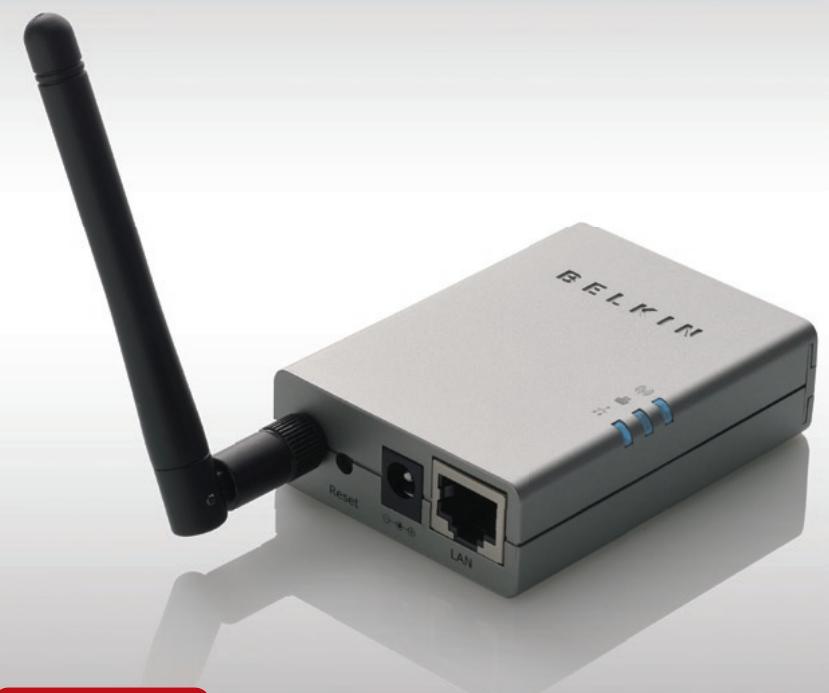
1 Introduction 4
16 Certifications 133
17 Garantie. 136
Mode: Infrastructure
SSID: Par défaut
Canal : 11
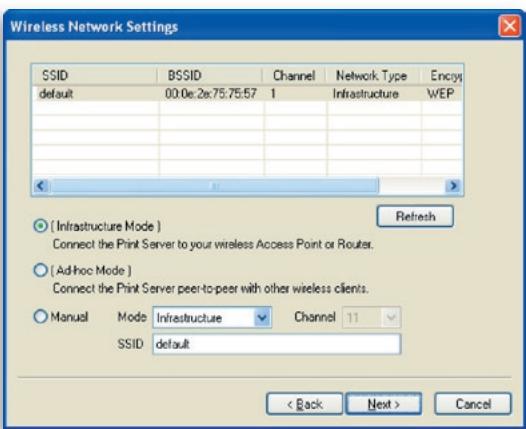
Mode: Infrastructure
SSID:Par défaut
Canal : 11
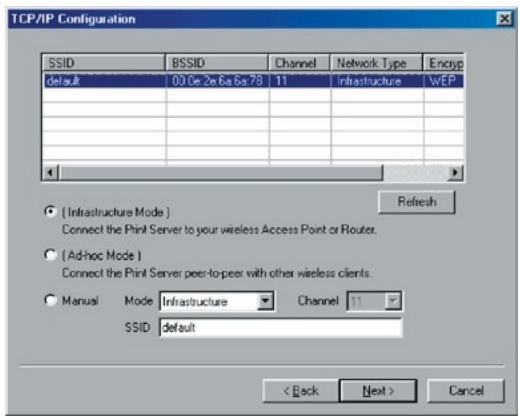
You can type a name for this printer, or you can use the name supplied below. When you have finished, click Next.
Printer name:
HP LaserJet
Your Windows-based programs will use this printer as the default printer.
<Back
Next>
Cancel
After your printer is installed, Windows can print a test page so you can confirm that the printer is set up properly.
Would you like to print a test page?

Yes [recommended]

No
<Back
Finish
Cancel
:ha=0000B4010101:\n\n
:ip=203.66.191.12:
Express Business Park
Shipton Way, Rushden
Dubai Internet City,
Dubai, EAU
+971 (0) 43692705
+971 (0) 43688402 Fax
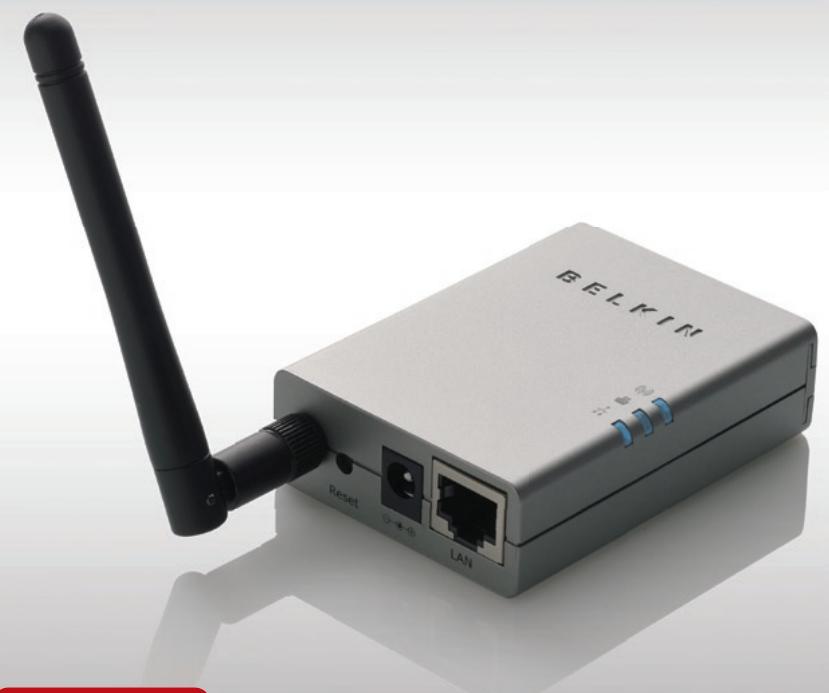
1 Einleitung 4
Produktmerkmale 4
AIO-PS-Modus (Kabelloser Multi-Printserver) 5
PS-Modus (Printserver) 6
Verpackungsinhalt 6
Printservermanagement
:ip = MFP Servers_ip_address:
Node-ID: 0000B4010101 (d. h, die
Ethernetadresse lautet 0000B4010101),
mkdir /var/spool/lpd/pserverd
chown daemon /var/spool/lpd/pserverd
chgrp daemon /var/spool/lpd/pserverd
chmod 775 /var/spool/lpd/pserverd
```java printer-name: \ :lp=: :rm=203.66.191.186: :rp=Ipt1: :lf=/var/spool/lpd/pserverd.log: :sd=/var/spool/lpd/pserverd: :mx#0:
Canada-Industry Canada (IC)
Express Business Park
Shipton Way, Rushden
Dubai Internet City,
Dubai, VAE
+971 (0) 43692705
+971 (0) 4.368 8402 Fax

1 Inleiding. 4
Productkenmerken 4
AIO-PS (All-In-One Print-Server)-modus 5
PS (Print-Server)-modus 6
WPA-Shared Key- of WPA-None Security-modus:
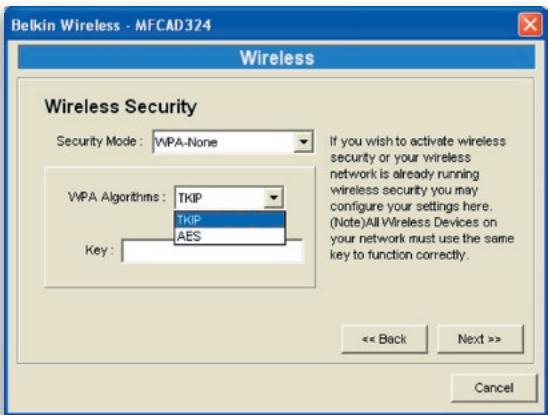
You can type a name for this printer, or you can use the name supplied below. When you have finished, click Next.
Printer name:
HP LaserJet
Your Windows-based programs will use this printer as the default printer.
<Back
Next>
Cancel
After your printer is installed, Windows can print a test page so you can confirm that the printer is set up properly.
Would you like to print a test page?

Yes [recommended]

No
<Back
Finish
Cancel
:ip MFP Servers_ip_address:
mkdir /var/spool/lpd/pserverd
chown daemon /var/spool/lpd/pserverd
chgrp daemon /var/spool/lpd/pserverd
chmod 775 /var/spool/lpd/pserverd
:lf=/var/spool/lpd/pserverd.log:\
:sd=/var/spool/lpd/pserverd:\
:mx#0:
Canada - Industry Canada (IC)
De draadloze radio van dit apparaat voldoet aan RSS 139 & RSS 210 Industry Canada. This Class B digital apparatus complies with Canadian ICES-003.
Express Business Park
Shipton Way, Rushden
NN10 6GL, Verenigd
Koninkrijk
+44 (0) 1933 35 2000
+44 (0) 1933 31 2000 fax
Belkin B.V.
Boeing Avenue 333
1119 PH Schiphol-Rijk
Nederland
+31 (0) 20 654 7300
+31 (0) 206547349 fax
Belkin Zeden
Knarrarnasgatan 7
164 40 Kista
Zweden
+46(0)852291870
+46 (0) 85229 1874 fax
Belkin SAS
130 rue-de-Silly
92100 Boulogne-Billancourt
Frankrijk
+33 (0) 1 41 03 14 40
+33 (0) 141 31 01 72 fax
Belkin Iberia
Avda. Cerro del Aguila 3
Dubai Internet City,
Dubai, UAE
+971 (0) 43692705
+971 (0) 4.368 8402 fax
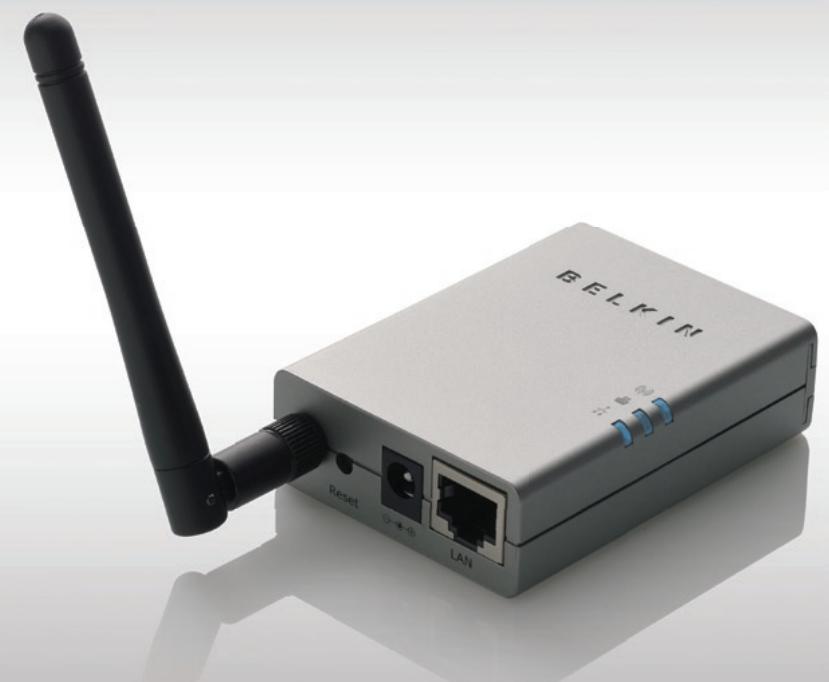
1 Introduccion 4
Modo infrastructure:
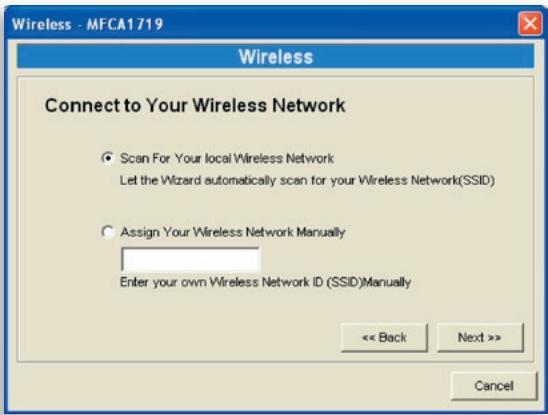
This wizard will help you to install your printer quickly and easily.
To begin installing your printer, click Next.
<Back
Next>
Cancel
How is this printer attached to your computer?
If it is directly attached to your computer, click Local Printer. If it is attached to another computer, click Network Printer
Local printer
C Network printer
<Back
Next>
Cancel
:ip = MFP_Perver_ip_address:
mkdir /var/spool/lpd/pserverd
chown daemon /var/spool/lpd/pserverd
chgrp daemon /var/spool/lpd/pserverd
chmod 775 /var/spool/lpd/pserverd
printer-name:\
:lp=:\
:rm=203.66.191.186:\
:rp=Ipt1:\
:lf=/var/spool/lpd/pserverd.log:\
:sd=/var/spool/lpd/pserverd:\
:mx#0:
Express Business Park
Shipton Way, Rushden
Belkin Italy & Greece
Via Carducci, 7
Milán 20123
Italia
+3902862719
+3902862719 fax
Belkin Ltd.
Al Thuraya Tower 1, Office suite 201
Dubai Internet City,
6 All-In-One Print Manager 35
This wizard will help you to install your printer quickly and easily.
To begin installing your printer, click Next.
<Back
Next>
Cancel
How is this printer attached to your computer?
If it is directly attached to your computer, click Local Printer. If it is attached to another computer, click Network Printer
Local printer
Network printer
<Back
Next>
Cancel
You can type a name for this printer, or you can use the name supplied below. When you have finished, click Next.
Printer name:
HP LaserJet
Your Windows-based programs will use this printer as the default printer.
<Back
Next>
Cancel
After your printer is installed, Windows can print a test page so you can confirm that the printer is set up properly.
Would you like to print a test page?

Yes [recommended]

No
<Back
Finish
Cancel
mkdir /var/spool/lpd/pserverd
chown daemon /var/spool/lpd/pserverd
chgrp daemon /var/spool/lpd/pserverd
chmod 775 /var/spool/lpd/pserverd
printer-name:\
:lp=:\
:rm=203.66.191.186:\
:rp=Ipt1:\
:lf=/var/spool/lpd/pserverd.log:\
:sd=/var/spool/lpd/pserverd:\
:mx#0:
Canada-Industry Canada (IC)
Express Business Park
Shipton Way, Rushden
Belkin Italy & Greece
Via Carducci, 7
Milano 20123
Italia
+3902862719
+3902862719 fax
Belkin LTD
Al Thuraya Tower 1, Office suite 201
Dubai Internet City,
Dubai, EAU
+971 (0) 43692705
+971 (0) 4.368 8402 fax